

This guide shows you how to turn on or off enhance pointer precision for your account in Windows 10 and Windows 11.
The mouse pointer, sometimes called the cursor, is what you see on your screen when you move your mouse. It shows you where your mouse is pointing.
Enhance pointer precision is a feature that controls how fast your mouse pointer moves when you move your mouse. Enhance pointer precision makes your pointer more accurate when you move your mouse slowly. However, it can make the pointer less precise when you move your mouse quickly. Results may vary depending on your personal preferences.
The MouseSpeed, MouseThreshold1, and MouseThreshold2 settings in the HKCU\Control Panel\Mouse key in Registry Editor control how much your cursor speeds up when you move your mouse quickly.
Option One:
Turn On or Off Enhance Pointer Precision in Settings
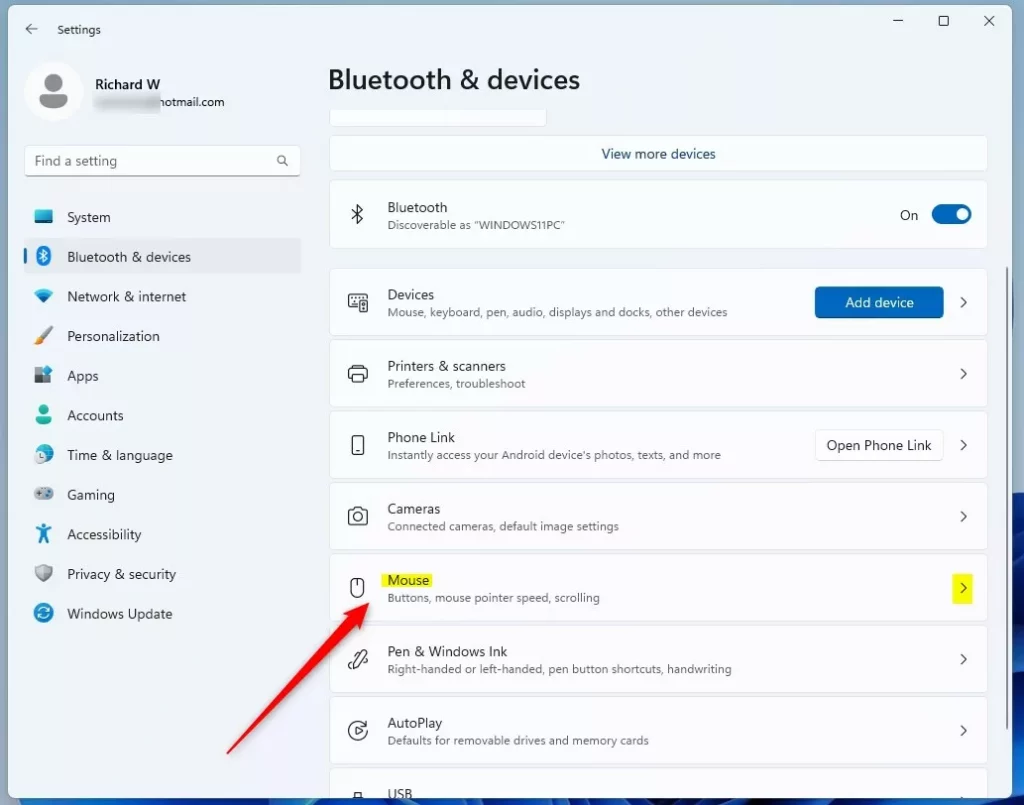
Why: This is the easiest method if you have Windows 11 build 22631.4541 (23H2) or build 22631.4534 (24H2).
- Open Settings by pressing
Win+I. - Click on Bluetooth & devices on the left side. Then click on Mouse on the right side.
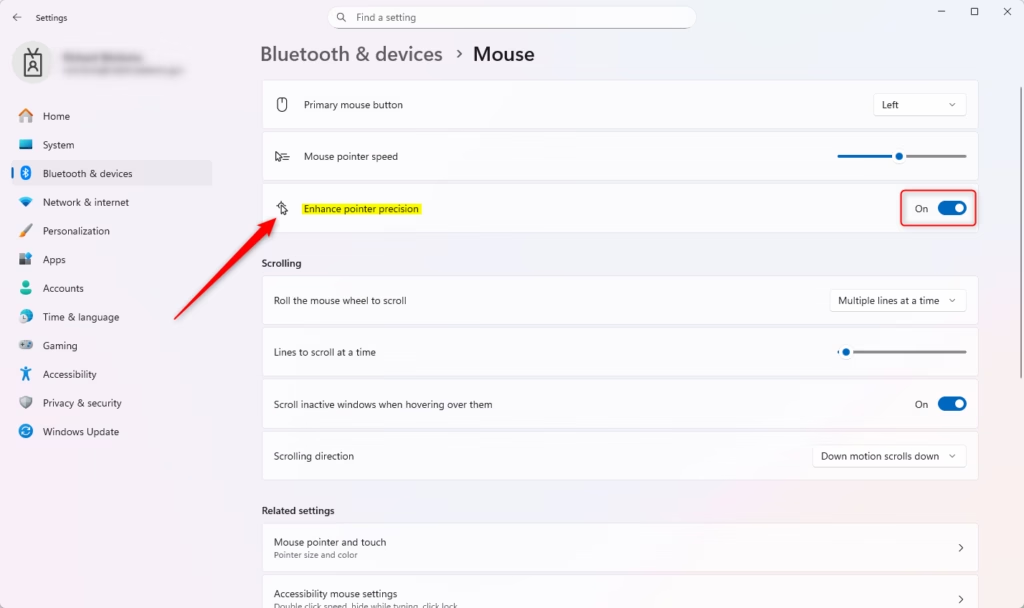
- Under Motion, turn Enhance pointer precision On (default) or Off depending on what you want.
- Close Settings when you’re done.
Option Two:
Turn On or Off Enhance Pointer Precision in Control Panel
Why: This method works on older versions of Windows 11 and Windows 10.
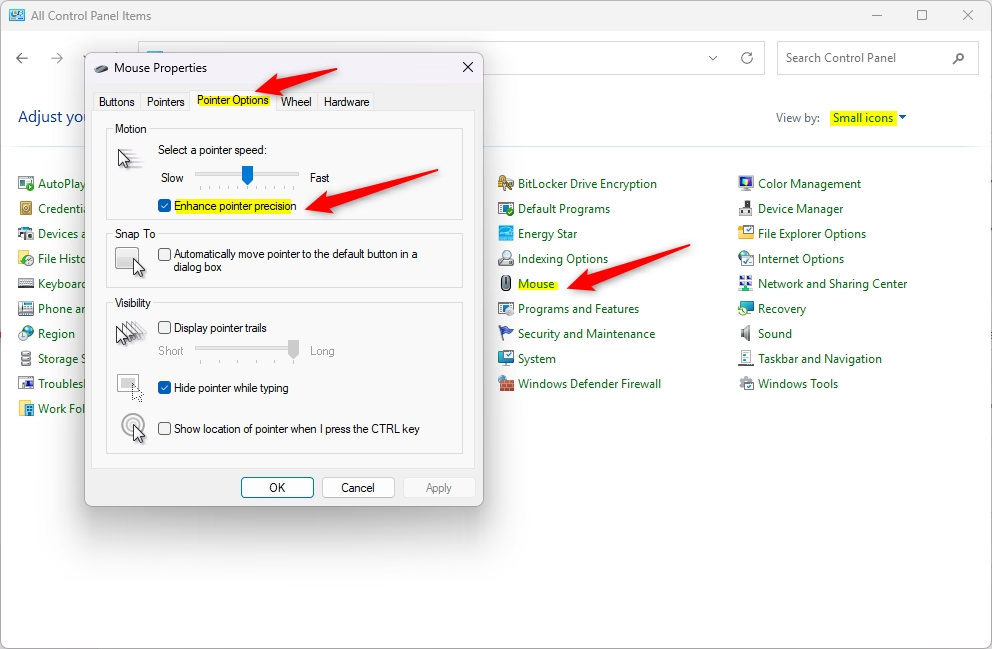
- Open Control Panel in icons view. Click on the Mouse icon.
- Click on the Pointer Options tab.
- Under Motion, check the box (turns it on – default) or uncheck the box (turns it off) next to Enhance pointer precision.
- Click OK.
- Close Control Panel when you’re done.
Option Three:
Turn On or Off Enhance Pointer Precision using Registry
Why: This method gives you direct control over the exact settings. What happens: Changes take effect immediately.
⚠️ Admin privileges required
Turn On Enhance Pointer Precision
This is the default setting.
reg add "HKEY_CURRENT_USER\Control Panel\Mouse" /v MouseSpeed /t REG_SZ /d 1 /f
reg add "HKEY_CURRENT_USER\Control Panel\Mouse" /v MouseThreshold1 /t REG_SZ /d 6 /f
reg add "HKEY_CURRENT_USER\Control Panel\Mouse" /v MouseThreshold2 /t REG_SZ /d 10 /f
Turn Off Enhance Pointer Precision
reg add "HKEY_CURRENT_USER\Control Panel\Mouse" /v MouseSpeed /t REG_SZ /d 0 /f
reg add "HKEY_CURRENT_USER\Control Panel\Mouse" /v MouseThreshold1 /t REG_SZ /d 0 /f
reg add "HKEY_CURRENT_USER\Control Panel\Mouse" /v MouseThreshold2 /t REG_SZ /d 0 /f
Summary
Enhance pointer precision is a Windows feature that helps your mouse pointer move more accurately. You can turn this feature on or off depending on what feels most comfortable for you. There are three ways to do this: through Settings (easiest for newer Windows 11 versions), through Control Panel (works on all versions), or through the Registry (most advanced method). Choose the option that works best for your version of Windows.


Leave a Reply Cancel reply