How to Enable/Disable Bounce Keys in Ubuntu

You enable or disable Bounce Keys in Ubuntu Linux from the Accessibility settings, a feature that helps prevent accidental repeated keystrokes.
Bounce Keys ignores short, repeated key presses, making it ideal for users who experience hand tremors and want to avoid typing the same character multiple times unintentionally.
You access this setting within Ubuntu’s main Accessibility panel, often found under “Universal Access” in older versions. Once you enable it, you can fine-tune the “Acceptance delay,” a setting that controls the minimum time Ubuntu waits before registering a second keystroke.
Bounce Keys is enabled or disabled in Ubuntu’s Accessibility settings under Typing Assist. Open Settings, click Accessibility, then toggle the Bounce Keys button to On or Off within the Typing Assist panel.
How to enable or disable bounce keys in Ubuntu Linux
As mentioned, the Bounce Keys feature instructs Ubuntu Linux to ignore unintended keystrokes, which helps folks having difficulties typing.
Now, let’s walk through how to turn it on or off in Ubuntu Linux.
Ubuntu keeps most settings in one place. You can find them in the System Settings panel, which handles everything from system configurations to user management and updates.
Alternatively, you can click the System menu in the top-right corner of your desktop’s top bar.
From there, select Settings.

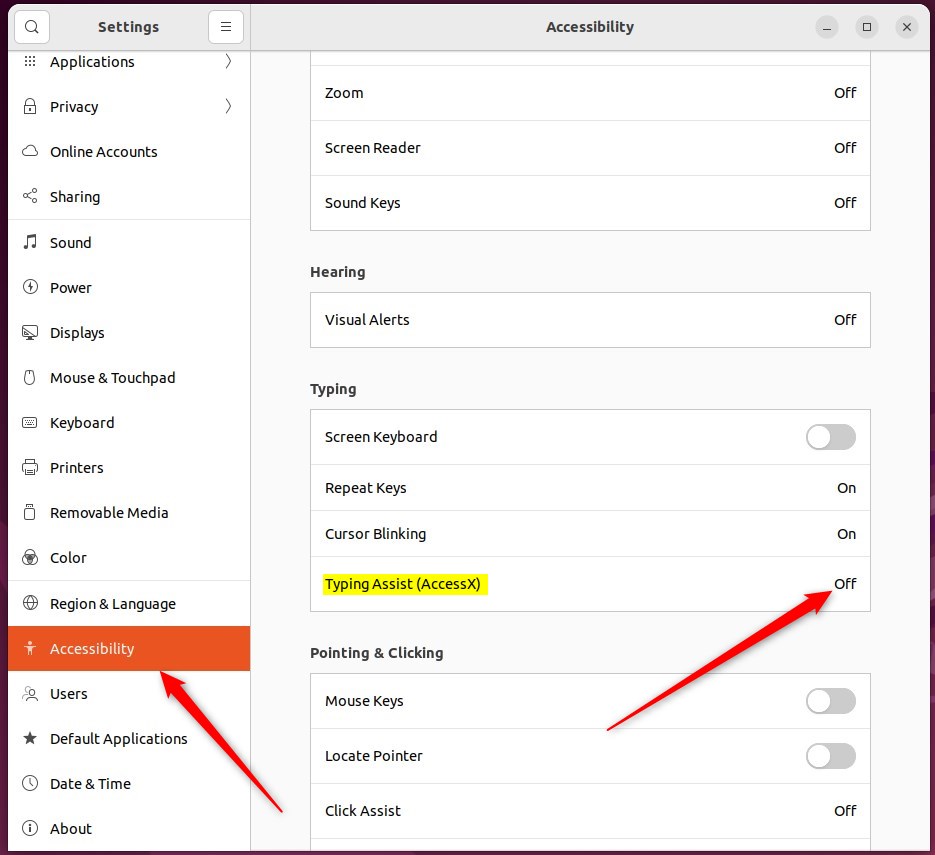
In the Settings app, click the Accessibility tile to open that panel.

In the System Settings -> Accessibility panel, under Typing, select Typing Assist (AccessX), as highlighted below.
On the Typing Assist window, toggle the Bounce Keys button to the On position to enable it.
To disable it, toggle the button to the Off position.
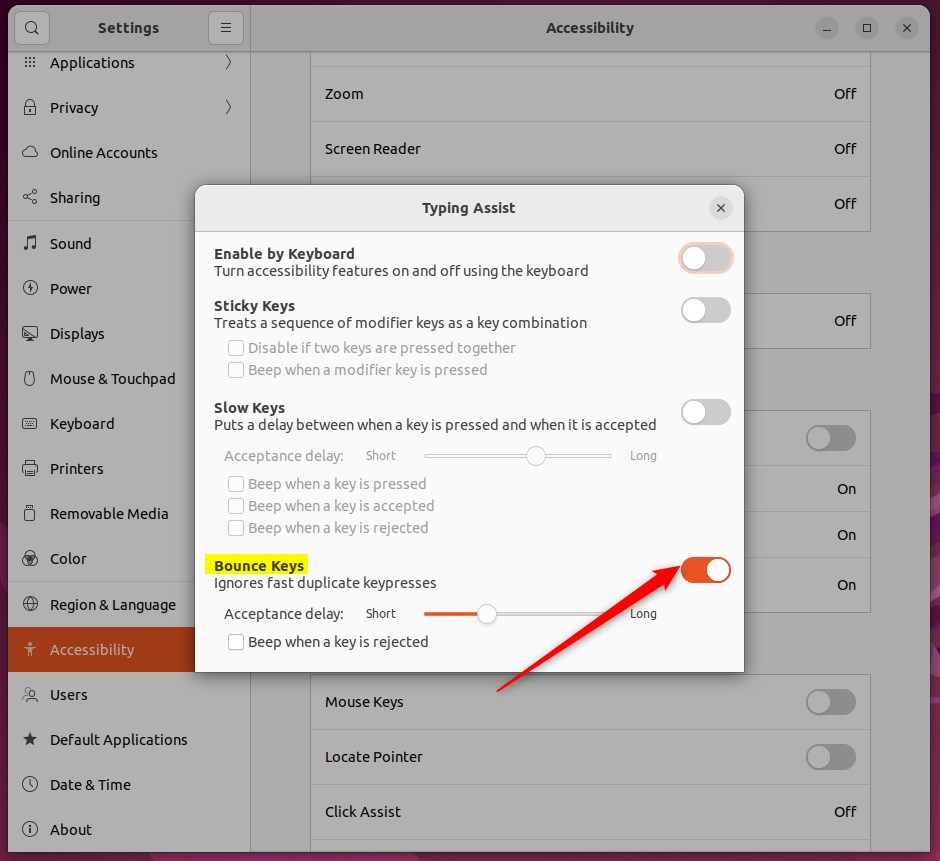
Use the Acceptance delay slider to change how long Bounce Keys waits before registering another key press after you’ve initially pressed it.
Select Beep when a key is rejected if you want your computer to make a sound each time it ignores a key press because it happened too soon after the previous one.
That should do it! You can now close the Settings app.
Conclusion:
- Enabling or disabling bounce keys in Ubuntu Linux can significantly improve the typing experience for individuals with motor impairments.
- The Acceptance delay slider provides additional customization to manage the timing between key presses.
- Utilizing the beep option can provide auditory feedback when a keystroke is ignored due to proximity to the previous input.
- Accessing the System Settings -> Accessibility panel and navigating to Typing Assist (AccessX) allows for seamless toggling of the Bounce Keys feature in Ubuntu Linux.
How do I turn on bounce keys?
Button. And now you want to go down until you get to accessibility. Select that. And then scroll all the way down or close to the bottom where it says physical keyboard. Options.
What are bounce keys in Ubuntu?
The bounce keys feature enables you to customize the keyboard to ignore rapid, repeated keypresses of the same key.
Was this guide helpful?

About the Author
Richard
Tech Writer, IT Professional
Richard, a writer for Geek Rewind, is a tech enthusiast who loves breaking down complex IT topics into simple, easy-to-understand ideas. With years of hands-on experience in system administration and enterprise IT operations, he’s developed a knack for offering practical tips and solutions. Richard aims to make technology more accessible and actionable. He's deeply committed to the Geek Rewind community, always ready to answer questions and engage in discussions.




No comments yet — be the first to share your thoughts!