
When you try to shut down, restart, or sign out of your Windows 11 computer while an app is still open, Windows will usually ask you if you want to close the app first. This protects your work. It helps you avoid losing any data.
This asking process is called AutoEndTasks. If Windows doesn’t hear back from you in time, it will stop trying to shut down. You’ll go back to your desktop instead.
In this guide, you’ll learn how to turn this feature on or off. Turning it on means Windows will automatically close apps when you shut down or restart. It won’t ask you. Turning it off means Windows will always ask you first.
What Happens When AutoEndTasks Is On or Off?
AutoEndTasks ON (set to 1): Windows will close open apps automatically when shutting down or restarting. It won’t ask you.
AutoEndTasks OFF (set to 0): Windows will wait for you to close apps. You can choose to force close them before shutting down.
How to Turn AutoEndTasks On or Off
Important: You will need to edit the Windows Registry. Be careful and follow the steps exactly. It’s a good idea to back up your registry before making changes. Here’s a simple guide on how to open the Registry Editor.
Step-by-Step Instructions
- Press Windows key + R to open the Run box. Type
regeditand press Enter to open the Registry Editor. - In Registry Editor, navigate to this folder path:
HKEY_USERS\.DEFAULT\Control Panel\Desktop - If you do not see the folder named Desktop under Control Panel, you need to create it. Right-click on Control Panel. Select New > Key. Name it
Desktop. - Now select the Desktop folder. On the right side, right-click on an empty space. Select New > String Value.
- Name the new string value
AutoEndTasks. - Double-click on
AutoEndTasks. Set the Value data:- Type
1to turn ON AutoEndTasks. Windows will close apps automatically. - Type
0to turn OFF AutoEndTasks. Windows will ask before closing apps. - Or you can delete this string value to keep Windows default behavior.
- Type
- Click OK to save.
- Close Registry Editor and restart your computer to apply changes.
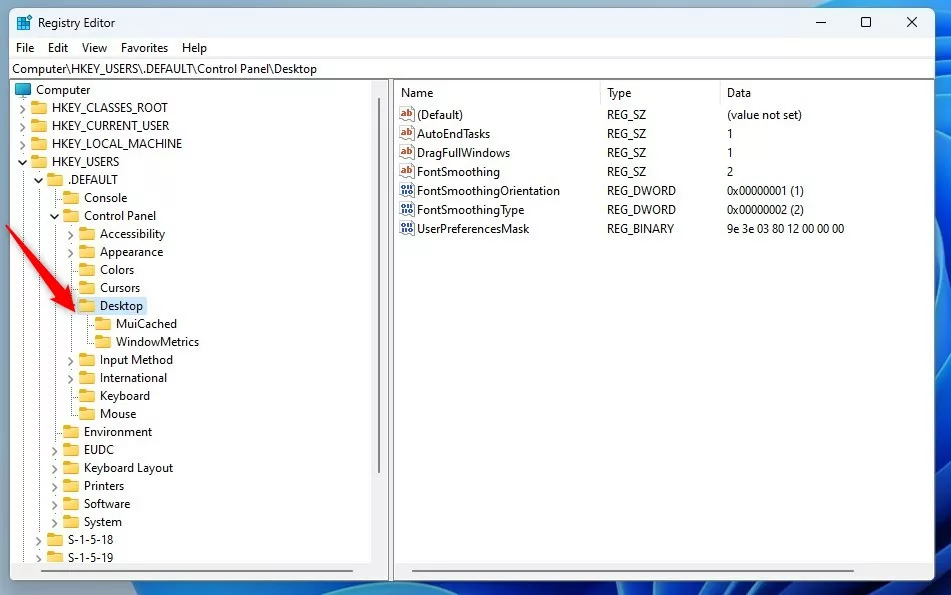
Example of creating AutoEndTasks in Registry Editor
Apply AutoEndTasks Setting for Only Your User Account
If you want to change AutoEndTasks only for your user account (not all users), follow the same steps. But go to this folder path instead:
HKEY_CURRENT_USER\Control Panel\DesktopThen create or edit the AutoEndTasks string value the same way.
What the AutoEndTasks Prompt Looks Like
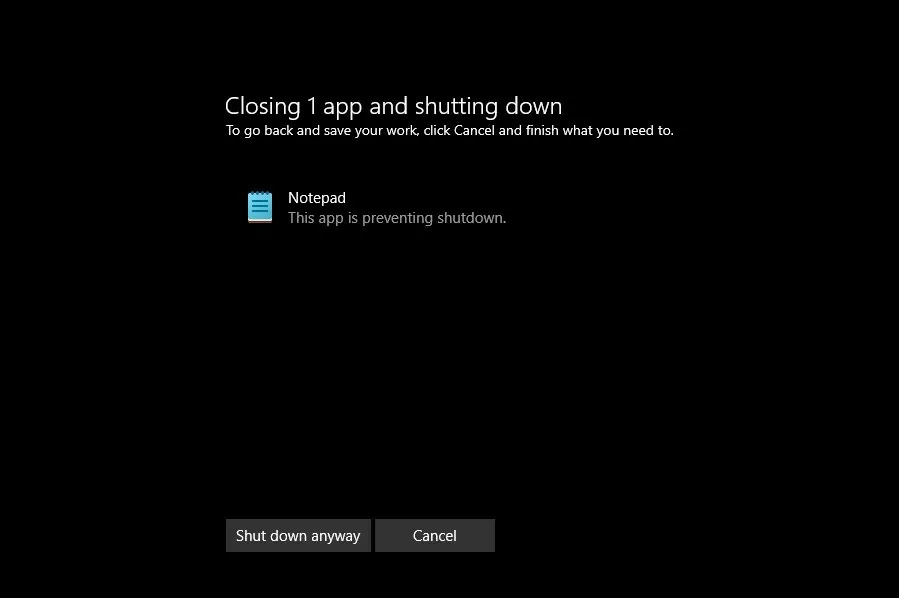
If AutoEndTasks is off, when you try to shut down with open apps, Windows will show a message like this:
Summary
- AutoEndTasks controls whether Windows closes apps automatically during shutdown or restart. Why? It helps you manage how your computer shuts down and whether apps close without warning.
- You can change this setting by editing the Windows Registry. What happens? Windows behaves differently the next time you shut down or restart.
- Turning it on makes your computer shut down faster. What happens? Apps close without saving, so you might lose unsaved work.
- Turning it off means Windows will ask you before closing apps. Why? This helps you avoid losing data from unsaved work.
- Always back up your registry before making changes. Why? If something goes wrong, you can restore your settings.
Feel free to leave a comment below if you have questions or want to share your experience!



Leave a Reply Cancel reply