
Energy Saver is a feature in Windows 11 that helps your computer use less power. Why does this matter? When your PC uses less power, your laptop’s battery lasts longer and your electric bill goes down. What happens when you turn it on? Your computer runs more efficiently, especially when you’re not actively using it.
Microsoft added a new way to use Energy Saver starting with Windows Build 26002. You can easily turn Energy Saver on or off, even when your PC is plugged in.
How to Turn On or Off “Always use energy saver”
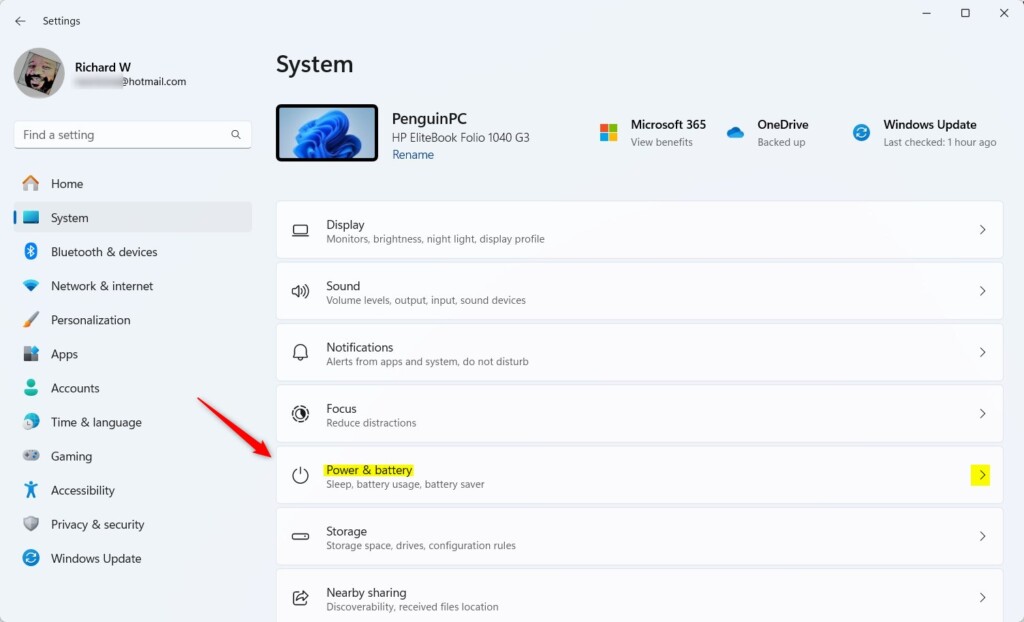
Enable or disable Energy Saver in Windows 11 by opening Settings, navigating to System > Power & battery, locating the Energy saver section, and toggling the switch on or off according to your preference. Follow these easy steps to enable or disable Energy Saver on your Windows 11 PC:
- Open the Settings app. To open Settings, click the Start menu and choose Settings, or press Windows key + I on your keyboard.
- In Settings, click on System on the left side.

- On the right, click on Power & battery (or just Power).
- Find the Energy saver section and click to expand it.
- Turn on the switch for “Always use energy saver” to save power all the time.
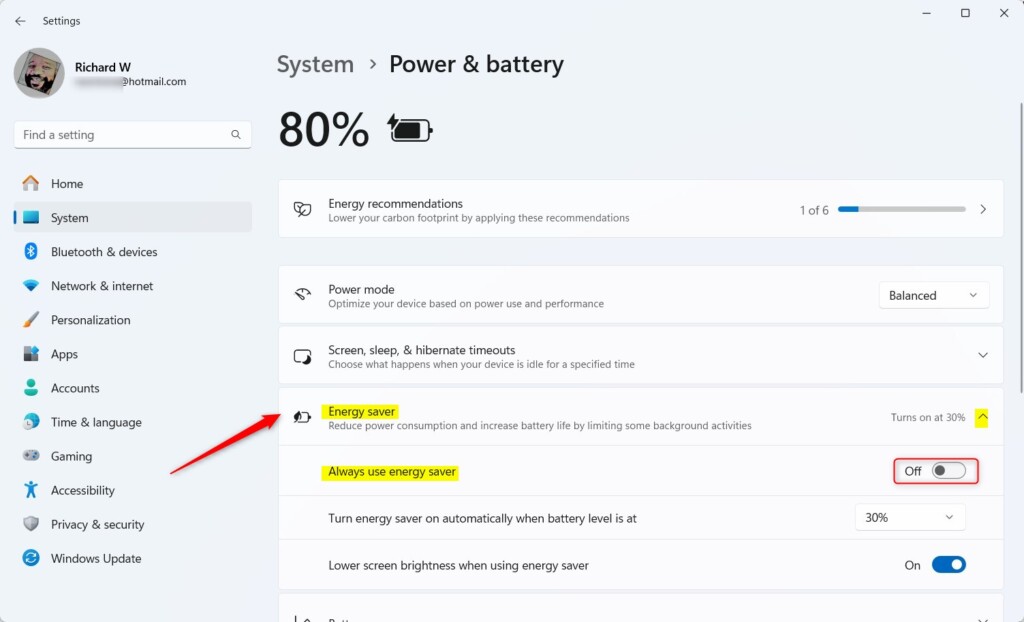
- To stop using Energy Saver all the time, just switch it off here.
Turn Energy Saver On or Off Quickly from Quick Settings
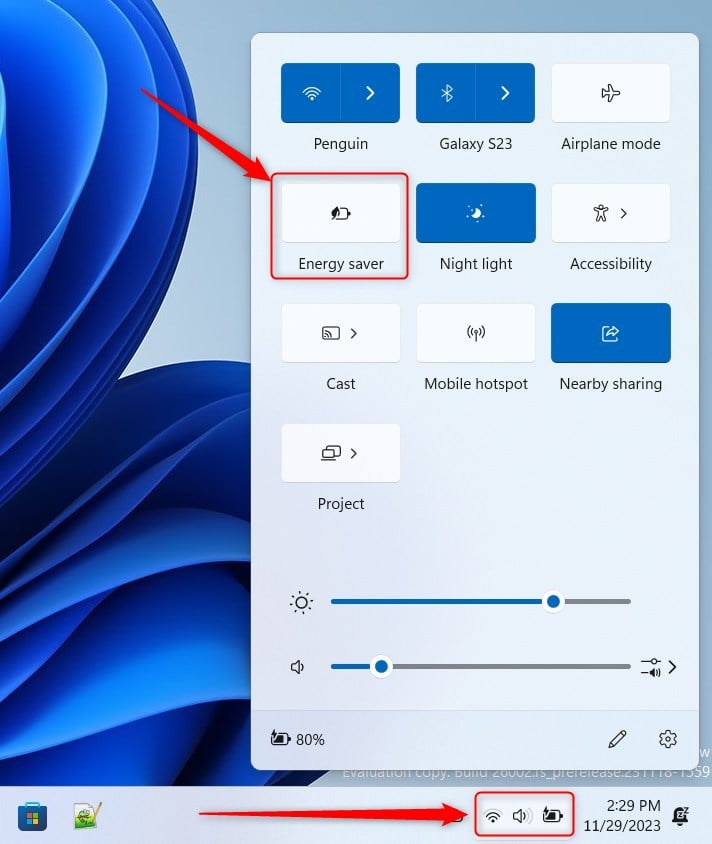
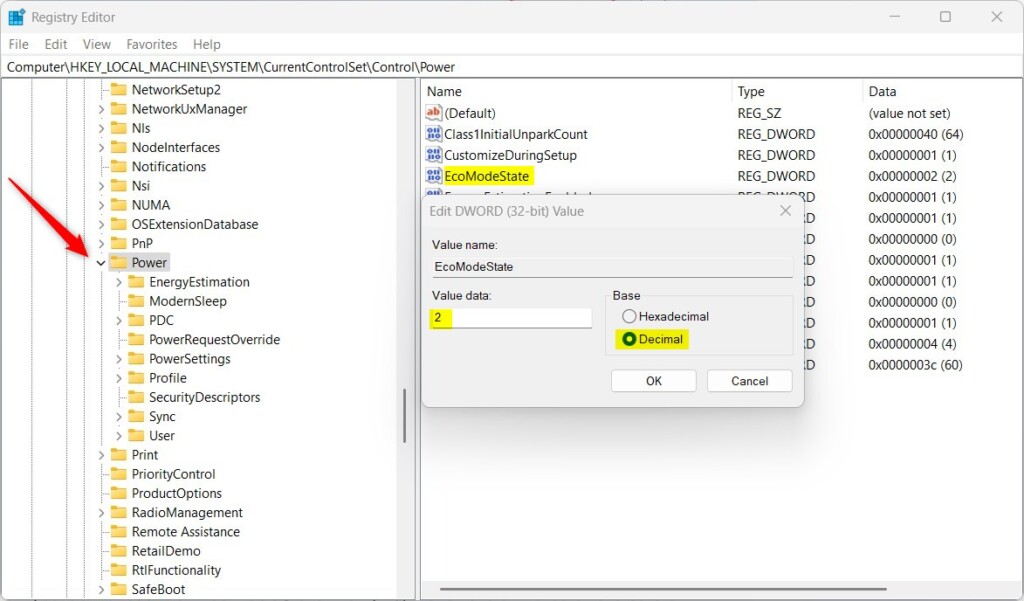
Advanced users can enable or disable Energy Saver in Windows 11 through Registry Editor by navigating to Computer\HKEY_LOCAL_MACHINE\SYSTEM\CurrentControlSet\Control\Power and modifying the EcoModeState value. You can also switch Energy Saver on or off from Quick Settings:
- Click the Quick Settings button on the bottom right of your screen (where the volume and network icons are).
- Look for the Energy saver button and click it to turn Energy Saver on or off.
Using Windows Registry Editor (Advanced)
Windows 11 Energy Saver is a power management feature that reduces power consumption and extends battery life by limiting background activity and performance when enabled in Settings > System > Power & battery. Please be careful and follow the steps exactly:
- ⚙️ Requires admin access. Open Registry Editor by typing
regeditin the Start menu search and pressing Enter. - Go to this folder (called a key):
Computer\HKEY_LOCAL_MACHINE\SYSTEM\CurrentControlSet\Control\Power - In the right panel, find
EcoModeState(a DWORD value). If you don’t see it, right-click inside the panel, choose New > DWORD (32-bit) Value, and name itEcoModeState. - Double-click
EcoModeStateand set its value to:1to turn Energy Saver ON2to turn Energy Saver OFF
- Click OK and close the Registry Editor.
- Restart your computer to apply the changes.
Summary
Energy Saver helps your Windows 11 device use less power and save battery life. You can turn it on or off in Settings > System > Power & battery or directly in the Quick Settings menu. Advanced users can also enable or disable Energy Saver using the Registry Editor by changing the EcoModeState value. Using Energy Saver can lower your electricity bills and is good for the environment.



Leave a Reply Cancel reply