
On-device AI in Google Chrome lets smart features run directly on your Windows 11 PC.
These AI models, like the Gemini Nano model which takes up about 4GB of space, help Chrome perform tasks such as writing assistance, scam warnings, and page summaries right on your computer without needing an internet connection for every action.
Turning this feature off removes these AI models from your user profile, freeing up storage space but potentially disabling features that rely on them.
You can always turn it back on to re-download the models needed for AI-powered browsing tools.
How to Turn On-Device AI On or Off
- Open Google Chrome.
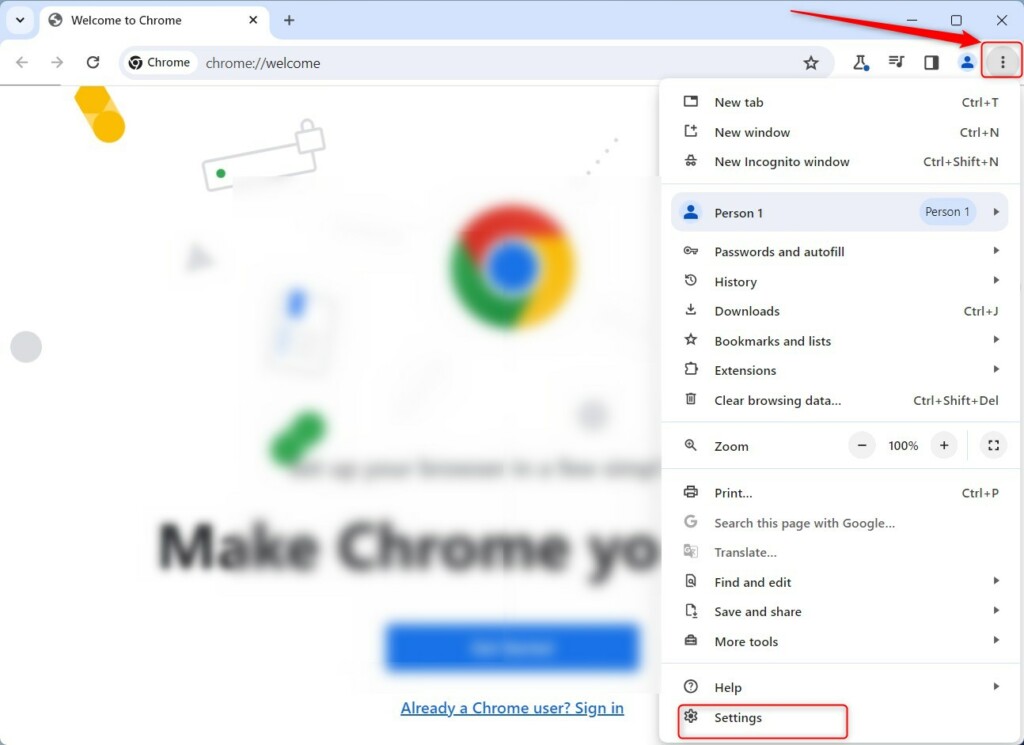
- Click the three dots button (
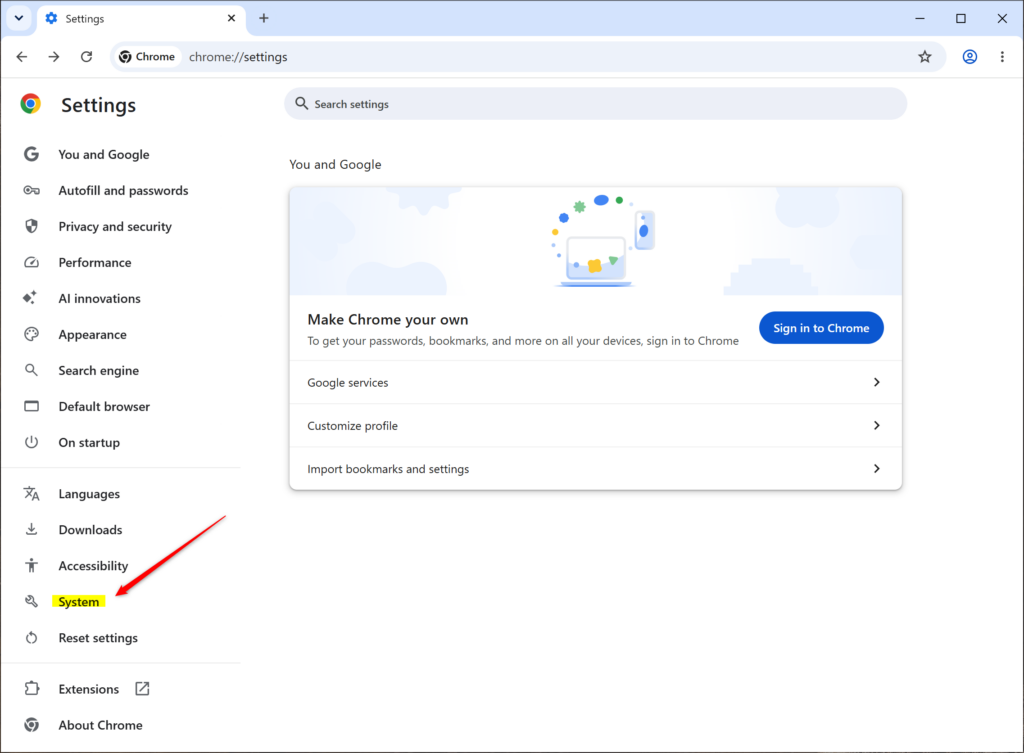
...) in the top-right corner. This is the “Settings and more” menu. Then, click on Settings. - In the left-hand menu, click on System. If you don’t see a left menu, you might need to click the three lines button (
☰) in the top-left corner or make your Chrome window wider. - You will see an option for On-device AI. You can choose to turn it On (which is the default) or Off.
- You can now close the Settings tab if you wish.
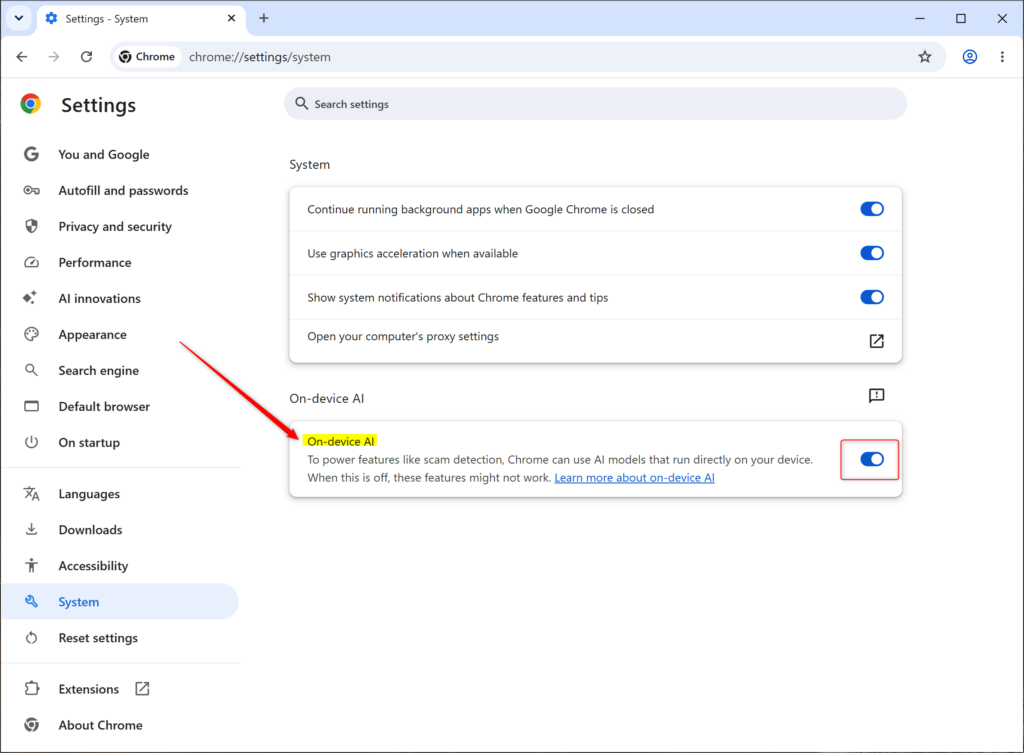
You can easily turn on-device AI on or off in Google Chrome on your Windows 11 computer by going into the browser’s settings.
Summary
You control whether Google Chrome downloads AI models to your Windows computer, which affects storage space and browser features.
Was this guide helpful?

About the Author
Richard
Tech Writer, IT Professional
Richard, a writer for Geek Rewind, is a tech enthusiast who loves breaking down complex IT topics into simple, easy-to-understand ideas. With years of hands-on experience in system administration and enterprise IT operations, he’s developed a knack for offering practical tips and solutions. Richard aims to make technology more accessible and actionable. He's deeply committed to the Geek Rewind community, always ready to answer questions and engage in discussions.



No comments yet — be the first to share your thoughts!