If you have a local account on your Windows 11 PC, you might have noticed that Windows asks you to set up security questions. These questions help you reset your password if you ever forget it.
In this guide, we’ll show you easy steps to turn off or turn on these security questions for local user accounts.
What Are Security Questions and Why Use Them?
Security questions add extra protection to your account. If you forget your password, answering these questions correctly lets you reset it and get back into your PC.
But, if you turn off security questions, you won’t be able to use them to reset your password. You’ll need other ways to recover your account, like using a password reset disk or reinstalling Windows.
How to Turn Off or On Security Questions Using Local Group Policy Editor
Follow these steps to change your security question settings using a tool called Local Group Policy Editor:
- Click the Start menu button (the Windows icon in the bottom-left corner).
- Type
Edit group policyin the search bar. - Click on the Edit group policy app that appears at the top.

Next, in the left menu, follow this path by clicking the arrows to expand each folder:
Computer Configuration > Administrative Templates > Windows Components > Credential User Interface
On the right side, find and double-click on Prevent the use of security questions for local accounts.
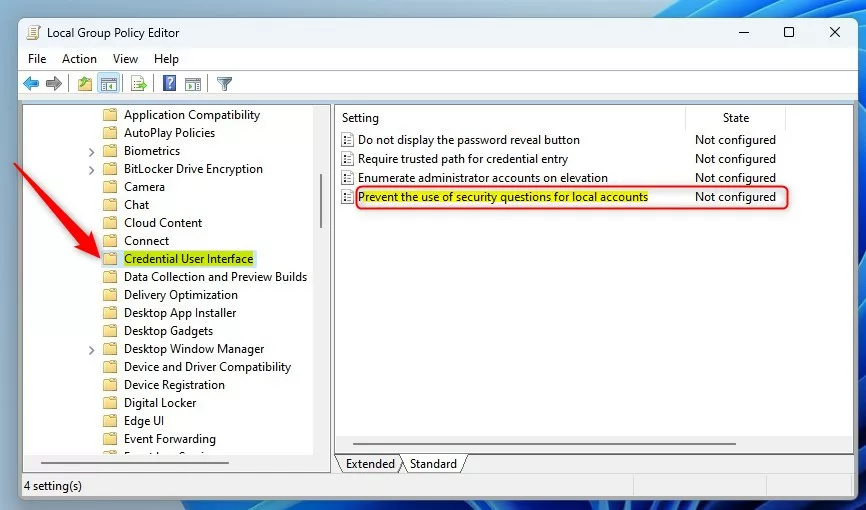
Now you will see three options:
- Not Configured – This is the default. Windows will ask you to set security questions.
- Enabled – This will turn off security questions, so users won’t have to answer them.
- Disabled – Same as “Not Configured.” Security questions will be required.
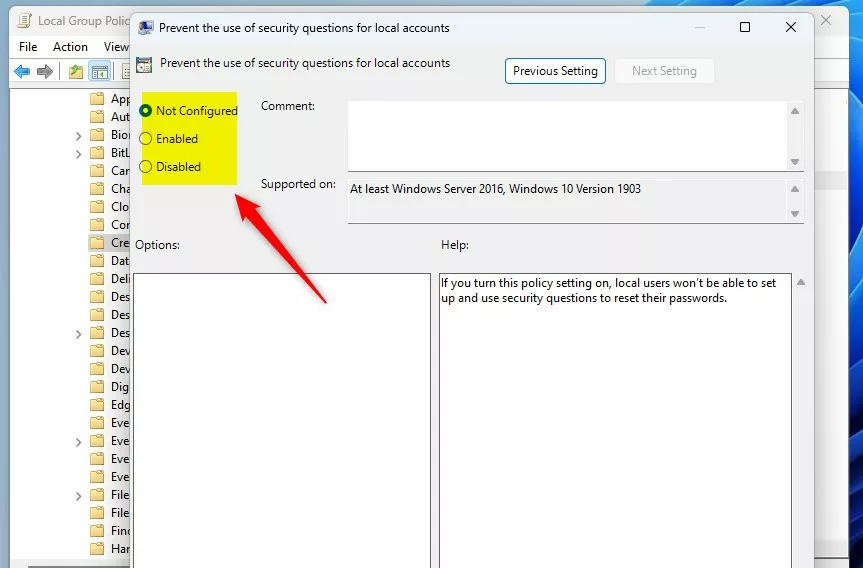
Pick Enabled to disable security questions or Disabled to enable them.
Finally, click Apply, then OK. Close the editor and restart your computer to apply the changes.
How to Turn Off or On Security Questions Using Windows Registry
If you can’t open the Local Group Policy Editor (this happens in some Windows editions like Home), you can change the setting using the Registry Editor. Be careful when editing the registry!
Here’s how:
- Press Windows + R on your keyboard to open the Run box.
- Type
regeditand press Enter to open the Registry Editor. (If prompted by User Account Control, click Yes.) - In Registry Editor, navigate to this folder path:
HKEY_LOCAL_MACHINE\SOFTWARE\Policies\Microsoft\Windows\System
If you don’t see the System folder, right-click the Windows folder, choose New > Key, and name it System.
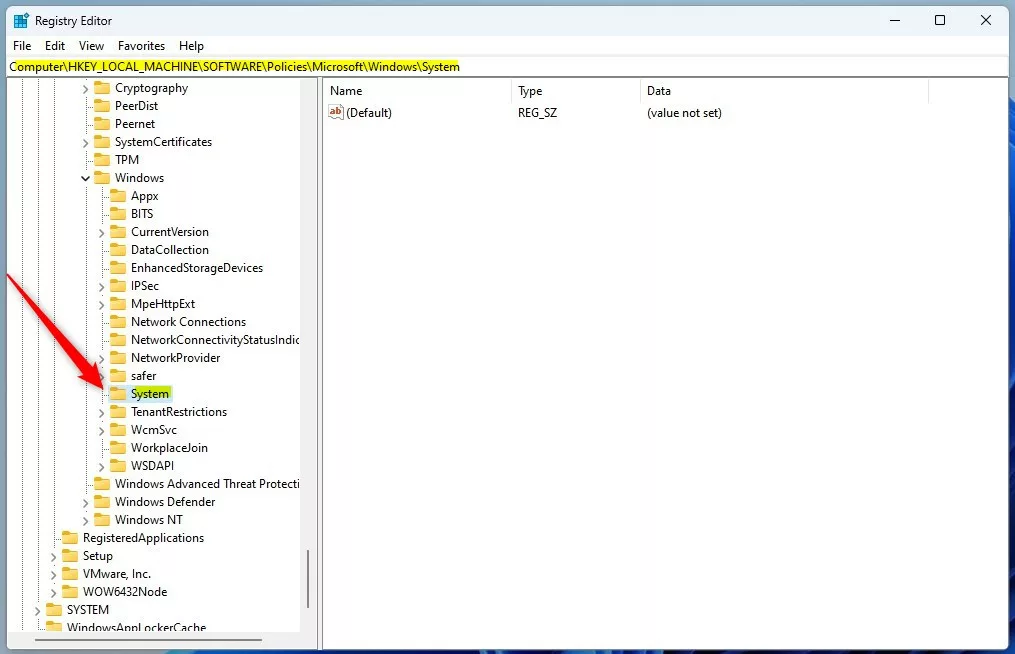
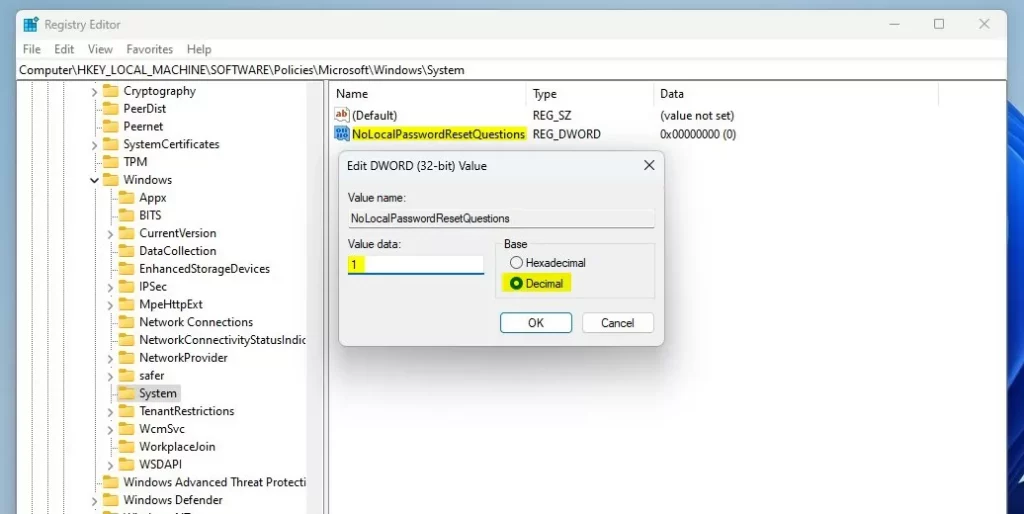
Next, right-click on the right side inside the System folder and choose New > DWORD (32-bit) Value. Name it:
NoLocalPasswordResetQuestions
Double-click this new value and set Value data to:
- 1 – to turn off security questions
- 0 – to turn on security questions (or just delete this value)
Close the Registry Editor and restart your PC to save changes.
Summary
- Security questions help you reset your password if you forget it.
- You can turn security questions on or off using Local Group Policy Editor or Registry Editor.
- Disabling security questions means you need other ways to recover your account if you forget your password.
If you want to learn more about resetting Windows policies or editing the registry, check out these easy guides:
That’s it! Now you know how to manage security questions on your Windows 11 local accounts.
Leave a Reply Cancel reply