How to Specify Target Feature Update Version in Windows 11

Windows 11 updates happen automatically to keep your computer safe and fast. Sometimes, you might want to stay on a specific version to ensure your apps keep working perfectly. By setting a Target Feature Update Version, you tell your computer exactly which version of Windows to use until you are ready to move on. This is helpful for businesses that need to test software before upgrading.
What Happens When You Set a Target Version?
When you lock your version, your computer stops looking for newer feature updates. It will only install security patches. If you set a version that is older than what you have, nothing happens. If you set a version that is newer, your computer will update to that specific version and then stop. This gives you full control over your deployment ring.
Comparison of Methods
| Method | Best For | Difficulty |
|---|---|---|
| Group Policy | Single PC | Easy |
| Registry | Advanced Users | Medium |
| Intune/MDM | Businesses | Professional |
How to Specify Target Feature Update Version in Local Group Policy Editor
Admin Privilege Required: You must be signed in as an administrator to perform these steps.
1. Press Win + R, type gpedit.msc, and hit Enter.
2. Navigate to: Computer Configuration > Administrative Templates > Windows Components > Windows Update > Manage updates offered from Windows Update.
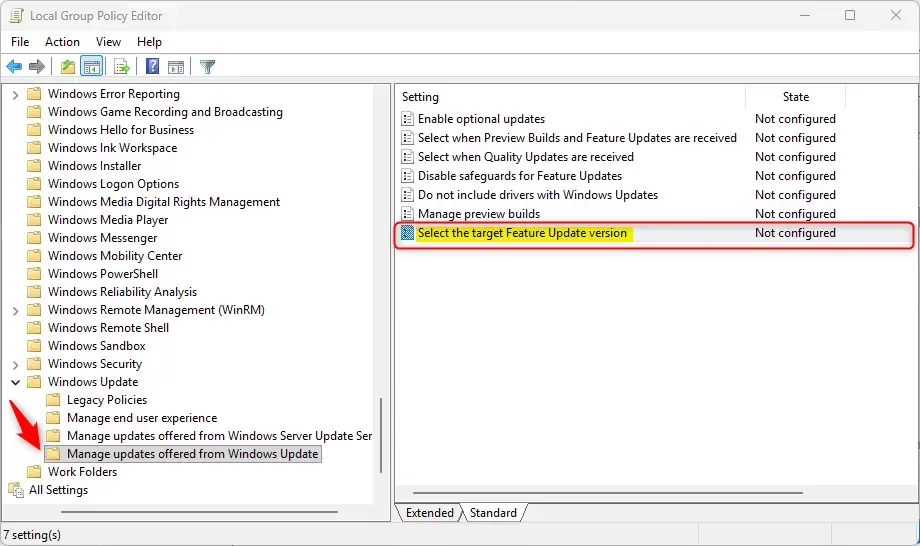
3. Double-click Select the target Feature Update version.
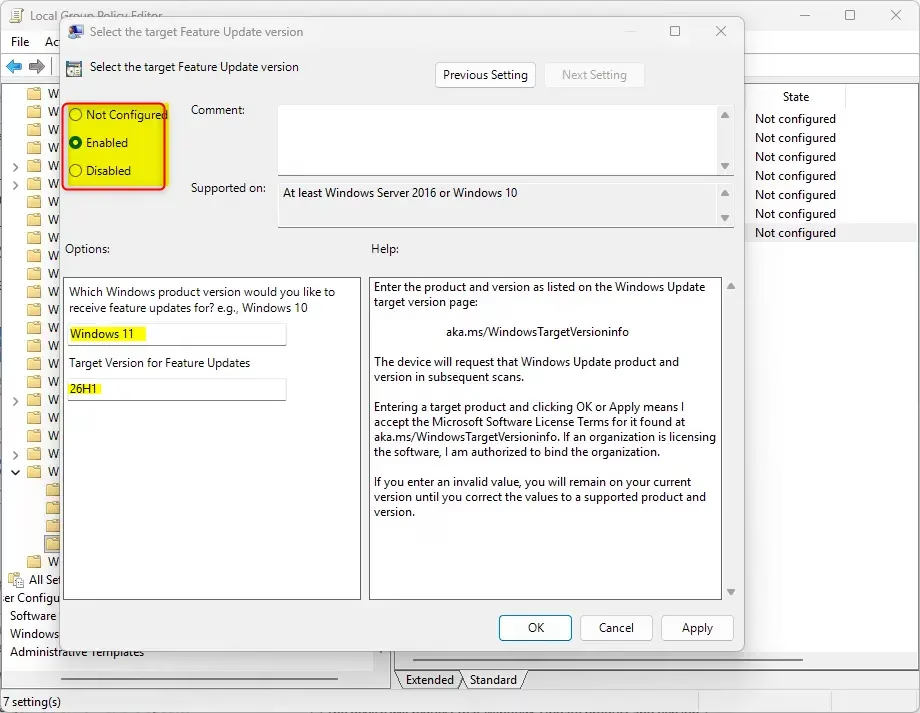
4. Select Enabled. In the options, type Windows 11 for the product and your desired version (e.g., 26H1) in the target box.
5. Click OK.
To undo this, select Not Configured in the same menu.
Specify Target Feature Update Version using Registry
Admin Privilege Required: Be careful when editing the registry. Incorrect changes can cause system issues.
1. Open Registry Editor by typing regedit in the search bar.
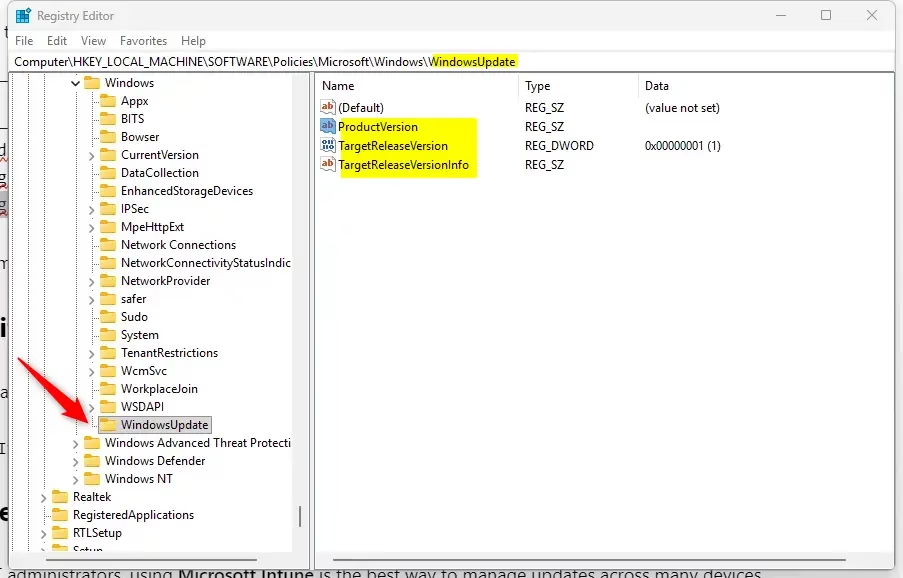
2. Go to: HKEY_LOCAL_MACHINE\SOFTWARE\Policies\Microsoft\Windows\WindowsUpdate.
3. Create or modify these values:
"ProductVersion"="Windows 11"
"TargetReleaseVersion"=dword:00000001
"TargetReleaseVersionInfo"="26H1"
To remove the restriction, right-click and delete these three keys.
Verification via PowerShell
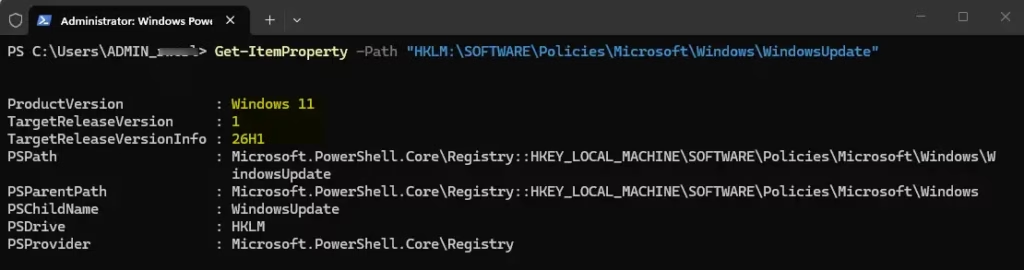
You can check if your settings are active by running this command in PowerShell:
Get-ItemProperty -Path "HKLM:\SOFTWARE\Policies\Microsoft\Windows\WindowsUpdate"
Enterprise Management with Intune
For IT administrators, using Microsoft Intune is the best way to manage updates across many devices. You can use a Configuration Service Provider (CSP) to push these settings to all company computers at once. This ensures that every device stays on the same servicing channel, making support much easier.
Summary
Specifying a target feature update version gives you control over when your computer upgrades. By using Group Policy, the Registry, or Intune, you can lock your device to a specific version. This is great for stability but requires you to monitor the end-of-service dates to ensure your system stays secure.
What happens if I set an invalid version number?
If you enter an invalid or non-existent version number, the Windows Update service will simply ignore the policy. Your computer will continue to check for the latest available updates as if no restriction was set. Always verify the correct version string on the official Microsoft release health website.
Does this policy affect security updates?
No, this policy only restricts major feature updates. Your computer will continue to receive critical security updates, quality patches, and driver updates. This ensures that while you stay on a specific version for compatibility, your system remains protected against the latest security threats and vulnerabilities.
Was this guide helpful?


Leave a Reply Cancel reply