

This post shows students and new users how to skip the Recycle Bin after deleting a file or folder so that it’s never stored in the Recycle Bin waiting to be emptied. By default, Windows sends stuff you delete to the Recycle Bin.
Items in the Recycle Bin are kept until you empty it—or, in some cases, until its maximum storage size has been exhausted and Windows automatically removes older items to make room for new ones.
Suppose you have security or privacy concerns and wouldn’t want items you delete lying around in the Recycle Bin. In that case, you can enable this feature to skip the Recycle Bin altogether, and the steps below show you how to do that.
Another way to skip the Recycle Bin is to select an item or items you want to delete, then press the CTRL + SHIFT keys on your keyboard. Doing this will skip the Recycle Bin and delete it permanently.
Remember that skipping the Recycle Bin is not a secure way of deleting files or folders. A drive might not appear to have files on it, but it is still possible that special recovery software could retrieve the files.
To bypass the Recycle Bin on Windows 11, follow the steps below.
How to bypass the Recycle Bin on Windows 11
You can enable the feature below if you want to delete items but don’t have them sit in the Recycle Bin until emptied or removed later.
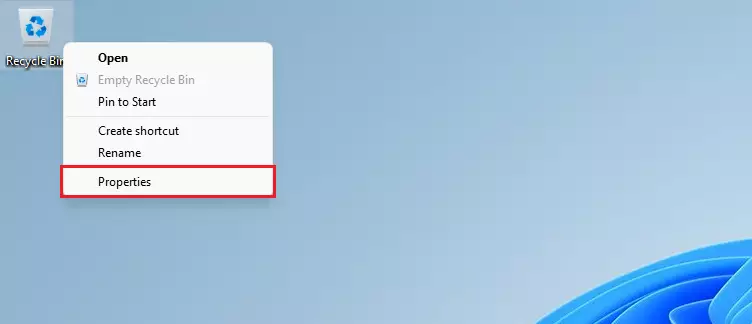
To do that, right-click the Recycle Bin icon on your desktop, then select Properties from the context menu, as shown below.
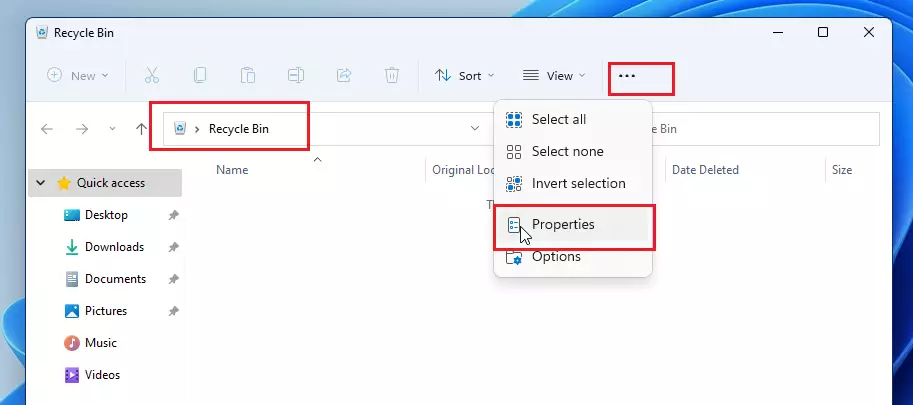
You can also access the Properties settings by opening the Recycle Bin, selecting the ellipse (three dots on the toolbar menu), and selecting Properties.
On Recycle Bin Properties window, you’ll see each volume listed. If you have only one volume, then you’ll only see that. If you have multiple volumes, you’ll see all listed.
Select the volume for which you want to skip the Recycle Bin when you delete files, then check the box for “Don’t move files to the Recycle Bin. Remove files immediately when deleted“.
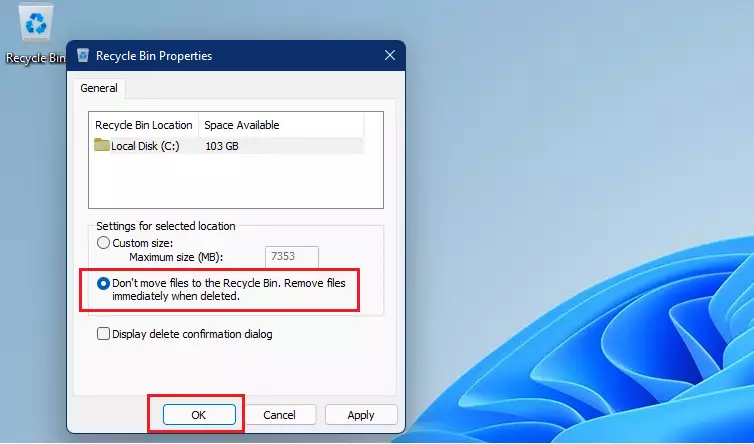
Note that Windows uses different Recycle Bin settings for different drives. You must do this for each volume or disk you want to skip the Recycle Bin.
Click OK to save your changes and exit.
After the setting above, any volume or drive you have this setting on will automatically skip the Recycle Bin when you delete items. You may not be able to restore when the settings above are enabled.
That should do it!
Conclusion:
- Bypassing the Recycle Bin allows for immediate deletion of files and folders, which can help maintain privacy and security.
- It is essential to configure the settings for each drive or volume separately, as Windows applies different Recycle Bin settings per drive.
- Remember that permanently deleting files means they cannot be recovered easily; consider using secure deletion methods if needed.
- Use the CTRL + SHIFT method for a quick way to delete items permanently without accessing properties.
- Always double-check what you are deleting, as this action is irreversible once the Recycle Bin is skipped.
Leave a Reply Cancel reply