

Want your Windows 11 taskbar to show shorter time and date? Instead of “1:59 PM” you could see “1:59”. Instead of “6/22/2024” you could see “6/22”. This guide will show you how to make this change.
What is Shortened Time and Date?
Shortened time and date means your computer displays a simpler, shorter version of the clock and calendar on your taskbar. It saves space on your screen and makes everything look cleaner.
Who Can Use This?
This feature is available in Windows 11 build 22635.3790 and newer. It’s hidden by default, but you can turn it on using a free tool called ViVeTool.
How to Enable Shortened Time and Date Step-by-Step
Step 1: Download and Install ViVeTool
First, you need to download and set up ViVeTool. This tool lets you turn on hidden Windows features. Follow this guide:
How to install and use ViVeTool on Windows 11
Step 2: Turn On the Shortened Time Feature
After installing ViVeTool, open Command Prompt as an administrator. This step requires admin privileges.
Click Start, type cmd, right-click Command Prompt, and select Run as administrator.
Now type this command and press Enter:
vivetool /enable /id:48525682
This command tells Windows to enable the short time and date format.
Step 3: Change Taskbar Settings
Next, open Settings:
Click Start > Settings (or press Windows + I).
Select Personalization from the left menu.
Click on the Taskbar tile on the right side.

Then:
Find and click Taskbar behaviors to expand it.
Look for the option Show time and date in the System tray.
Check or uncheck Show abbreviated time and date to turn the short format on or off.
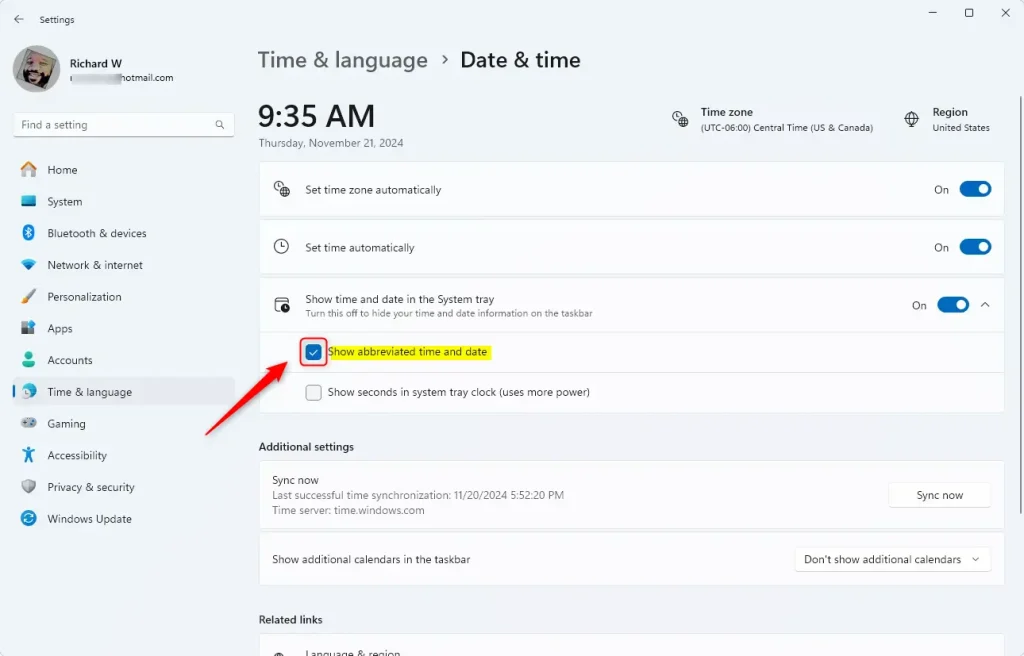
When done, just close the Settings window.
Alternative Way: Use Windows Registry (For Advanced Users)
If you prefer, you can also change this using the Windows Registry Editor. Be careful with this method, and follow these steps:
Open the Registry Editor as Administrator. This step requires admin privileges.
Press Windows + R, type regedit, and press Enter.
If prompted, click Yes to allow changes.
Go to this folder:
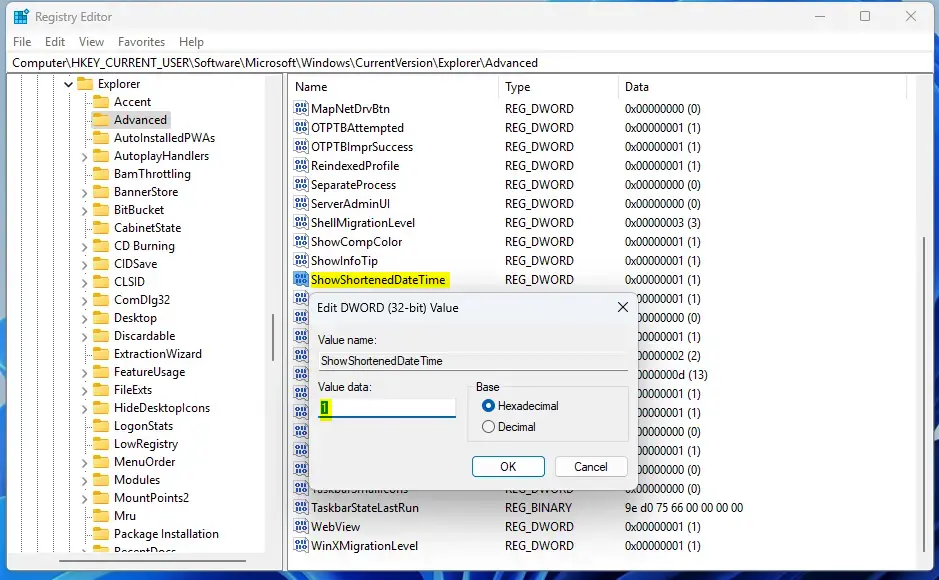
Computer\HKEY_CURRENT_USER\Software\Microsoft\Windows\CurrentVersion\Explorer\Advanced
Look for a setting named ShowShortenedDateTime in the right panel.
If it exists, double-click it to open.
If it doesn’t exist, right-click in the right panel, choose New > DWORD (32-bit) Value, and name it ShowShortenedDateTime.
Set the value to:
- 1 = Show shortened time and date
- 0 = Show normal time and date
Click OK and close Registry Editor.
Restart your computer to see the change.
Summary
Windows 11 has a hidden feature for shorter time and date on your taskbar. You can turn it on using ViVeTool with the command vivetool /enable /id:48525682. Or you can change a Registry setting called ShowShortenedDateTime to 1. Both methods let you customize how your taskbar shows time and date. Now you can enjoy a cleaner, simpler taskbar clock!



Leave a Reply Cancel reply