

This article describes steps to enable or disable “Show recently added apps” in Windows 11.
By default, Windows keeps track of some of your recent activities, including access to files and folders and recently added apps to the Start menu Recommended section and Jump Lists.
The Recommended section on the Start menu lists your recently installed or recently added apps.
This feature is there to help you find apps you recently installed or used, which helps improve your productivity.
Below, we will show you how to show or hide recently added apps in the Start menu, recommended section, and Jump Lists in Windows 11.
How to turn on or off recently added apps in the Start menu, recommended section, or jump lists in Windows 11
As described above, Windows keeps track of some of your recent activities, including access to files and folders and recently added apps to the Start menu Recommended section and Jump Lists.
The quickest way to remove recently added apps is to right-click the recently installed apps under the Recommended section and select Remove from the list.
You can disable or enable it using Windows Settings app, and the steps below show you how.
Windows 11 has a centralized location for the majority of its settings. Everything can be done, from system configurations to creating new users and updating Windows from its System Settings pane.
To get to System Settings, you can use the Windows key + I shortcut or click on Start ==> Settings, as shown in the image below:

Alternatively, you can use the search box on the taskbar and search for Settings. Then select to open it.
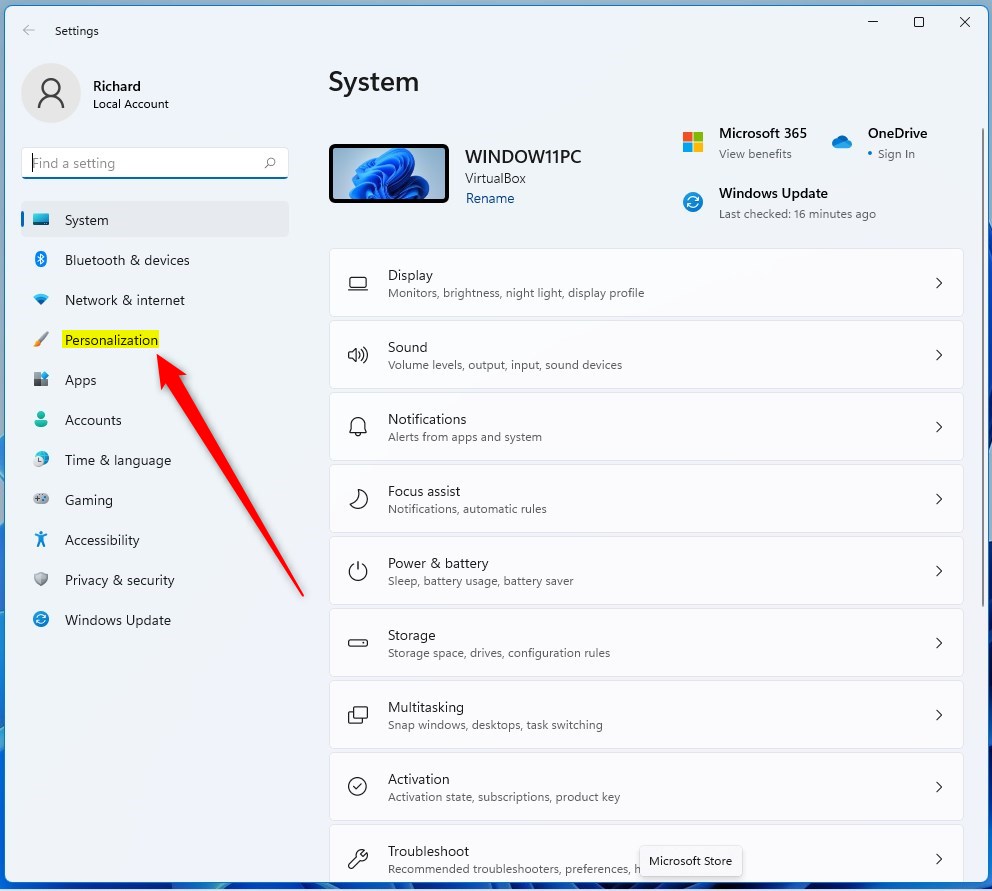
Windows Settings pane should look similar to the image below. In the Windows Settings app, click Personalization on the left.
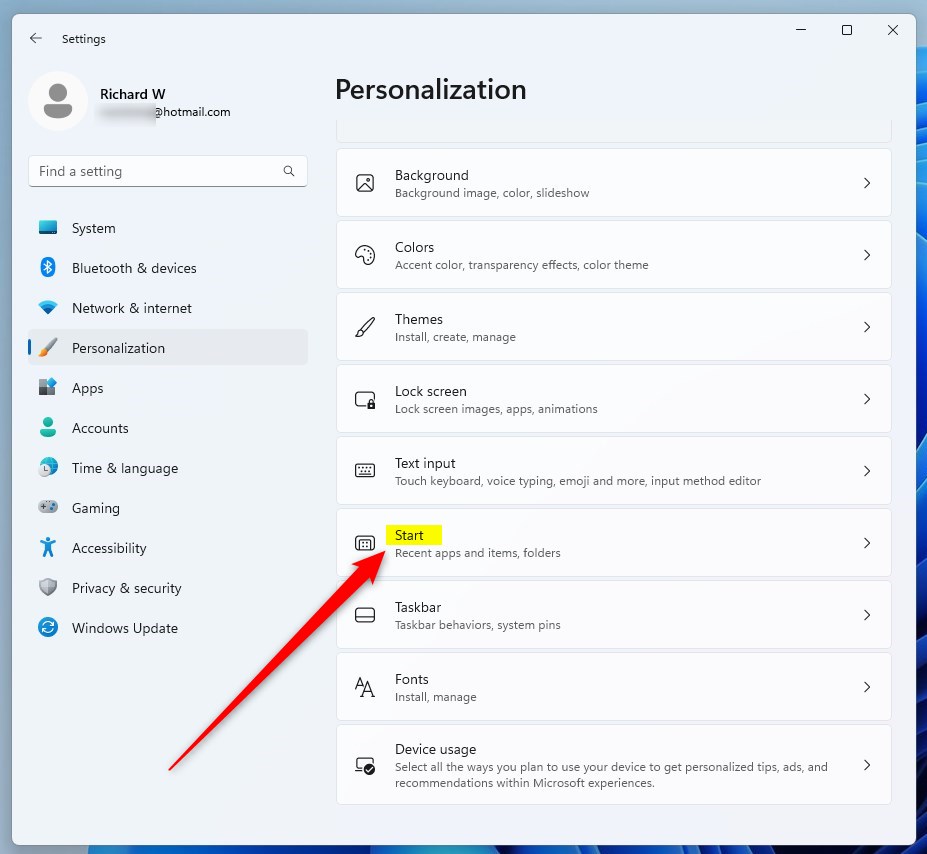
On the right, select the Start tile to expand.
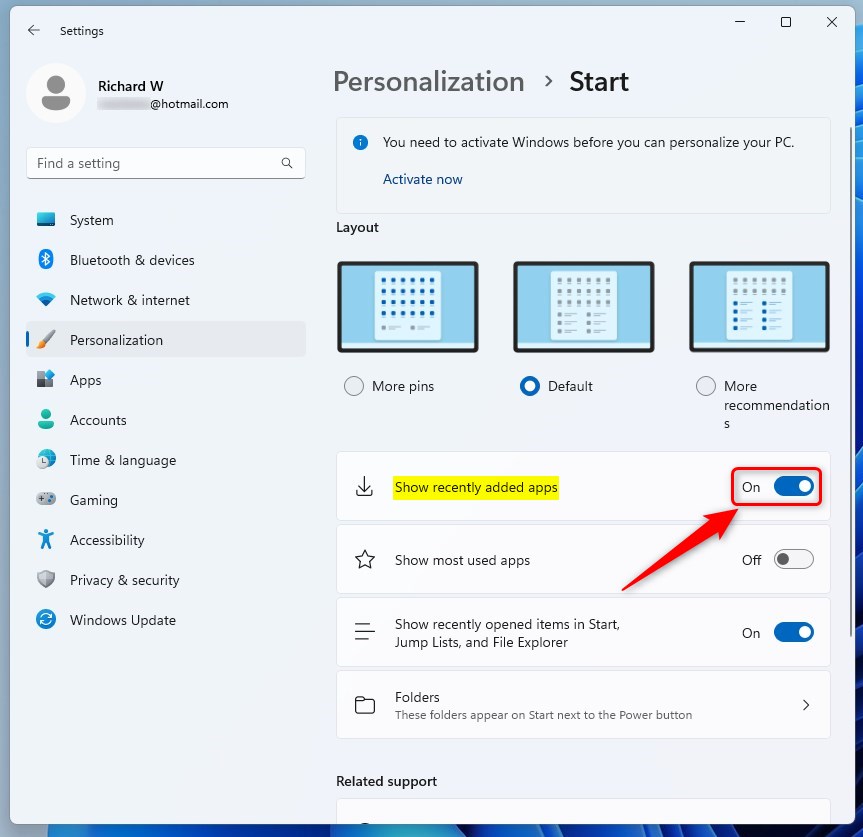
On the System -> Personalization -> Start settings panel, toggle the button switch on “Show recently added apps” to the On position to enable.
To disable it, toggle the switch button back to the Off position.
Conclusion:
- Enabling or disabling the “Show recently added apps” feature in Windows 11 can help customize the Start menu based on individual preferences.
- Accessing the Windows Settings app and navigating to the Start settings panel provides a straightforward method to toggle this feature on or off.
- Following the steps outlined in this article, users can effectively manage the display of recently added apps in the Start menu, improving their overall Windows 11 experience.



Leave a Reply to How to change the display name of an account in Windows 11 – Geek Rewind Cancel reply