

This post shows students and new users steps to show or hide the list of the most used apps on the Start menu in Windows 11.
The Start menu in Windows 11 has three sections: Pinned, All apps, and Recommended – which contains a list of recently used or opened apps.
You can also find shortcuts to settings, files, and other apps on the Start menu. By default, some apps are pinned to the Pinned section. These include Edge, Mail, Microsoft Store, and Windows apps.
A recently released feature allows one to expand each Start menu section to include more Pinned apps and list items under the Recommended section.
If you can’t find the apps you want in the Pinned section on the Start menu, click on the All apps button to show your apps on the system. Under the All Apps button, the section called Most used apps the top throws up to 6 of the user’s most frequently used apps.
How to show Most Used app list on the Start menu in Windows 11
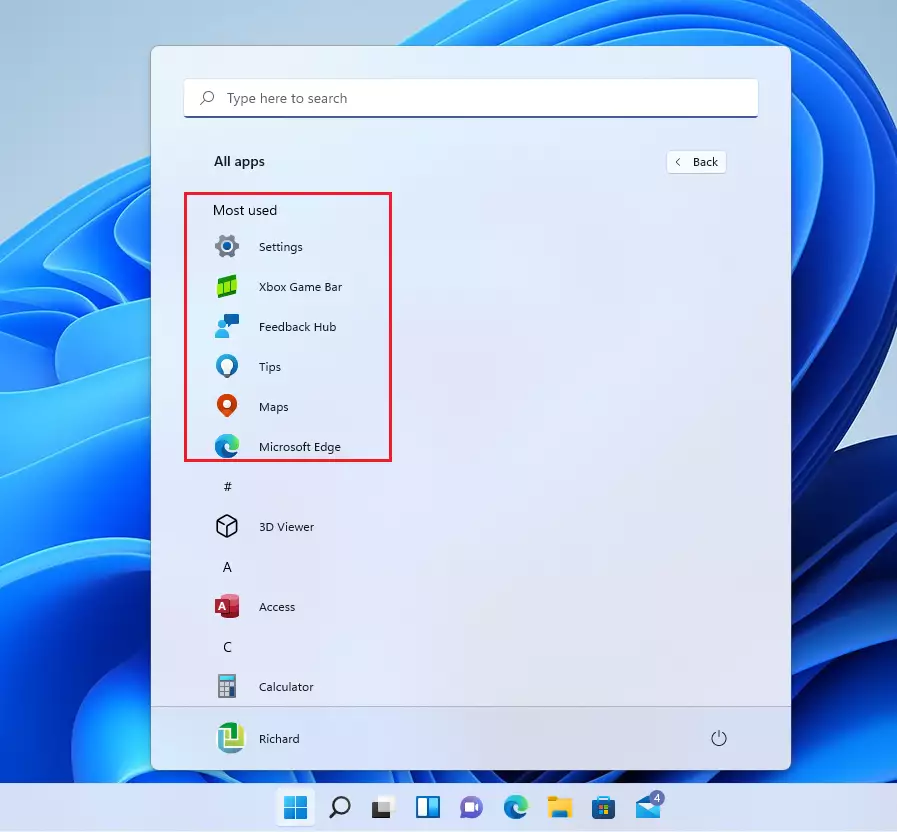
As mentioned above, Under the All Apps button on the Start menu, there’s a section called Most Used Apps list at the top that shows up to 6 of the user’s most frequently used apps.
Below is how to enable it.
Windows 11 has a centralized location for the majority of its settings. From system configurations to creating new users and updating Windows, all can be done from the System Settings pane.
To get to System Settings, you can use the Windows key + I shortcut or click on Start ==> Settings, as shown in the image below:

Alternatively, you can use the search box on the taskbar and search for Settings. Then select to open it.
Windows Settings pane should look similar to the image below. In Windows Settings, click Personalization on the right pane, and select the Start tile to expand it.
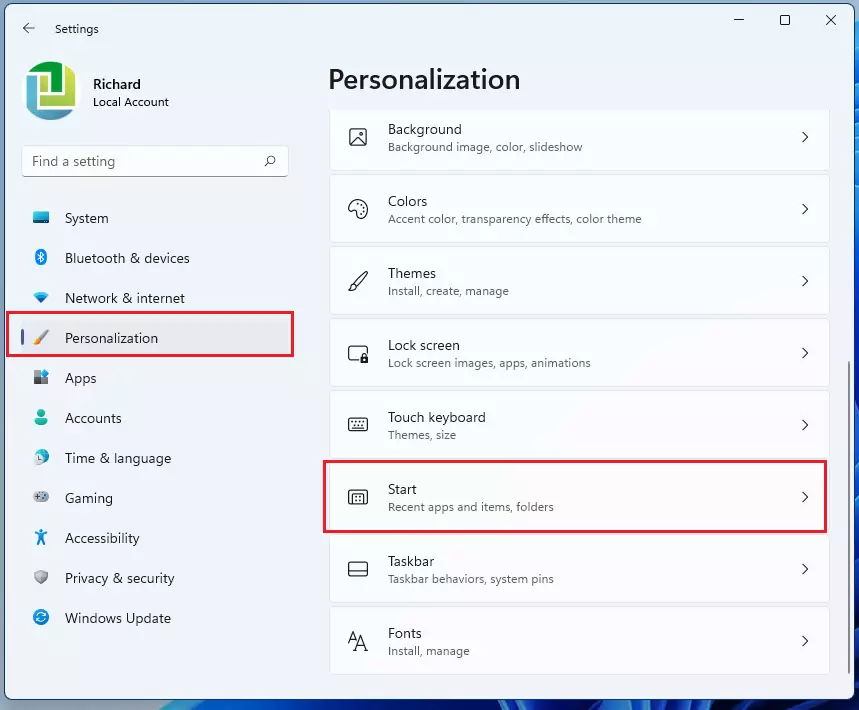
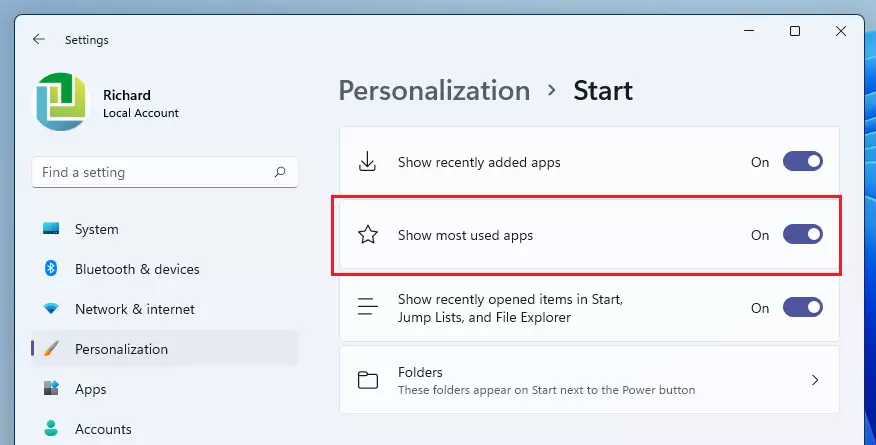
Select the Show Most Used Apps tile on the Start settings pane and toggle the button to the On position, as shown below.
Once enabled, the All apps menu should list your most used apps, as shown below.
You can now exit the Settings app.
How to disable the most used apps list on the Start menu in Windows 11
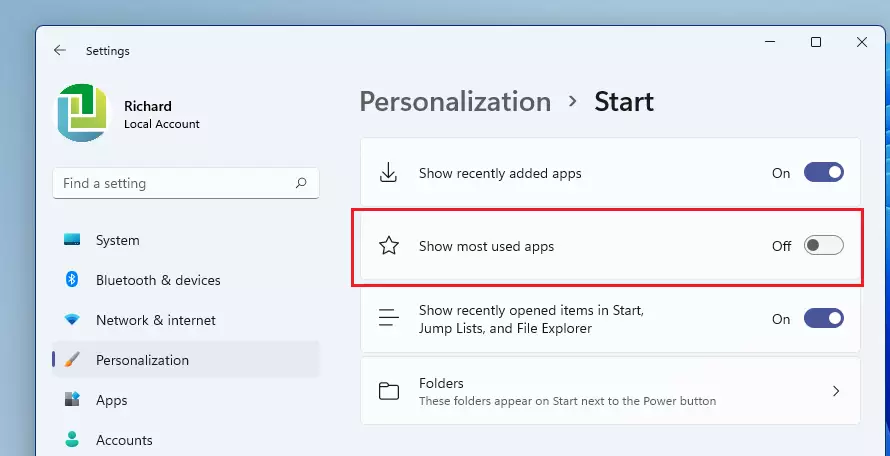
If you have the most used apps list appearing on the Start menu and want to remove it, reverse the steps above by going to the Start menu ==> Settings ==> Personalization ==> Start and toggle the button to the Off position for the Show most used app tile.
That should do it!
Conclusion:
- The Start menu in Windows 11 provides easy access to your most frequently used apps.
- Users can enable or disable the Most Used Apps list through the System Settings.
- Accessing this feature enhances user experience by allowing quick navigation to favorite applications.
- Customization of the Start menu helps organize access to apps based on personal usage patterns.
- Following these simple steps ensures you have control over the visibility of the Most Used Apps list.



Leave a Reply Cancel reply