
Do you use Windows 11? You might want to see the full address (or path) of the folder you’re in when using File Explorer. This guide will show you easy ways to turn on this feature. Then you’ll always know exactly where your files are.
What is File Explorer?
File Explorer is the program in Windows that helps you find, open, copy, move, rename, and delete your files and folders. It lets you organize everything on your computer in a simple way.
Why See the Full Folder Path?
- It shows you exactly where you are on your computer.
- Helps avoid confusion when working with many folders.
- Makes it easier to share or remember folder locations.
How to Always Show Full Folder Path in File Explorer
Follow these simple steps:
- Open File Explorer. Click the folder icon on the taskbar. Or press
Windows + Eon your keyboard. - Click on the three dots (
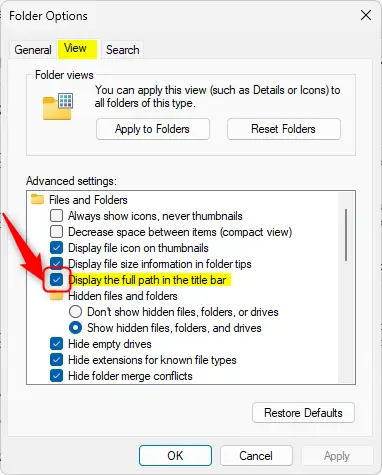
…) at the top right of the window. SelectOptions. - In the Folder Options window, click the
Viewtab. - Look for
Display the full path in the title bar. Check the box next to it. - Click
OKto save your changes.
Here is what it looks like:
Turn On or Off Full Path Using Windows Settings
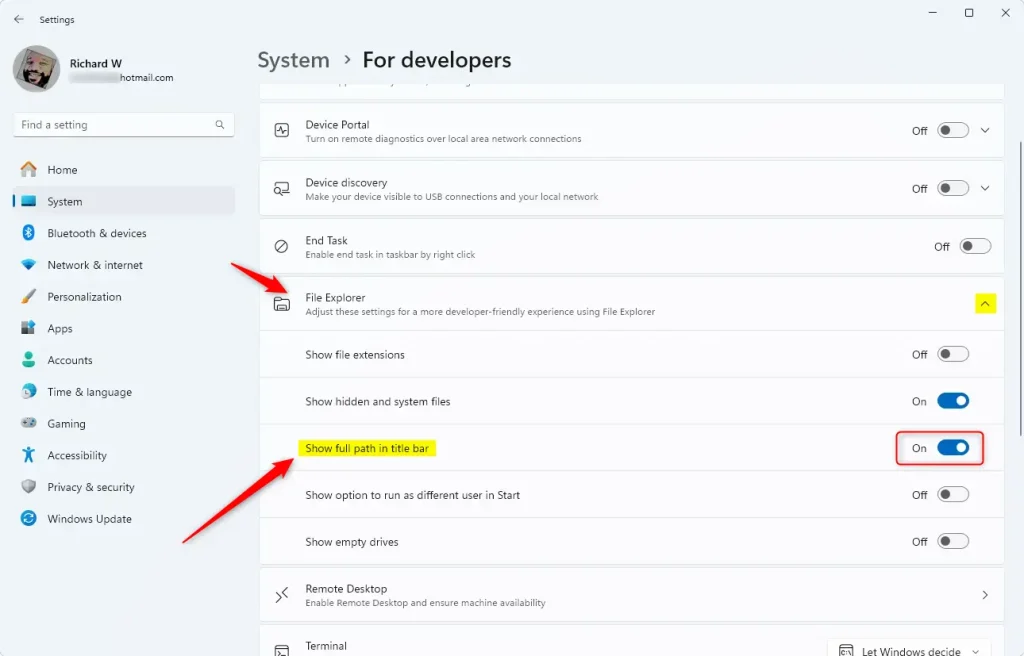
You can also turn this feature on or off from the Settings app:
- Click the Start menu. Select
Settings. - Go to
System > For developers. - Find the
File Explorersection. - Turn the switch for
Show full folder pathon or off.
- Close Settings when finished.
Show or Hide Full Path Using Windows Registry (Advanced)
⚠️ ADMIN PRIVILEGES REQUIRED
If you are comfortable making changes in Windows Registry, here’s how you can do it:
Warning: Editing the Registry can affect your system if done incorrectly. Follow these steps carefully. Ask someone for help if you’re not sure.
- Press
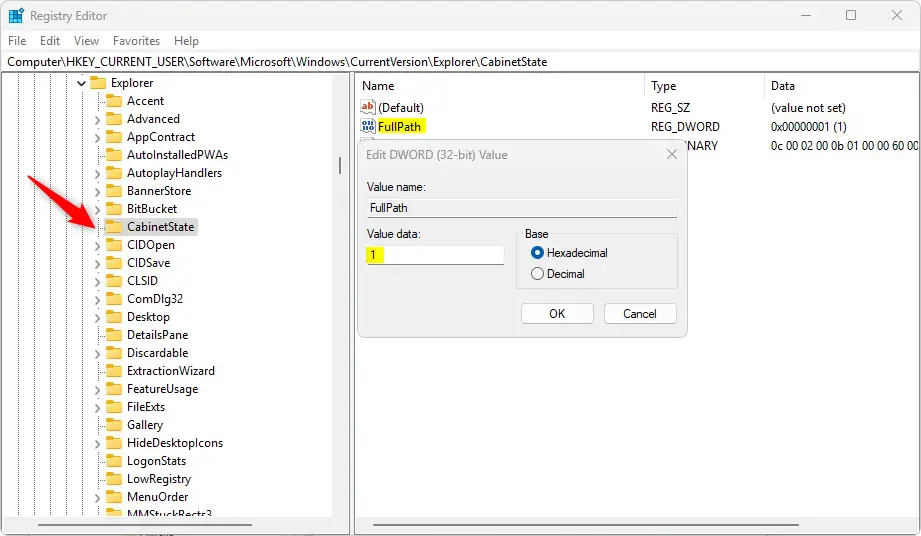
Windows + R. Typeregedit. PressEnterto open the Registry Editor. - Navigate to this folder (key):
HKEY_CURRENT_USER\Software\Microsoft\Windows\CurrentVersion\Explorer\CabinetState - Right-click on
CabinetState. ChooseNew > DWORD (32-bit) Value. - Name the new value
FullPath. - Double-click
FullPath. Set the value to:1to show the full path0to hide the full path
- Click
OK. Close the Registry Editor. - Restart your computer to apply the change.
Summary
Showing the full folder path in Windows 11 File Explorer helps you see exactly where you are on your computer. You can turn this on or off using three methods:
- Folder Options (easy and quick)
- Settings app (in developer options)
- Windows Registry (for advanced users)
Pick the way that works best for you. Then enjoy clearer navigation in File Explorer!
Need more help with File Explorer? Check out this guide to learn all about it.



Leave a Reply Cancel reply