
This article explains how to set ChatGPT as the default search engine in Google Chrome on Windows 11.
Google Chrome is a cross-platform web browser developed by Google. It and Microsoft Edge share the same codebase. They are practically identical in basic functionalities, using browsing activities, including history and other browsing data, to provide personalized ads, search, shopping, and news.
When you use Chrome, its default search engine is Google Search. You can use other search engines like Bing, DuckDuckGo, and others.
Now, you have another search engine option that you can try. You can install the “ChatGPT Search” extension from OpenAI to help you replace other search engines on your Chromium-based web browser, including Edge, Chrome, ARC, and Brave.
ChatGPT Search gets you prompt answers with links to relevant web sources.
The steps below walk you through installing the ChatGPT Search engine on your Google Chrome browser.
Set ChatGPT Search with its extension
The quickest way to use ChatGPT search in Chrome is to install the extension.
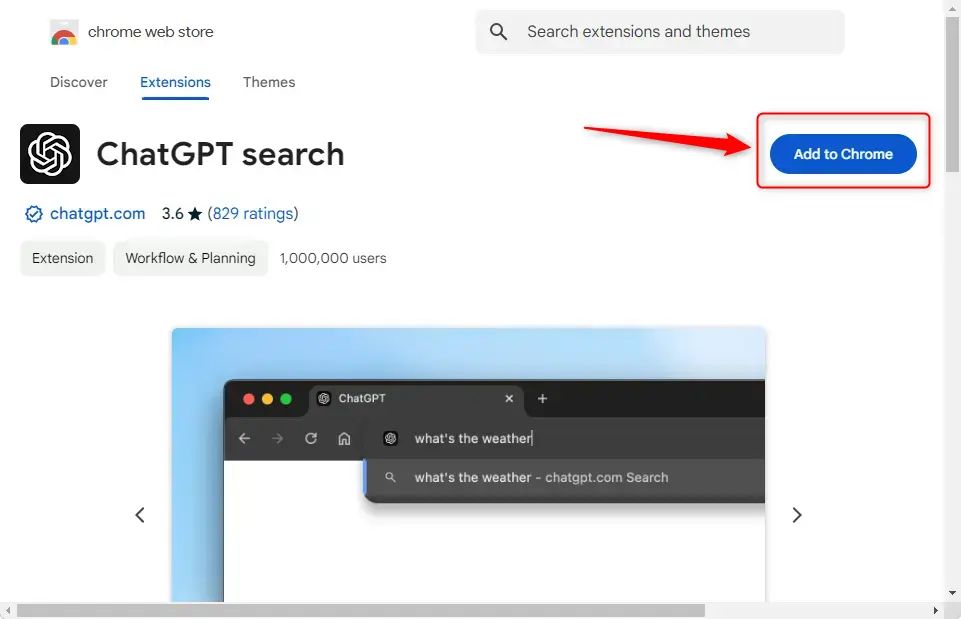
First, open the ChatGPT Search extension page.
Then, click the Add to Chrome button.
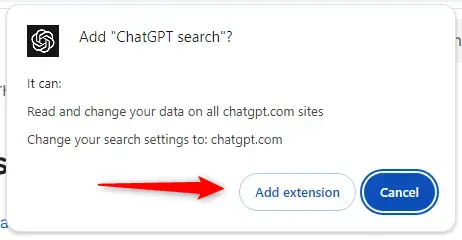
Click the Add extension button.
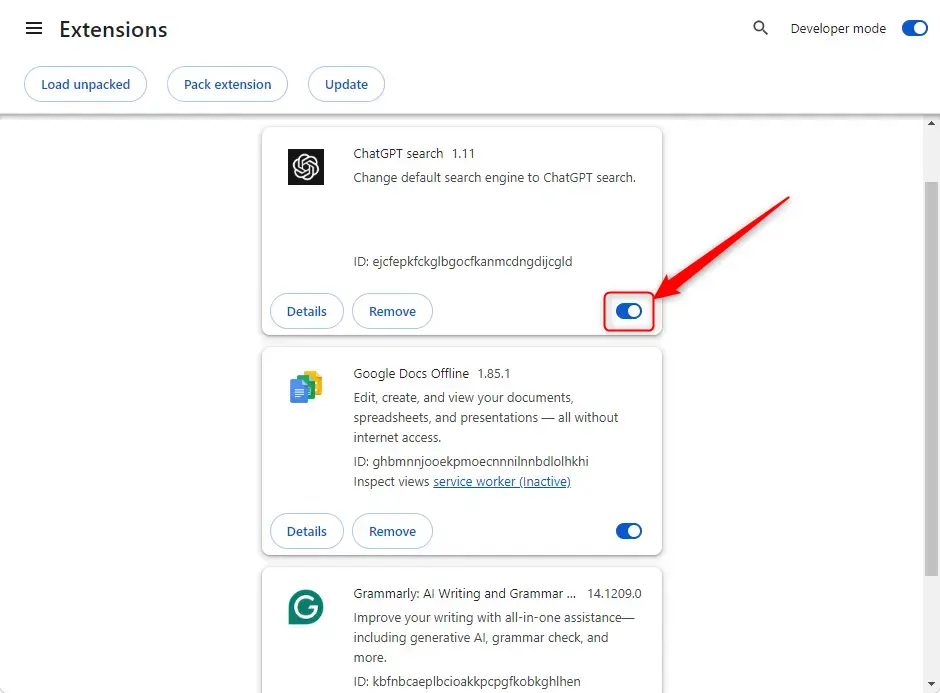
Google Chrome browser may automatically disable new extensions upon installation. If you receive a notification to enable it, turn it on.
Otherwise, open the chrome://extensions page and manually turn on the “ChatGPT Search” extension.
Set ChatGPT Search as default in Chrome Settings
If you don’t want to use the extension to change to ChatGPT search, you can do it manually within the Chrome settings page.
To do that, open Chrome and browse to the settings page below.
chrome://settings/searchEngines
Under the Search engines page, click the Add button.
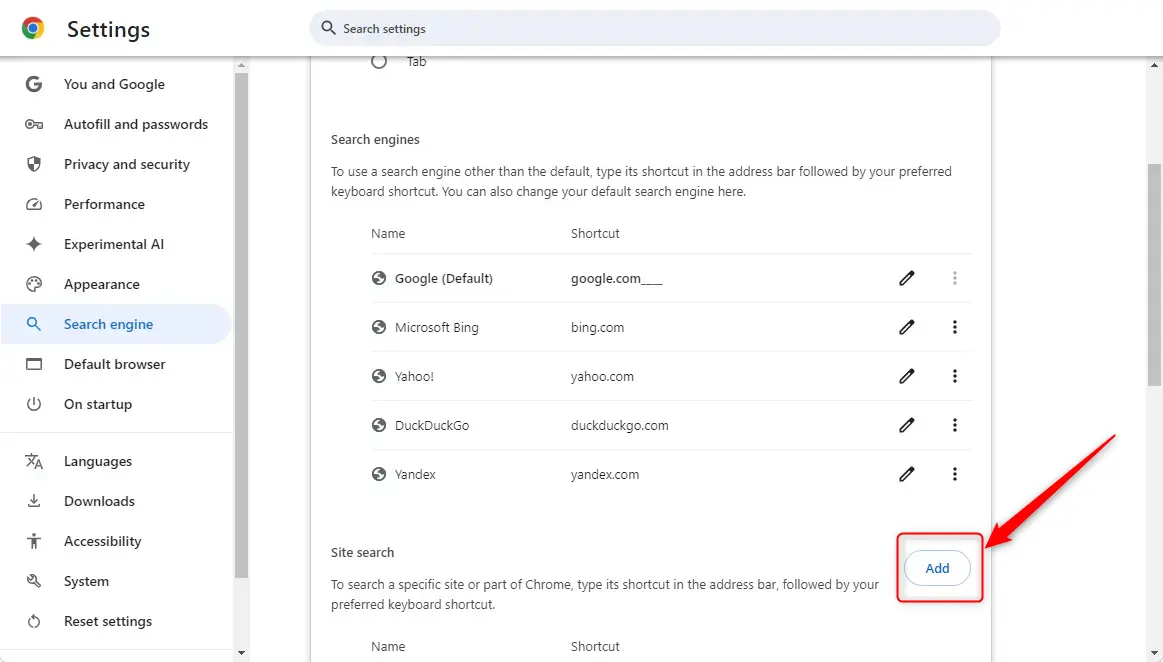
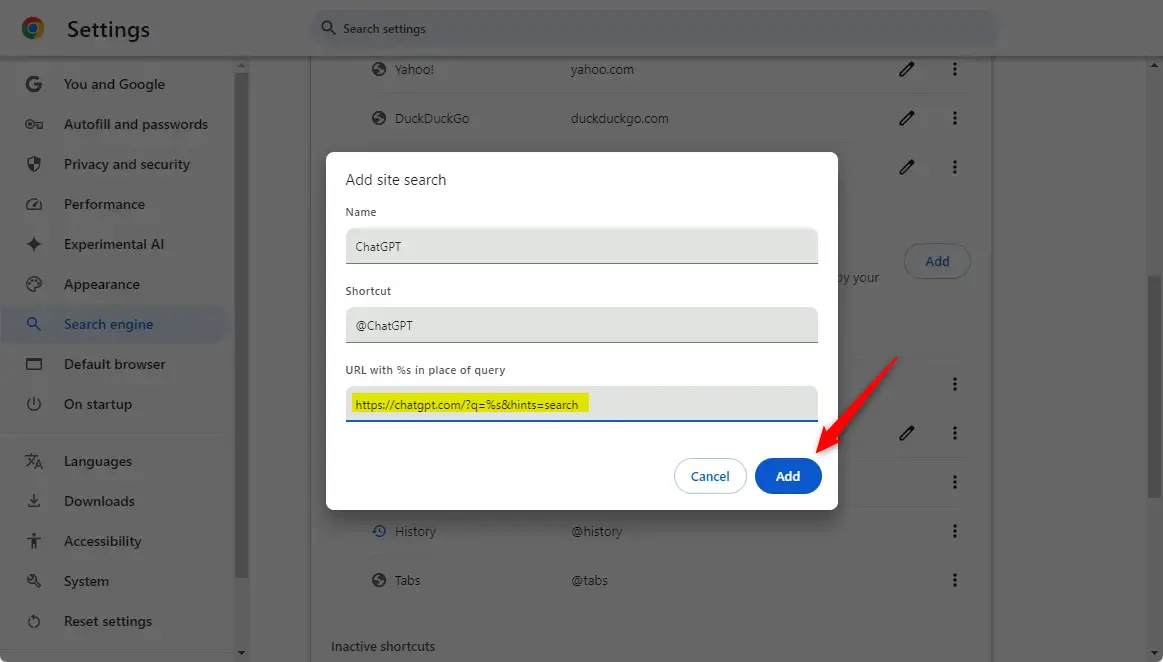
Use these search engine settings for ChatGPT:
Name: ChatGPT
Shortcut: @ChatGPT
URL query: https://chatgpt.com/?q=%s&hints=search
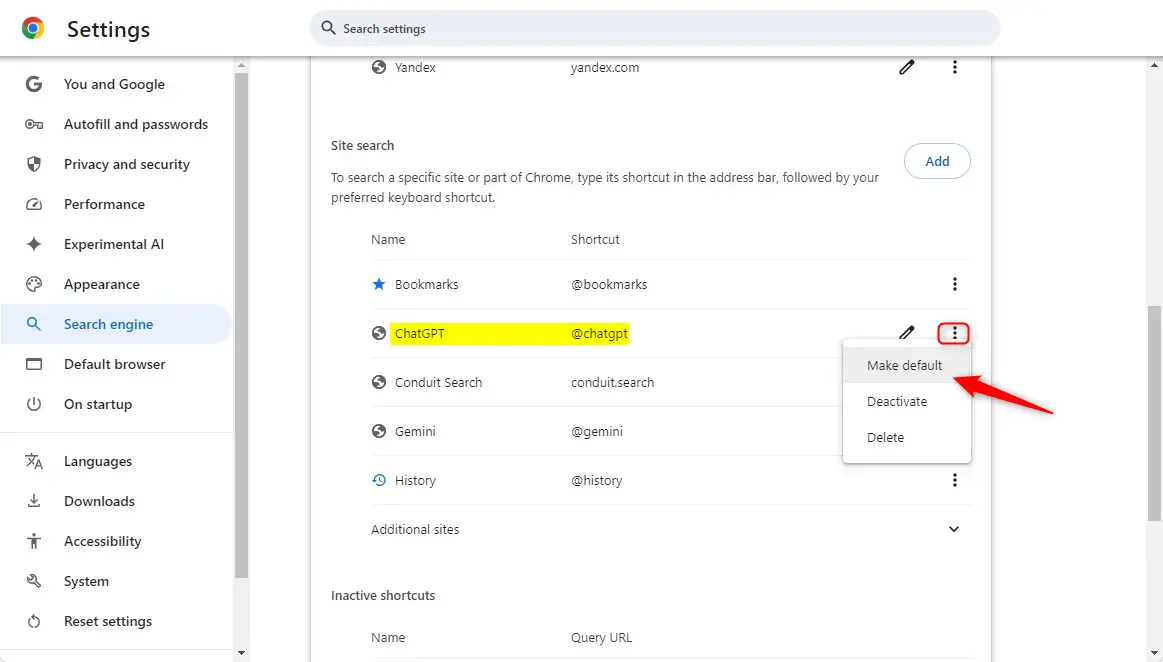
Once you’ve added the ChatGPT search engine, click the menu (three dots button) and choose the Make default.
That should do it!
Conclusion:
- Setting ChatGPT as your default search engine in Google Chrome enhances your search experience by providing prompt answers with relevant links.
- You can easily install the ChatGPT Search extension directly from the Chrome Web Store for quick access.
- Alternatively, you can manually add ChatGPT as your search engine in the Chrome settings for a more customizable approach.
- Following the outlined steps ensures that you seamlessly integrate ChatGPT’s capabilities into your browsing experience.
- Enjoy faster and more efficient searches tailored to your needs!



Leave a Reply Cancel reply