How to restore a Windows backup on Windows 11

Restoring a Windows backup on Windows 11 retrieves your saved files and settings onto a new or reset PC. This process helps you get back to your familiar computing environment quickly after a hardware failure, a new computer setup, or a system reset.
Windows Backup uses your Microsoft account to link your saved data to your user profile. When you sign in to Windows 11 on another device with the same Microsoft account, the system can locate and reapply your previous backups.
This guide shows you the steps to access and restore your backed-up information, making your transition to a fresh Windows 11 installation much smoother.
Restoring Your Files and Settings on a New or Reset PC
This is the most common situation. You have a fresh start and want your familiar computer setup back quickly.
Sign in with Your Microsoft Account
To restore your Windows backup, you must sign in with the same Microsoft account you used when you created the backup, as your data is linked to it.
Tip: If you’re setting up a brand-new PC, the sign-in screen is your first chance to connect everything. Don’t skip this if you want your backup to be found automatically!
Windows Backup Starts (Usually Automatically)
After signing in with your Microsoft account, Windows Backup typically begins restoring your files and settings automatically, so just let it run.
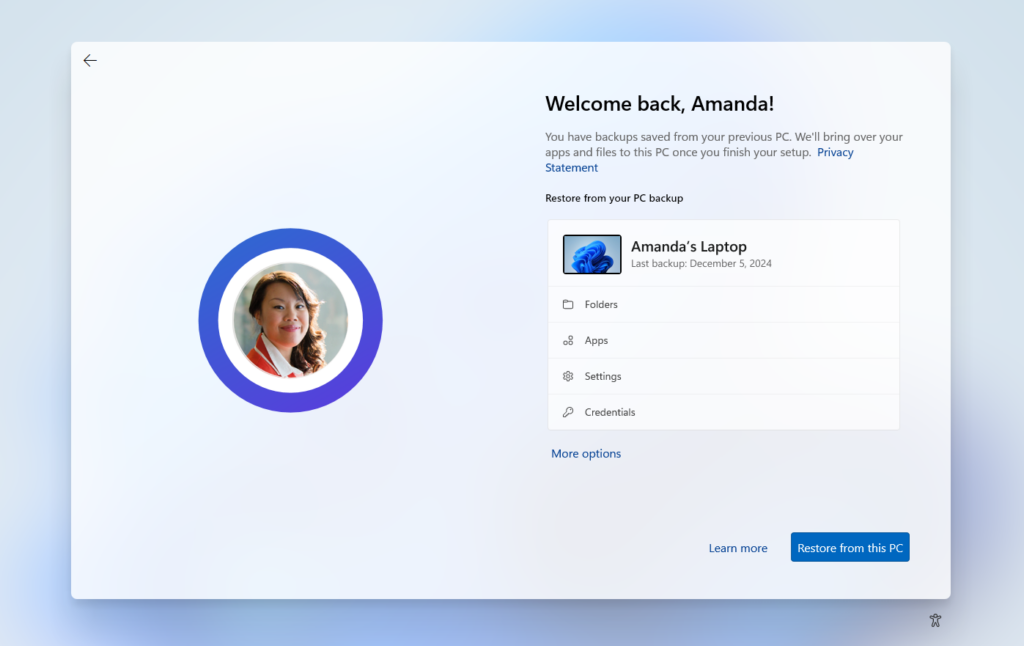
You might see messages like “Windows is setting things up” or “Restoring your environment.” Simply let it continue working. It’s like your PC is remembering your digital personality.
Check Your Restored Items
Once your PC feels familiar again, check your user folders like Desktop and Documents in File Explorer to confirm your files have been restored correctly.
If you backed up your installed apps, Windows will try to install them again for you. This can take time, and you might need to sign into some of those apps again.
Check the Windows Backup App for Details
Open the Windows Backup app by searching for it in the Start menu to check the status and details of your restore process.
Under the “Restore” or “Sync” sections, you can often see a detailed list of what has been restored and what might still be happening or had issues.
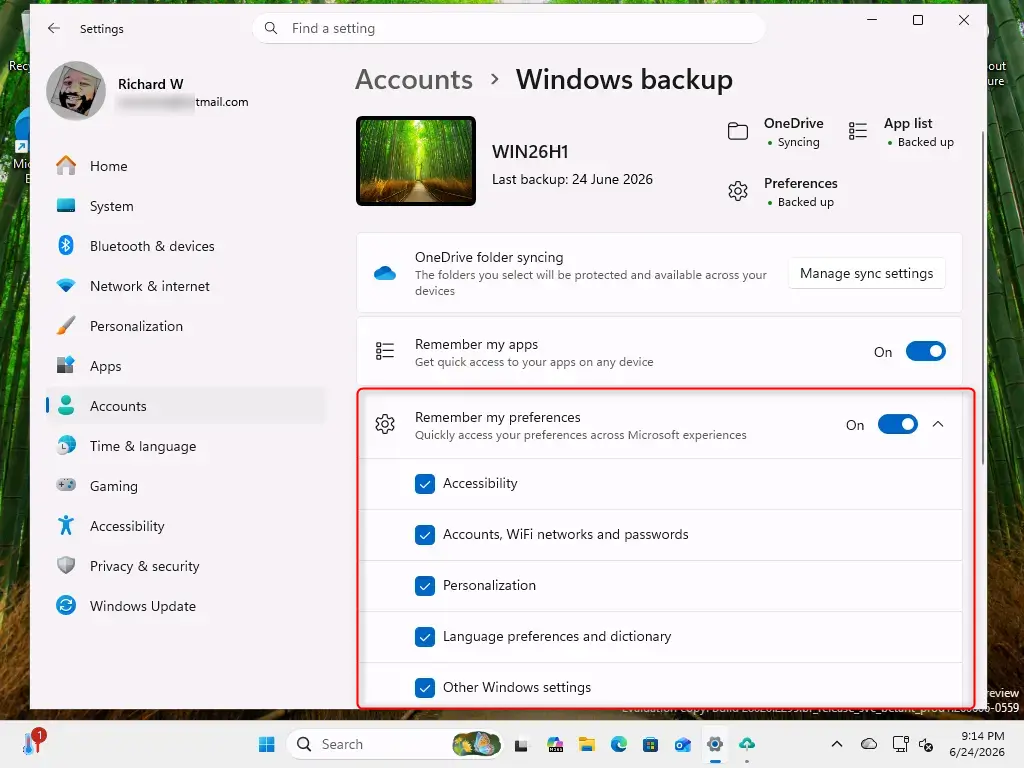
Practical Tip: If you find that some folders or settings were not restored as you expected, go back to the Windows Backup settings (Settings > Accounts > Windows backup) on your restored PC. You might need to turn on specific backup options again to make sure they sync in the future.
Reference:
Summary
Restoring your Windows 11 backup involves signing in with the right Microsoft account, which usually triggers an automatic restore of your files and settings.
Was this guide helpful?

About the Author
Richard
Tech Writer, IT Professional
Richard, a writer for Geek Rewind, is a tech enthusiast who loves breaking down complex IT topics into simple, easy-to-understand ideas. With years of hands-on experience in system administration and enterprise IT operations, he’s developed a knack for offering practical tips and solutions. Richard aims to make technology more accessible and actionable. He's deeply committed to the Geek Rewind community, always ready to answer questions and engage in discussions.



No comments yet — be the first to share your thoughts!