How to Restart Network Services in Ubuntu 24.04

You restart network services in Ubuntu 24.04 to apply configuration changes or fix connectivity issues.
Network services manage how your Ubuntu system connects and communicates with other devices. This includes everything from your Wi-Fi adapter to internet protocols.
Applying changes to network configuration files, such as those managed by Netplan, requires restarting these services to become active. For instance, after editing a Netplan YAML file, a restart is crucial.
This action is also a common troubleshooting step when you encounter network problems, effectively resetting your network adapter and re-establishing communication.
Restart Ubuntu 24.04 network services using `sudo systemctl restart NetworkManager` in the terminal. Alternatively, use `nmcli networking off && nmcli networking on` or the `nmtui` interface. These commands reset network connections to apply changes or fix issues.
Restart network services using Systemd
In most Ubuntu systems, the most common way to restart network services is to use the Systemd command.
To do that, run the command below.
sudo systemctl restart NetworkManager
sudo systemctl restart NetworkManager.service
Restart network services using the NetworkManager CLI
Another way to restart the network services in Ubuntu is to use the NetworkManager CLI command (nncli).
To do that, first, list the network interfaces by running the command below.
nmcli connection show
Then, use the command format below to turn down or up the network interface.
sudo nmcli connection down <interface_name>
Replace <interface_name> with the corresponding interface you want to turn down or up.
You can turn the network on/off entirely using the command below, thus restarting the network services.
sudo nmcli networking off
sudo nmcli networking on
Restart network services using the NetworkManager Text User Interface (nmtui)
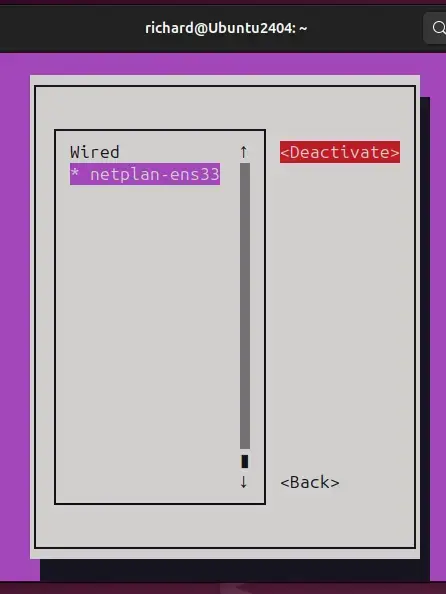
Another way you can restart network services in Ubuntu is to use the NetworkManager Text User Interface (nmtui).
The nmtui command provides a simple and interactive way to manage network configurations.
Run the command below, select deactivate, and reactivate the network services.
nmtui
Use the screen to deactivate and reactivate the interface.
Restart network services using ifup / ifdown
Finally, you can use the ifup and ifdown to restart network services in Ubuntu. You will need to interface name to restart.
Run the command below to list all the interfaces.
ip a
Then, use the command format below to turn on/off the network interface.
sudo ifdown <interface_name>
sudo ifup <interface_name>
Replace the <interface_name> with the corresponding interface in your system.
For example, run the command below to shut down the enp0s3 interface.
sudo ifdown enp0s3
To bring up the same interface, run the command below.
sudo ifup enp0s3
That should do it!
Conclusion:
In summary, restarting network services in Ubuntu is essential for effective network management and troubleshooting. Here are the key points to remember:
- Restarting network services can resolve connectivity issues by resetting network interfaces.
- Various methods are available to restart network services, including:
- Using Systemd commands (
sudo systemctl restart NetworkManager). - Utilizing the NetworkManager CLI (
nmcli). - Employing the NetworkManager Text User Interface (nmtui).
- Executing ifup and ifdown commands for specific interfaces.
- Using Systemd commands (
- Always verify your network configurations after making changes to ensure connectivity.
- Regularly practicing these commands can help you become proficient in managing network services on Ubuntu.
How do I restart my network services?
Unplug the power cord (either from the back of the device or from the wall, whichever is more comfortable) from your modem, router, and any switches or hubs, between your computer and the modem, as well as any wireless boosters or access points, and leave them all unplugged for now. Plug in your modem.
Was this guide helpful?

About the Author
Richard
Tech Writer, IT Professional
Richard, a writer for Geek Rewind, is a tech enthusiast who loves breaking down complex IT topics into simple, easy-to-understand ideas. With years of hands-on experience in system administration and enterprise IT operations, he’s developed a knack for offering practical tips and solutions. Richard aims to make technology more accessible and actionable. He's deeply committed to the Geek Rewind community, always ready to answer questions and engage in discussions.

No comments yet — be the first to share your thoughts!