
If you forgot your PIN or want to change it, this simple guide will help you reset your PIN on Windows 11.
What is Windows Hello and PIN?
Windows Hello lets you sign in to your Windows 11 PC quickly and safely using a PIN, your face, or your fingerprint.
The PIN is like a special code made just for your device. It’s safer than a regular password because it works only on your computer, and no one else can use it on another device.
Why use a PIN instead of a password?
- PIN works only on your device. If someone steals your password, they can use it anywhere. But a PIN only works on your own PC.
- Your PIN stays on your device. It’s not sent over the internet or stored on a Microsoft server, which keeps it safer.
- Your device has special hardware protection. A chip called TPM keeps your PIN very secure, protecting it from hackers.
- You can make your PIN more complex. You can use numbers, letters, and symbols for a stronger PIN.
- If your device is lost or stolen, it’s very hard for anyone to guess your PIN because the device locks after many wrong tries.
- You need a PIN even if you use your face or fingerprint. This is a backup way to sign in if the biometric sensor doesn’t work.
If you forgot your PIN but remember your Microsoft account password, you can reset your PIN easily.
How to Reset Your PIN in Windows 11
Option 1: Reset PIN from Settings (When You Are Signed In)
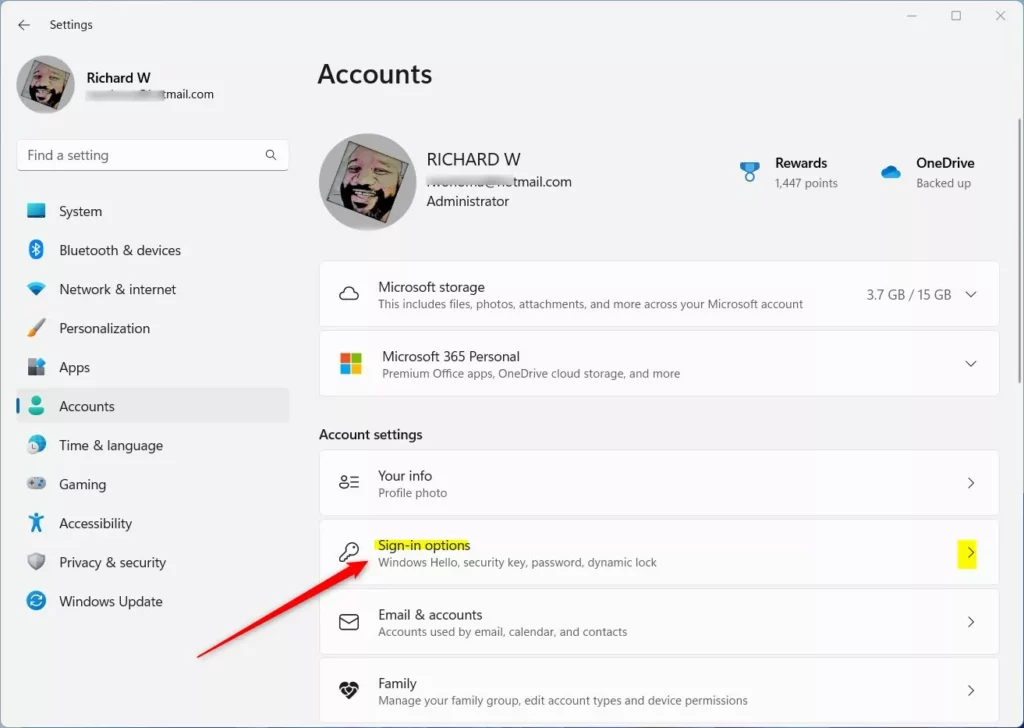
- Press Win + I to open Settings.
- Click Accounts on the left side.
- Click Sign-in options on the right.
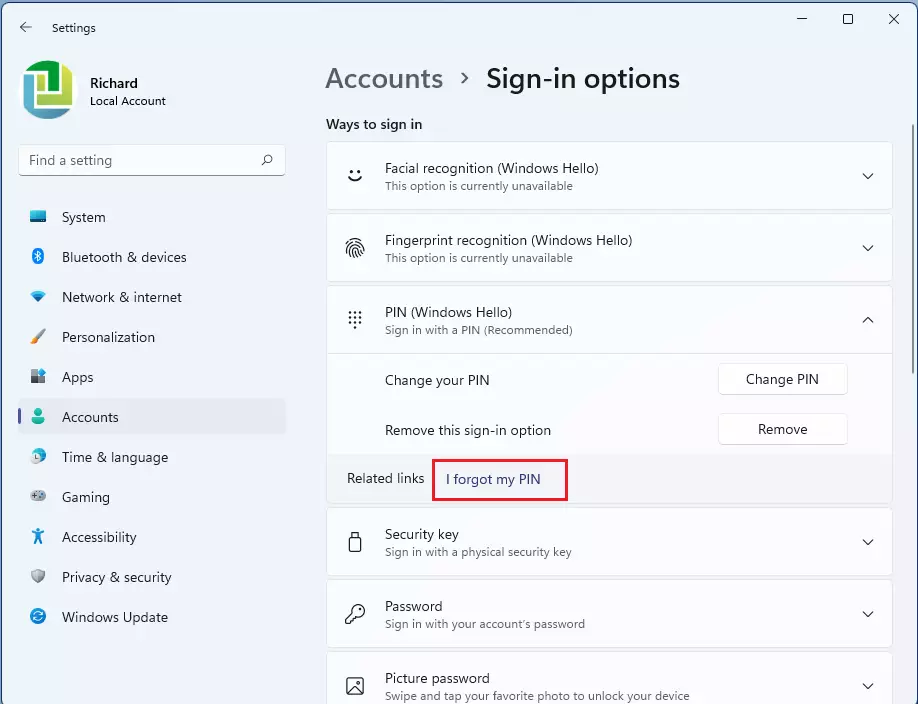
- Under Ways to sign in, click on PIN (Windows Hello) to expand it.
- Click the link that says I forgot my PIN.
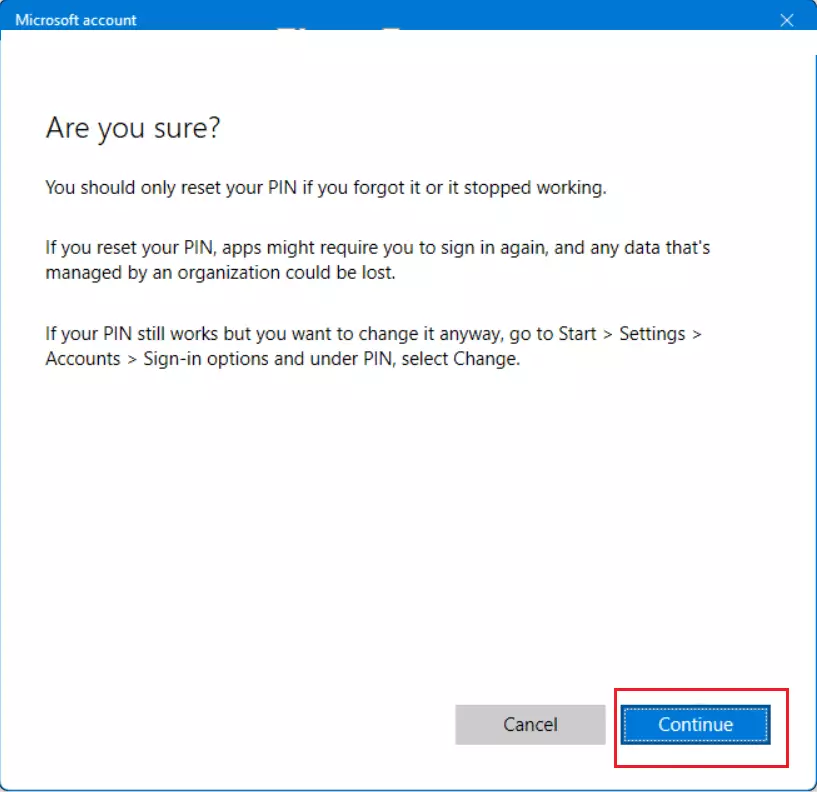
- Click Continue to confirm.
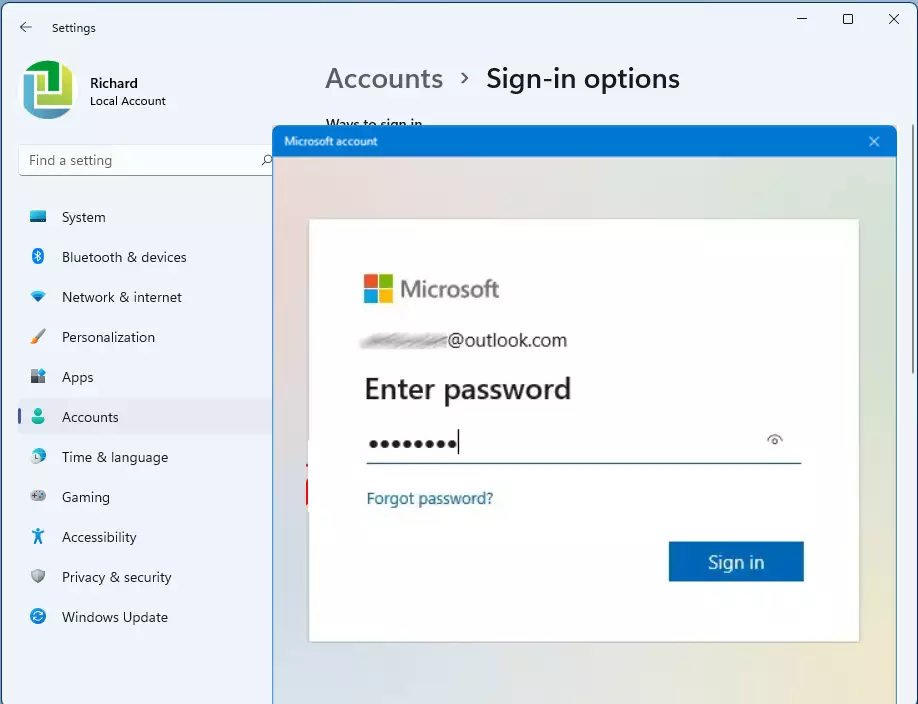
- Enter your Microsoft account password (not your PIN) and click Sign in.
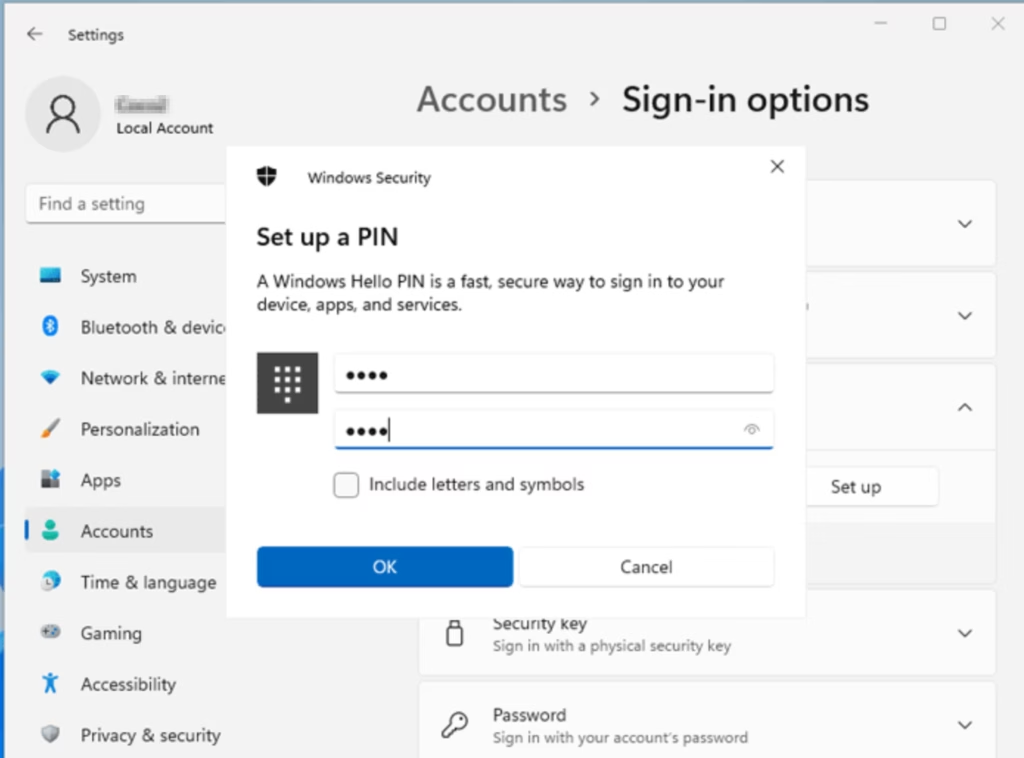
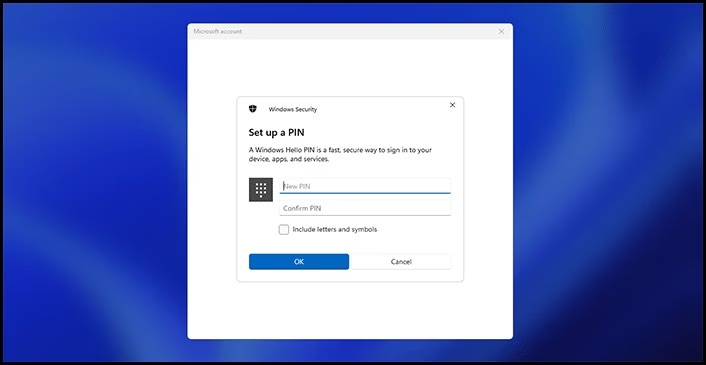
- Now, create a new PIN. You need to enter at least 4 numbers. You can also check Include letters and symbols to add more characters if you want.
- Click OK to save your new PIN.
- You can now close Settings.
Option 2: Reset PIN from the Sign-in Screen (If You Can’t Sign In)
This works only if you use a Microsoft account to sign in.
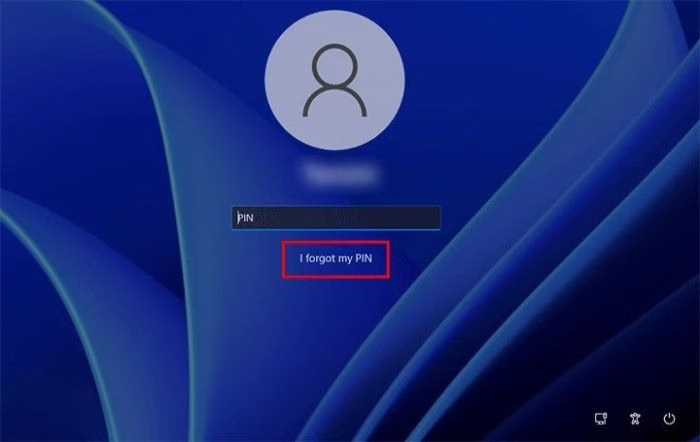
- On the sign-in screen, below the PIN box, click I forgot my PIN.
- Enter your Microsoft account password and click Sign in.
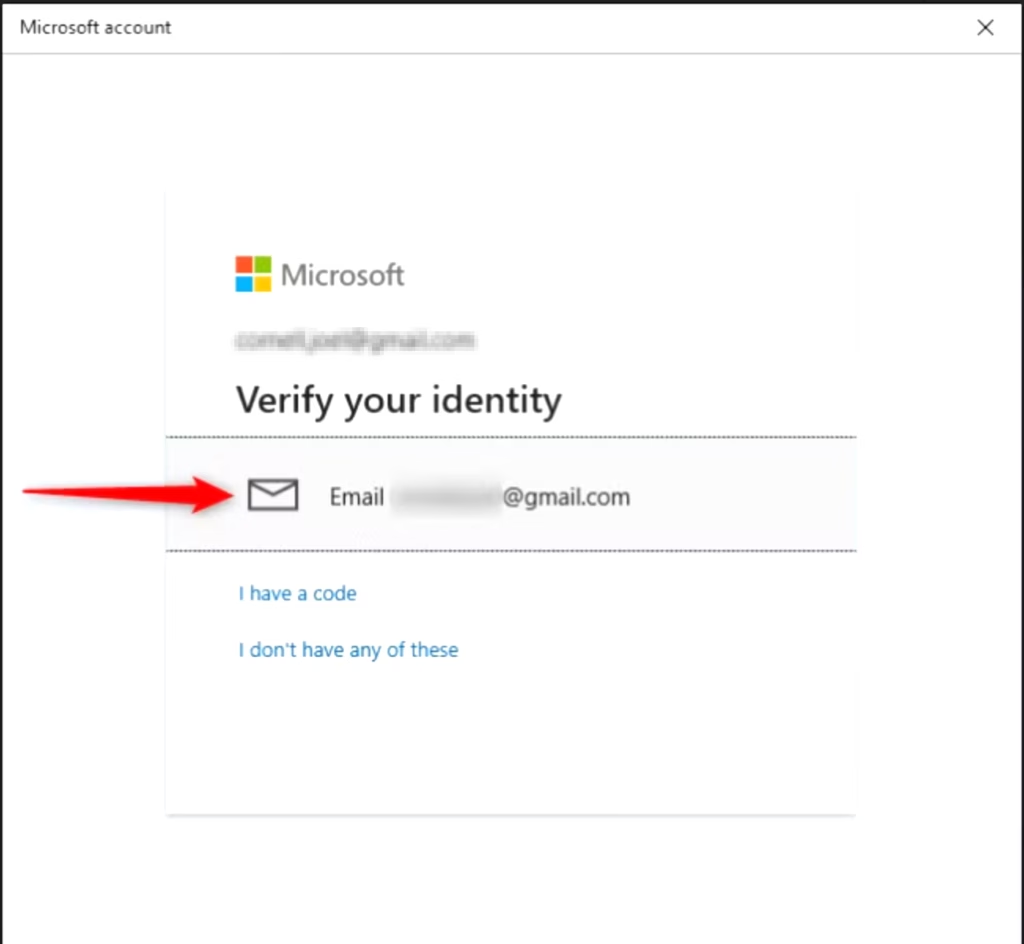
- If you have two-step verification on, choose how to get your security code (email or phone), then click Send code.
- Enter the code you received and click Verify.
- Click Continue to proceed.
- Create a new PIN (minimum 4 digits). You can check Include letters and symbols if you want.
- Click OK to finish.
- You will now sign in with your new PIN.
Summary
- Resetting your PIN is easy and helps you get back into your PC quickly.
- Windows Hello uses a PIN that only works on your device, making it safer than a password.
- You need your Microsoft account password to reset your PIN.
- Try to use a strong PIN with numbers, letters, and symbols for better security.
- If you need more help, check Microsoft’s official sign-in options page.
“`



Leave a Reply Cancel reply