
This guide will help you reset the Recall feature on your Windows 11 PC in easy steps.
Recall & Snapshots is a smart tool in Windows 11 that works like a camera memory. It saves snapshots (pictures) of your screen so you can quickly search and find things you’ve seen on your PC.
Why does this matter? Recall helps you remember what you’ve done on your computer. You can search for something you saw before without having to remember exactly where it was.
This feature is available on newer Windows 11 updates, especially on Copilot+ PCs with Snapdragon processors. You can turn it on, pause it, delete snapshots, and even exclude certain apps or websites from being saved.
If you want to start fresh, Windows 11 now lets you reset Recall. What happens when you reset? It will delete all snapshots and return the settings to how they were when you first started using the feature.
How to Reset Recall in Windows 11
Follow these simple steps to reset Recall on your PC:
- Open Windows Settings: Click the Start menu (the Windows icon at the bottom left), then click Settings. Or press Windows key + I on your keyboard to open Settings directly.
- Go to Privacy & Security: In the Settings window, look at the menu on the left side and click Privacy & security.
- Select Recall & Snapshots: On the right side, find and click on the Recall & snapshots section.
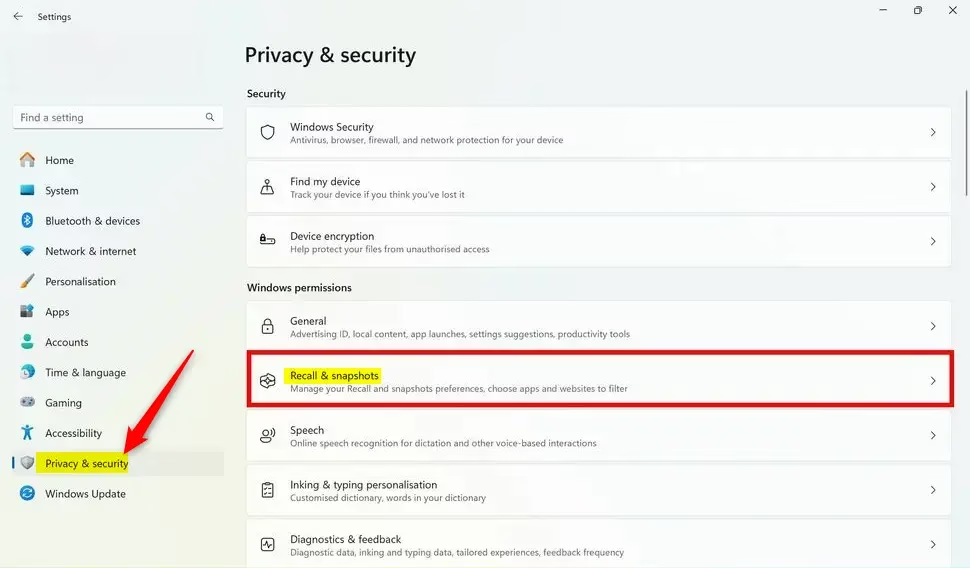
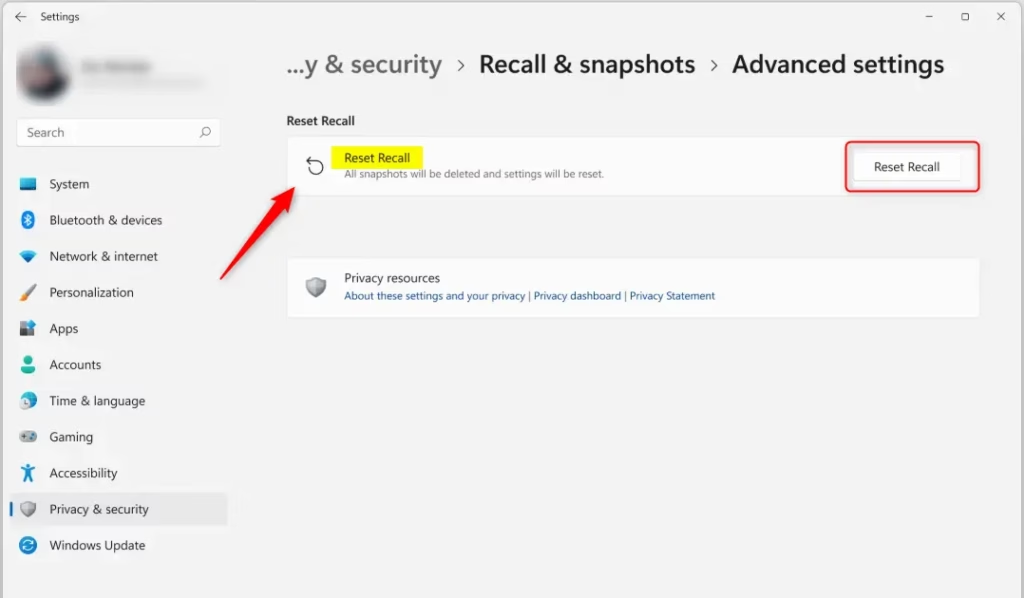
- Open Advanced Settings: Inside the Recall & snapshots page, click on Advanced settings to see more options.
- Click Reset Recall: Find and click the Reset Recall button.
- Confirm the Reset: A prompt will appear asking if you want to reset. Click Reset to finish.
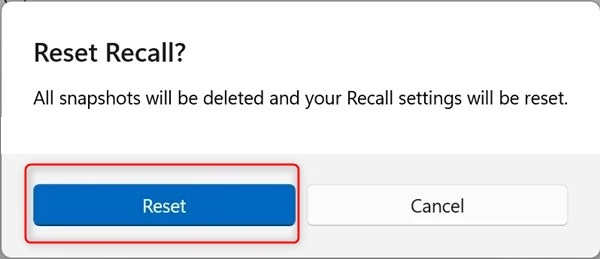
After this, your Recall feature will be reset. You can close the Settings app.
Summary
- Open Settings: Use Start menu or press Windows + I.
- Go to Privacy & Security: Find Recall & snapshots settings.
- Reset Recall: Click Advanced settings then Reset Recall.
- Confirm: Click Reset when asked.
- Manage Snapshots: After reset, you can start using Recall fresh or pause it anytime.
Resetting Recall helps you keep your snapped content organized and protects your privacy by removing all saved snapshots. For more details, check out the full guide here: How to Reset Recall in Windows 11.

Leave a Reply Cancel reply