How to Rename Your Windows 11 Computer

Want to give your Windows 11 computer a new name? Maybe you want it to be easier to find on your home network. This guide shows you easy ways to rename your PC.
Why Rename Your Computer?
Changing your computer’s name helps you:
- Make your device feel more personal
- Find your PC easily on a home or work network
- Stay organized if you have multiple computers
Method 1Rename Your Computer Using Settings
This is the easiest way. Follow these steps:
- Click the Start menu (Windows icon at the bottom-left) and select Settings. Or press Windows key + I to open Settings right away.
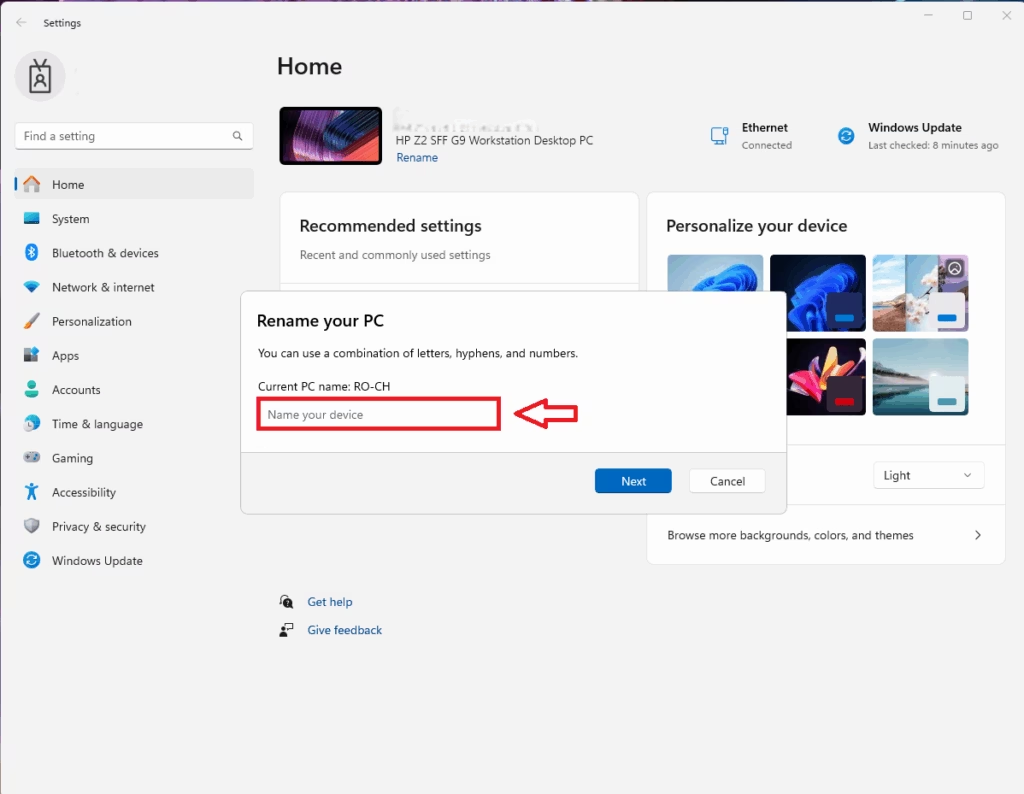
- Look at the top of the Home section. You will see your current computer name.
- Click the Rename this PC button or link below the name.
- A small window will pop up. Type your new computer name here. You can use letters, numbers, and hyphens (but no spaces or special characters).
- Click Next. Then choose to restart now or later. Your PC will restart to apply the new name.
Method 2Rename Using System Properties
You can also rename your PC through System Properties. Here’s how:
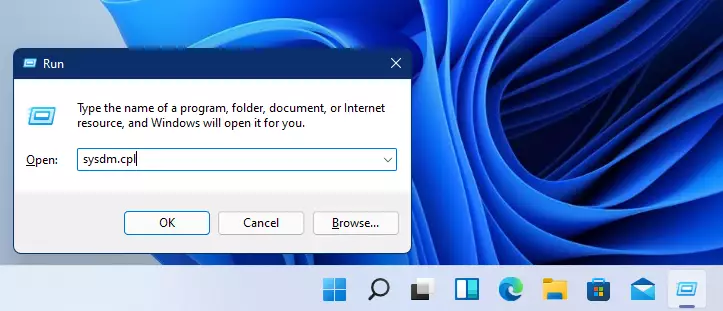
- Press Windows key + R on your keyboard to open the Run box.
- Type
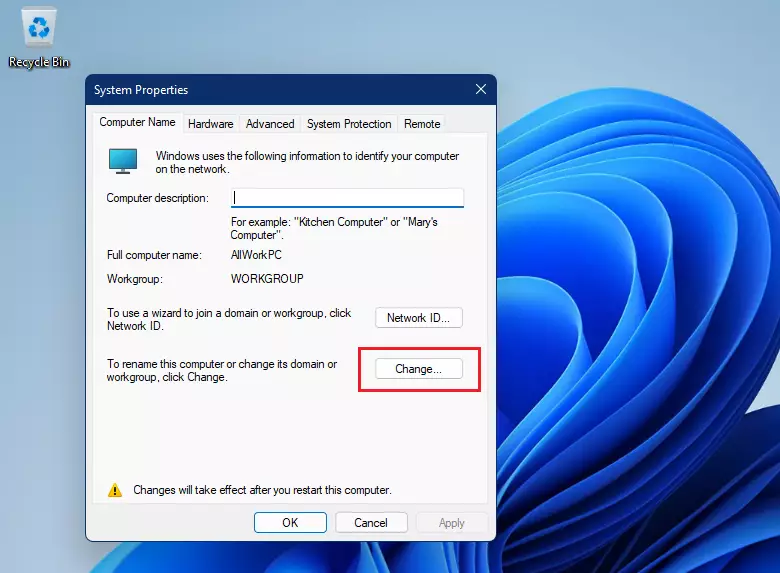
sysdm.cpland press Enter. This opens the System Properties window. - Click the Computer Name tab if it’s not already selected.
- Click the Change… button.
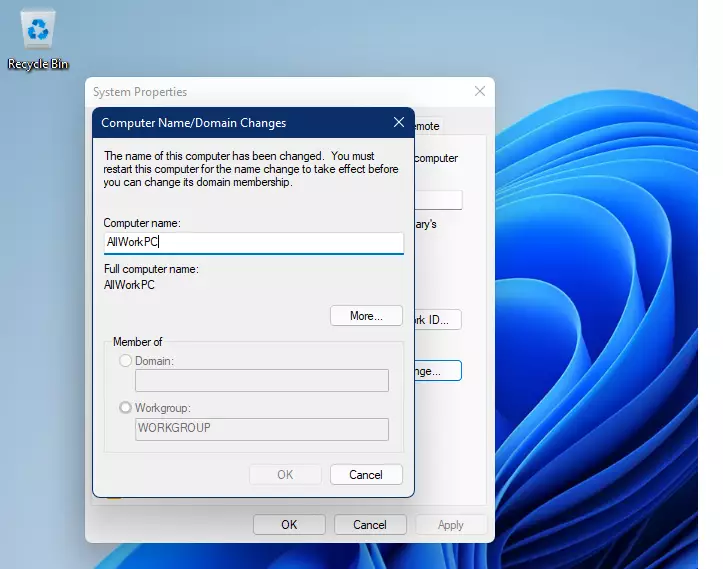
- In the new window, enter your desired computer name in the Computer name box.
- Click OK. Then close all windows.
- Restart your computer to save the changes.
Method 3Rename Using Command Prompt
If you like using commands, here’s how to rename your PC with Command Prompt:
- Click the Start button. Type Command Prompt.
- FLAG: Admin privileges required — Right-click on Command Prompt in the search results and choose Run as administrator.
- Type the following command. Replace Old_Name with your current PC name and New_Name with the new name you want:
wmic computersystem where name="Old_Name" call rename name="New_Name" - For example, if your old name is DESKTOP-ABC123 and you want to rename it to MyPC, type:
wmic computersystem where name="DESKTOP-ABC123" call rename name="MyPC" - Press Enter. If it works, you’ll see a message saying the rename was successful.
- Restart your computer to apply the new name.

Method 4Rename Using PowerShell
PowerShell is another way to rename your Windows 11 PC:
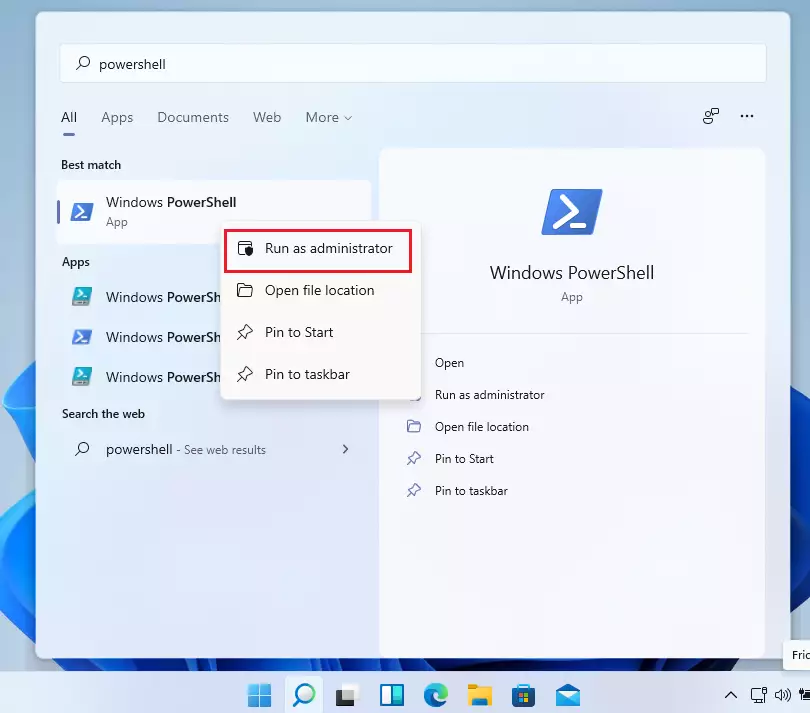
- Click the Start button. Type PowerShell.
- FLAG: Admin privileges required — Right-click Windows PowerShell and select Run as administrator.
- Type this command. Replace NewName with the name you want:
Rename-Computer -NewName "NewName" - For example:
Rename-Computer -NewName "MyNewPC" - Press Enter. Then restart your computer for the change to take effect.
Summary
What happened: You learned four different ways to rename your Windows 11 PC.
Why this matters: Renaming your computer makes it easier to identify on your network and adds a personal touch to your device.
What you need to do: Choose whichever method feels easiest for you. All methods work the same way — you just need to restart your PC to see the new name.
Enjoy your newly named computer!
Was this guide helpful?

About the Author
Richard
Tech Writer, IT Professional
Richard, a writer for Geek Rewind, is a tech enthusiast who loves breaking down complex IT topics into simple, easy-to-understand ideas. With years of hands-on experience in system administration and enterprise IT operations, he’s developed a knack for offering practical tips and solutions. Richard aims to make technology more accessible and actionable. He's deeply committed to the Geek Rewind community, always ready to answer questions and engage in discussions.


No comments yet — be the first to share your thoughts!