How to Remove Unused BitLocker Recovery Keys

Got old BitLocker recovery keys cluttering your Microsoft account? Here’s how to clean them up.
Go to the BitLocker recovery keys page on the Microsoft website and sign in. Find the key you wish to remove, click the three-dot “More options” button next to it, and then click “Delete.” Confirm the deletion to remove the key from your account.
BitLocker is a Windows tool that keeps your files safe by locking your drive. Only authorized people can open it. When you save new files to a BitLocker-protected drive, they’re automatically kept secure.
You can use BitLocker to protect different types of drives:
- External drives like USB sticks
- Fixed drives inside your computer
- Your main Windows drive (where your system is installed)
When you enable BitLocker on your main Windows drive, it often unlocks automatically at startup thanks to a security chip called TPM (Trusted Platform Module). This means you won’t need to enter a password every time.
During setup, Windows prompts you to save a crucial ‘recovery key.’ This key is your backup; it’s essential for unlocking your drive if you forget your password or encounter issues.
You can save this key in several places:
- In your Microsoft account online
- On a USB flash drive
- As a printed paper copy
If you lose your recovery key and can’t fix your PC in other ways, you might have to reset or reinstall Windows, which can erase your files.
If you erased or reset a device that had BitLocker turned on, the old recovery key saved for that device won’t work anymore. So, there’s no need to keep it saved if you don’t need it.
How to Delete BitLocker Recovery Keys from Your Microsoft Account
You can easily remove BitLocker recovery keys you no longer need directly from your Microsoft account online.
- Go to the BitLocker recovery keys page on the Microsoft website.
- Sign in with your Microsoft account email and password if asked.
- You will see a list of recovery keys saved to your account.
- Find the key you want to delete. Click on the More options button (it looks like three dots) next to that key.
- Click Del to remove the key.
- Confirm that you want to delete the key when asked.
Here is what it looks like on the website:
Choose the recovery key and click the three dots to delete it.
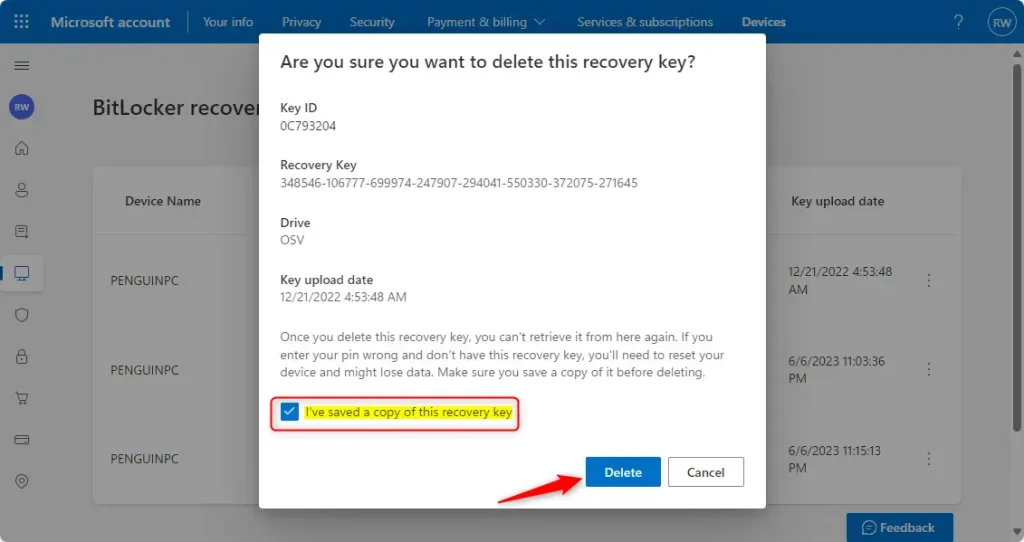
Confirm you want to delete the recovery key.
That’s all! The recovery key will be removed from your account.
Summary
Removing old BitLocker recovery keys helps keep your Microsoft account organized and secure. You can manage these keys online by following the steps above. If you need help, feel free to ask questions or leave comments.
Can I delete BitLocker recovery keys?
Yes, you can delete BitLocker recovery keys, but removing all keys for a specific device might require deleting its record from Microsoft Entra ID, which usually means wiping the device.
Was this guide helpful?

About the Author
Richard
Tech Writer, IT Professional
Richard, a writer for Geek Rewind, is a tech enthusiast who loves breaking down complex IT topics into simple, easy-to-understand ideas. With years of hands-on experience in system administration and enterprise IT operations, he’s developed a knack for offering practical tips and solutions. Richard aims to make technology more accessible and actionable. He's deeply committed to the Geek Rewind community, always ready to answer questions and engage in discussions.



No comments yet — be the first to share your thoughts!