
If you use your Microsoft account on Windows 11, you might have linked your phone or tablet to your PC. Sometimes, you may want to remove an old or unused mobile device from your account. This guide shows you how to do that easily.
Why Link Your Mobile Device to Windows 11?
Windows 11 lets you connect your phone to your PC using a feature called Phone Link (also called Windows Mobile devices). This helps you:
- Transfer files between your phone and computer quickly
- Send and receive text messages from your PC
- See phone notifications right on your computer
Learn more about linking your phone to Windows 11.
How to Remove a Mobile Device from Your Microsoft Account on Windows 11
Windows 11 recently added a simple way to remove your mobile devices directly from your Microsoft account without needing to use a web browser.
Follow these easy steps:
Open Settings: Click the Start menu (the Windows icon at the bottom-left corner) and choose Settings. You can also press the keyboard shortcut Windows key + I to open Settings right away.

Go to Bluetooth & devices: In the Settings window, click Bluetooth & devices on the left side.

Select Mobile devices: On the right side, click on the Mobile devices tile to open it.
Click Manage devices: Below the option that says Allow this PC to access your mobile device, click the Manage devices button.

Remove the device: Under My devices, find the mobile device you want to remove. Click to expand it, then click the Remove from account button. Confirm by clicking Remove.
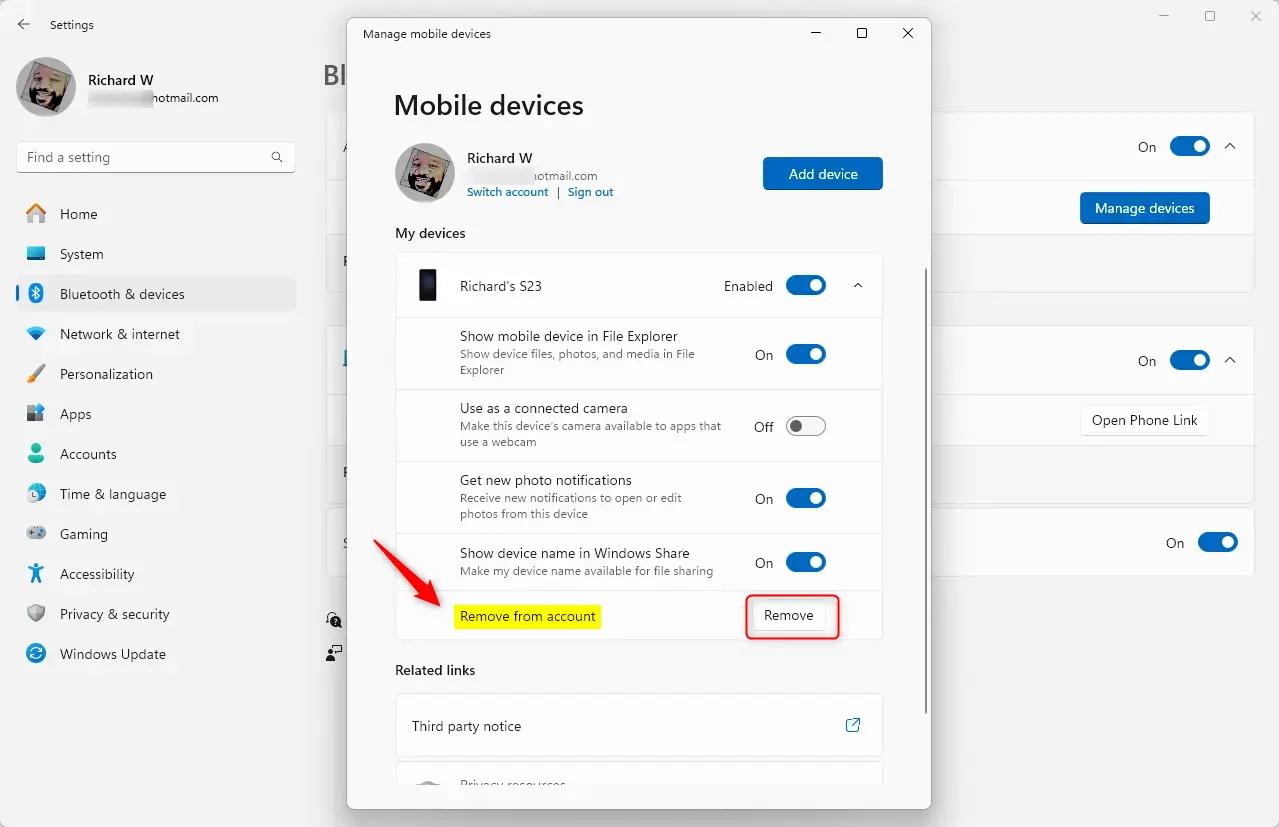
That’s it! Your chosen mobile device will no longer be linked to your Microsoft account on your Windows 11 PC.
Summary
- Removing a mobile device from your Microsoft account is quick and easy on Windows 11.
- Make sure your Windows 11 is updated to use the latest features.
- Use the Settings app and go to Bluetooth & devices > Mobile devices to manage your linked phones or tablets.
- Simply expand your device list and remove any devices you no longer use.
- This helps keep your device list organized and your account secure.
If you want to learn more about managing your devices or linking new ones, check out these helpful guides:
- How to create a Microsoft account
- How to link your mobile device to Windows 11
- How to sign in and out of mobile devices on Windows 11



Leave a Reply Cancel reply