

Locking your Windows 11 computer is a quick and easy way to keep your information safe when you step away. It keeps everything open, so when you come back, you can pick up right where you left off.
This means no one else can use your computer or see your files while you’re away.
1. Use a Keyboard Shortcut (Fastest Way)
The easiest way to lock your computer is by pressing the Windows key + L on your keyboard at the same time.
- The Windows key has the Microsoft logo and is usually found near the spacebar.
- Press these keys together and your screen will lock immediately.

2. Lock from the Start Menu
You can also lock your computer using the Start menu:
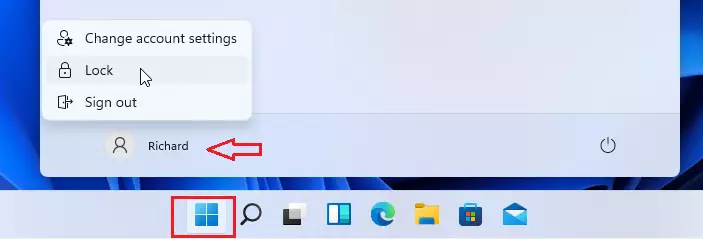
- Click the Start button (the Windows logo) at the bottom left of your screen.
- Click your user icon or account name at the top left of the Start menu.
- Select Lock from the menu that appears.
3. Lock Using Ctrl + Alt + Delete
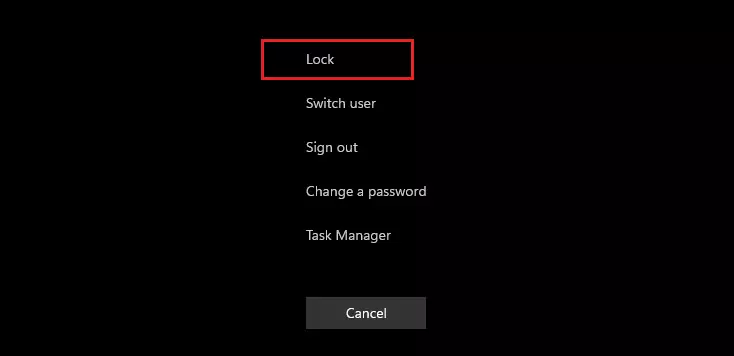
Another quick way is by pressing Ctrl + Alt + Delete keys together.
- This will open a screen with several options.
- Just click Lock to secure your computer.
4. Lock from the Task Manager (For Advanced Users)
If you want, you can also lock your computer from the Task Manager:
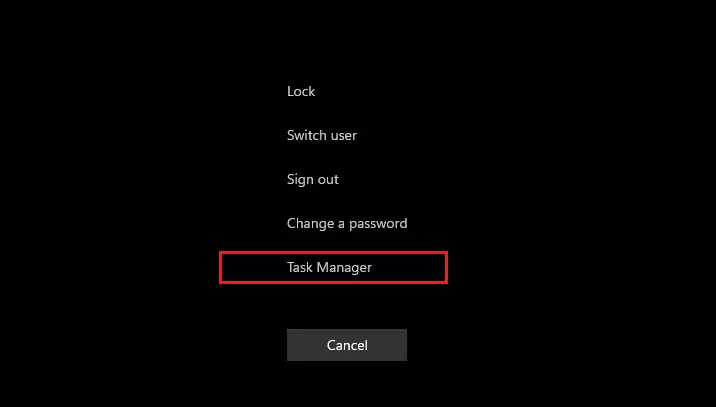
- Press Ctrl + Shift + Esc to open Task Manager directly, or press Ctrl + Alt + Delete and then choose Task Manager.
- Click More details at the bottom if Task Manager opens in a small window.
- Go to the Users tab.
- ⚠️ Admin privileges required: Right-click your user name and select Disconnect. (Note: This logs you off, so save your work before doing this.)
Why Lock Your Computer?
- Keep Your Files Safe: Locking stops others from opening your files or programs.
- Stop Changes: No one can change your work or settings while you’re away.
- Good Habit: Locking regularly helps protect your privacy, especially in public places.
- Easy to Do: Windows 11 gives you many simple ways to lock your computer.
Try to lock your computer whenever you leave it, even for a short time. It only takes a second but keeps your information safe!
Want to learn more? See Microsoft’s official guide here: How to Lock Your Windows PC
Summary
Locking your Windows 11 computer protects your files and privacy when you step away. You have four easy ways to do it: use the Windows key + L (fastest), use the Start menu, use Ctrl + Alt + Delete, or use Task Manager for advanced users. Locking keeps your work safe and is a good habit to practice regularly.



Leave a Reply Cancel reply