How to let your Windows 11 PC lock itself when you leave and far away

Windows 11 Presence Sensing automatically locks your PC when you walk away and can wake it when you return. This built-in security feature uses your computer’s sensors to detect your presence. It’s designed to improve privacy by ensuring your computer locks itself, just like manually locking it with ⊞ Win+L, but without you needing to remember.
This technology can also help save power by putting your PC to sleep when you’re not using it. For this feature to work, your PC needs compatible sensors, typically found in newer laptops. You can configure Presence Sensing to lock your device after a short absence or even wake it up as you approach.
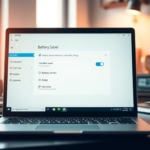
Enable Presence Sensing in Windows 11 by going to Settings > System > Power & battery > Screen and sleep. Turn on “Automatically turn off my screen when I leave” and adjust the distance and delay settings as needed. This feature uses your PC’s sensors to detect your presence.
Check if Your PC Has Presence Sensing
First, we need to see if your computer can do this. Not all PCs have the right hardware. The best way is to look for the settings we’ll talk about. If you see them, your PC is ready.
How to Find Presence Sensing Settings:
- Click the Start button.
- Type “settings” and open the Settings app.
- In Settings, click System on the left side.
- Under System, click Power & battery.
- Look for a section named Screen and sleep.
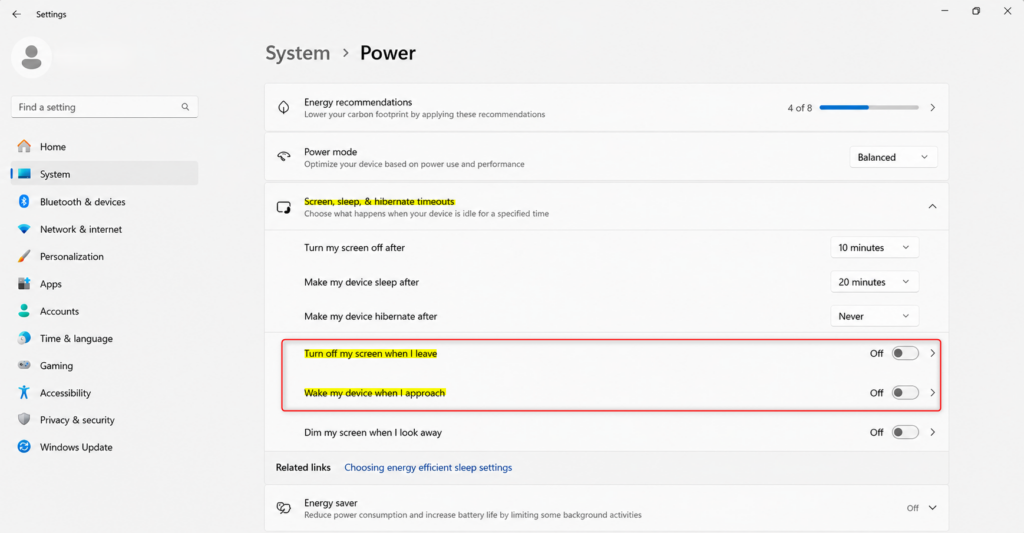
You can find Windows 11 presence sensing settings by opening the main Settings app, then going to System, and finally clicking on Power & battery, followed by Screen and sleep.
Set Your PC to Turn Off the Screen When You Leave
You can set your Windows 11 PC to automatically turn off its screen when you walk away, which is a smart way to boost privacy and security, especially in public places.
How to Turn On Screen-Off When You Leave:
- Go to Power & battery > Screen and sleep settings (like in Step 1).
- Find the option “Automatically turn off my screen when I leave.”
- Turn the switch On.
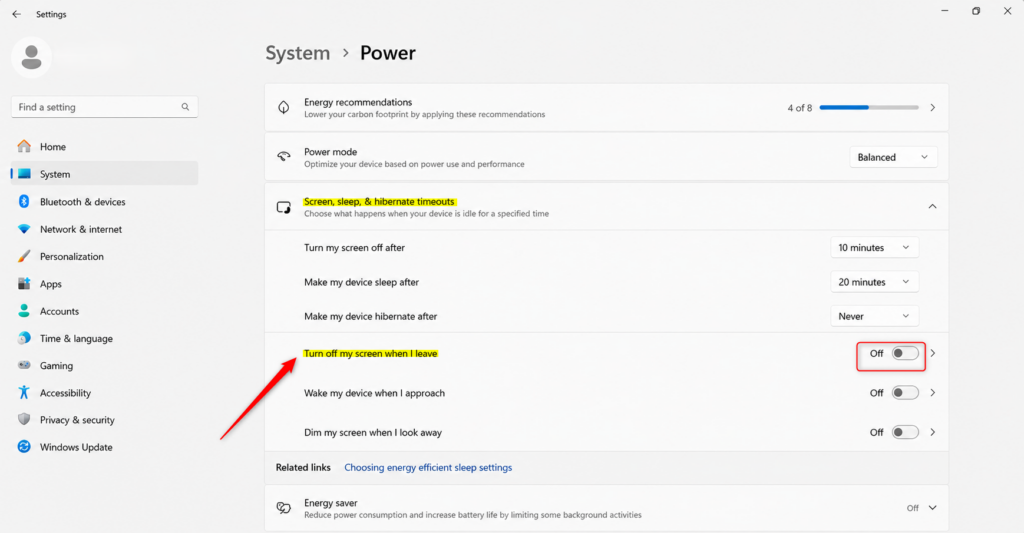
To make your Windows 11 PC turn off its screen automatically when you leave, go to Power & battery settings and find the Screen and sleep section, then simply turn on the option that says ‘Automatically turn off my screen when I leave’.
Decide How Far Away Means “Gone”
How far do you need to be for your PC to think you’re “gone”? Windows 11 lets you choose! This helps stop your screen from turning off by mistake when you’re just moving around your desk.
Adjusting the “Gone” Distance:
- In the Screen and sleep settings, find “Automatically turn off my screen when I leave.”
- Click the More options button next to it.
- You will see a setting called “Consider me gone when I’m this far away.”
- Choose a distance from the list. Options usually include “Near,” “Mid-range,” and “Far.”
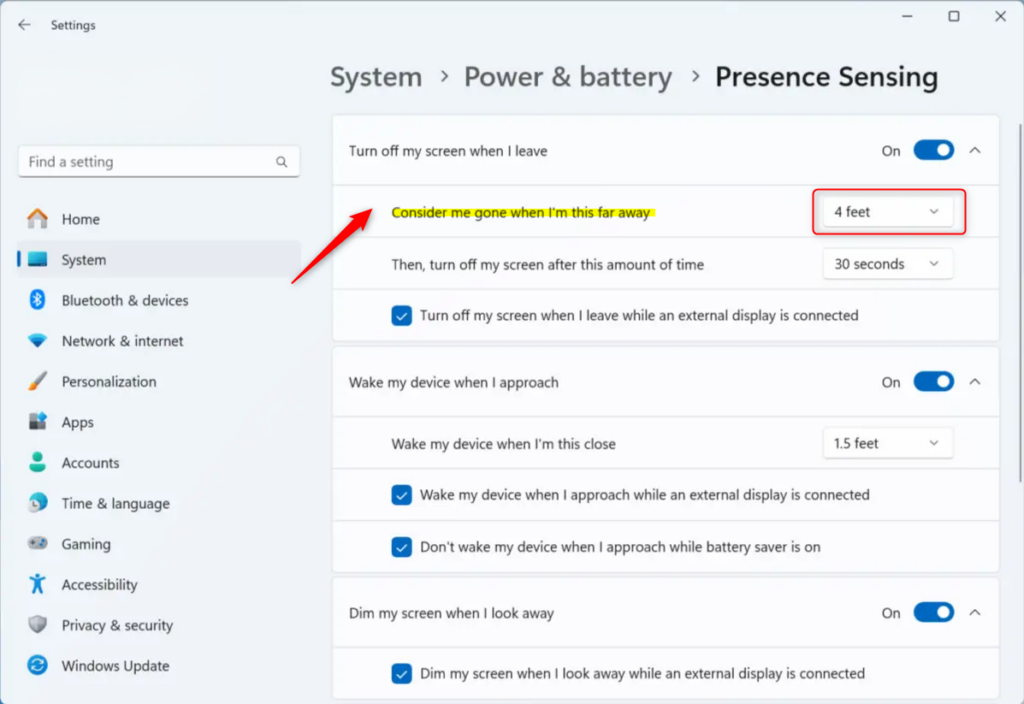
You can adjust how far away you need to be for your Windows 11 PC to consider you ‘gone’ and turn off the screen by clicking the ‘More options’ next to the ‘Automatically turn off my screen when I leave’ setting and choosing a distance like ‘Near,’ ‘Mid-range,’ or ‘Far.’
Set a Delay for Screen-Off
Windows 11 lets you set a delay before your screen turns off after presence sensing detects you’ve left, giving you more control; find this option in the ‘More options’ menu under ‘Then, turn off my screen after this amount of time.’
Within that same “More options” menu, under “Automatically turn off my screen when I leave,” you’ll find “Then, turn off my screen after this amount of time.”
Select a time from the available options.
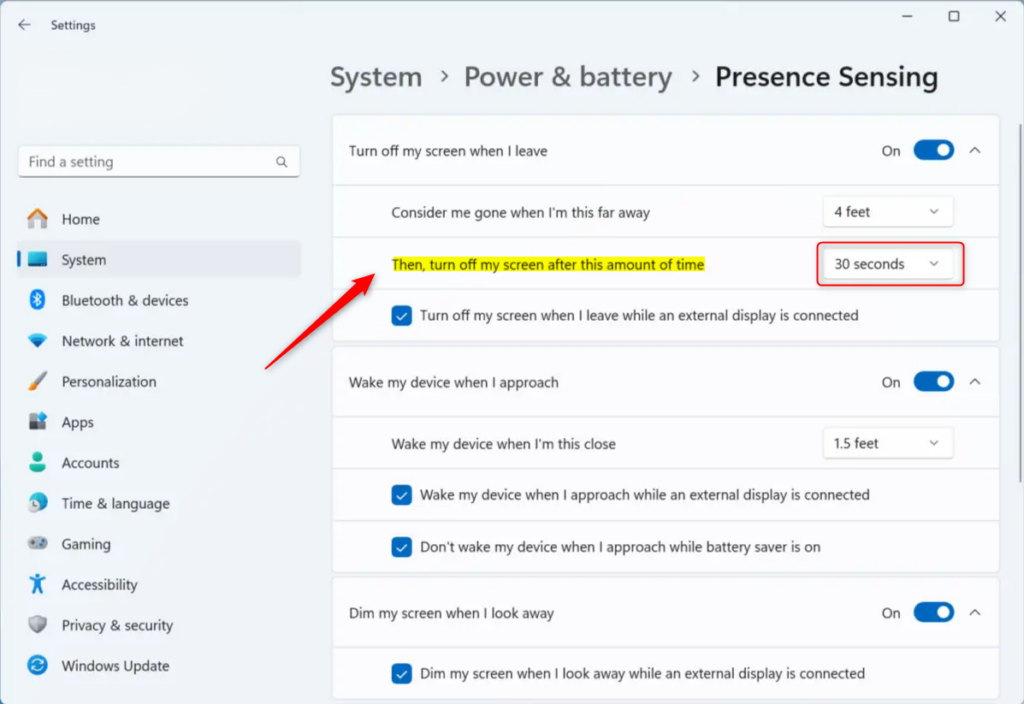
Use Case: If you often step away for a few minutes to talk to someone, set a longer delay. If you want the screen off almost right away when you leave, choose a shorter time.
Reference:
Summary
Windows 11 presence sensing helps your PC know when you’re nearby or have stepped away, allowing it to automatically turn off the screen to save power and enhance security; you can find and adjust these settings under Settings > System > Power & battery > Screen and sleep.
How to lock Windows computer when leaving?
It is recommended to do this whenever leaving your computer unattended. Press the Windows logo key + L.
Why does my computer lock when I walk away 🪟 Windows 11?
Presence Sensing is a feature in Windows 11 that can automatically lock your PC screen when you walk away. It can also unlock your computer and, with Windows Hello, sign you back in when you return!
Was this guide helpful?

About the Author
Richard
Tech Writer, IT Professional
Richard, a writer for Geek Rewind, is a tech enthusiast who loves breaking down complex IT topics into simple, easy-to-understand ideas. With years of hands-on experience in system administration and enterprise IT operations, he’s developed a knack for offering practical tips and solutions. Richard aims to make technology more accessible and actionable. He's deeply committed to the Geek Rewind community, always ready to answer questions and engage in discussions.

No comments yet — be the first to share your thoughts!