How to Install Zabbix with Apache on Ubuntu 24.04


Zabbix on Ubuntu 24.04 sets up a monitoring system that watches your servers, network devices, and applications for problems. This software checks the health of your IT setup and sends alerts, while the Apache web server lets you view all that data in a web browser.
Pairing these two programs puts your system stats into a central dashboard. You need to install the Zabbix server and its agent, set up the database, and connect Apache so the web interface loads correctly.
Install Zabbix server, PHP, and Apache packages using `sudo apt install zabbix-server-pgsql zabbix-frontend-php php8.3-pgsql zabbix-apache-conf zabbix-sql-scripts zabbix-agent`. Then, configure the Zabbix server file `/etc/zabbix/zabbix_server.conf` with your database details. Finally, restart services with `sudo systemctl restart zabbix-server zabbix-agent apache2`.
Install PostgreSQL server
To install PostgreSQL server on Ubuntu 24.04 for your monitoring database, open your terminal and run the command sudo apt install postgresql postgresql-contrib. This sets up the database backend required to store all your metrics and system data. PostgreSQL services start automatically after installation so you can move straight on to setting up your software packages.
PostgreSQL serves as the primary database backend for this deployment.
Execute the command below to install PostgreSQL.
PostgreSQL services start automatically after installation to ensure continuous monitoring. Check the PostgreSQL service status using the command `sudo systemctl status postgresql`.
sudo systemctl is-enabled postgresql
sudo systemctl status postgresql
Consult the following resource for additional details regarding PostgreSQL configuration on Ubuntu.
Install Zabbix packages
To install Zabbix packages on Ubuntu 24.04, you first need to add the official software repository to your system. Download the repository package by running wget https://repo.zabbix.com/zabbix/7.0/ubuntu/pool/main/z/zabbix-release/zabbix-release_latest+ubuntu24.04_all.deb in your terminal, and then process the installation using sudo dpkg -i zabbix-release_latest+ubuntu24.04_all.deb to prepare for the main software setup.
Fetch and install the Zabbix repository for Ubuntu by executing the command below.
wget https://repo.zabbix.com/zabbix/7.0/ubuntu/pool/main/z/zabbix-release/zabbix-release_latest+ubuntu24.04_all.deb
Process the Zabbix repository installation by running this command.
sudo dpkg -i zabbix-release_latest+ubuntu24.04_all.deb
Refreshing the local package index is necessary after adding a new repository. Execute the command below.
Execute `sudo apt install zabbix-server-mysql zabbix-frontend-php zabbix-agent` to install the Zabbix server, frontend, and agent packages from the repository.
sudo apt install zabbix-server-pgsql zabbix-frontend-php php8.3-pgsql zabbix-apache-conf zabbix-sql-scripts zabbix-agent
This command installs the following packages:
- Zabbix with PostgreSQL database support
- Zabbix web application or frontend
- PHP and modules, including the 'pgsql' module for the PostgreSQL driver
- Apache and configuration for Zabbix
- Zabbix SQL scripts
- Zabbix agent for monitoring the Zabbix system
Configure Zabbix
To configure Zabbix with your PostgreSQL database, you must create a dedicated database and user account to store your monitoring data securely. Run the required PostgreSQL administrative commands to create a new user and a database named zabbix protected by a secure password, which allows the monitoring software to communicate with your server backend.
Initialize the database and credentials for Zabbix.
Two specific commands establish the new PostgreSQL user and database named 'zabbix', which provides persistent storage for monitoring metrics.
Terminal prompts request a secure password for the account.
sudo -u postgres createuser --pwprompt zabbix
sudo -u postgres createdb -O zabbix zabbix
Import the database schema into the newly created database by running the command below.
Provide the previously generated password when prompted.
zcat /usr/share/zabbix-sql-scripts/postgresql/server.sql.gz | sudo -u zabbix psql zabbix
A success message appears if the import completes without errors.
Open the Zabbix server configuration file located at /etc/zabbix/zabbix_server.conf using a command-line text editor. This file controls server operations, including database credentials and network port assignments.
sudo nano /etc/zabbix/zabbix_server.conf
Update the 'DBName', 'DBUser', and 'DBPassword' settings with the PostgreSQL database credentials.
### Option: DBName
# Database Name
# Mandatory: yes
# Default:
# DBName=

DBName=zabbix

### Option: DBUser
#Database user.
# Mandatory: no
# Default:
# DBUser=

DBUser=zabbix

### Option: DBPassword
#Database password.
# Mandatory: no
# Default:
 DBPassword=Type_DBuser_password
Save changes and exit the text editor.
Restart Zabbix services
To restart Zabbix services and apply your new configuration on Ubuntu 24.04, run systemctl restart zabbix-server zabbix-agent apache2 in your terminal. Follow this by running systemctl enable zabbix-server zabbix-agent apache2 to configure the Zabbix server, Zabbix agent, and Apache web server to launch automatically whenever your computer boots up.
Execute the commands below to restart the services.
sudo systemctl restart zabbix-server zabbix-agent apache2
sudo systemctl enable zabbix-server zabbix-agent apache2
Verify service operational status using the command below.
sudo systemctl status zabbix-server zabbix-agent apache2
Access Zabbix
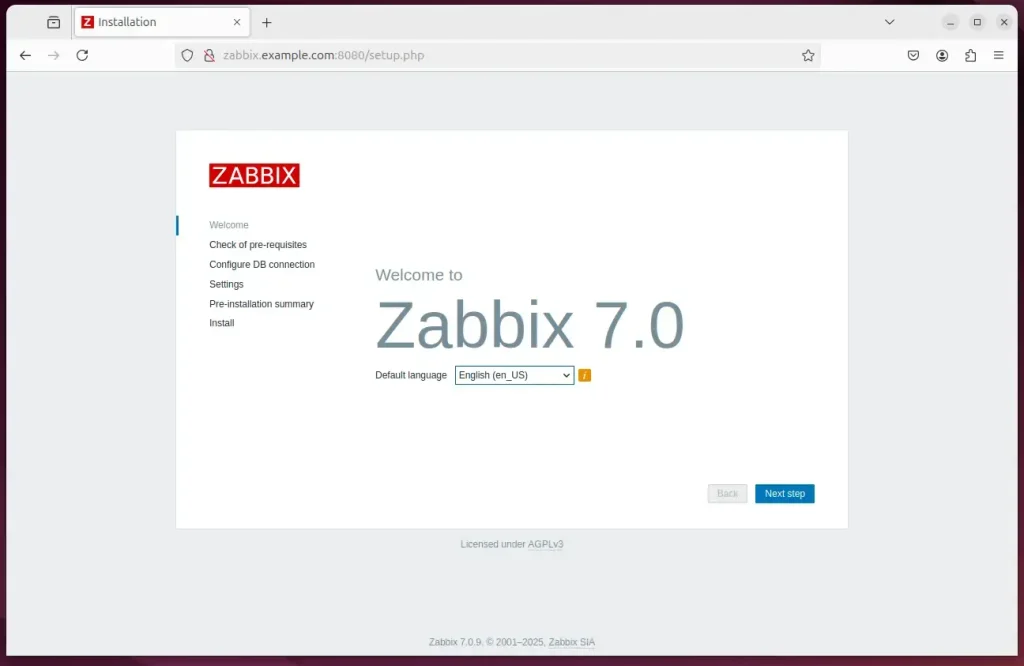
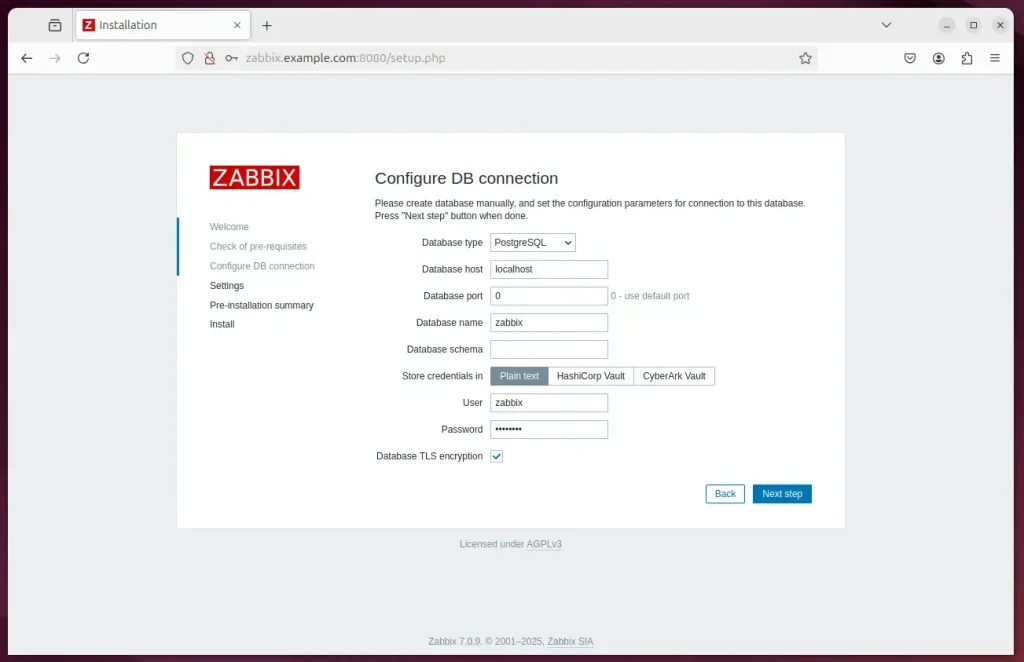
To access Zabbix after installation, open your web browser and go to http://localhost/zabbix to load the setup wizard. The interface walks you through selecting your preferred installation language, entering your database connection parameters, and naming your server so you can finish setting up your monitoring dashboard.
http://localhost/zabbix
Select the preferred installation language and proceed.
Configure the database
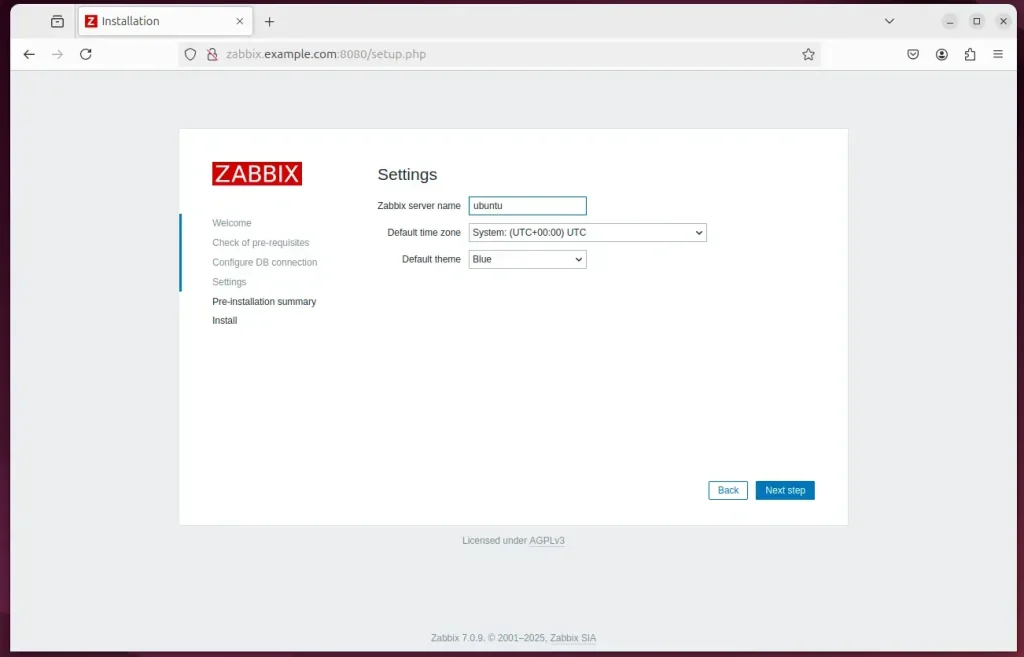
Input the server name and continue.
Zabbix is now fully installed and operational.
Provide the default credentials below to authenticate.
- Username: Admin
- Password zabbix
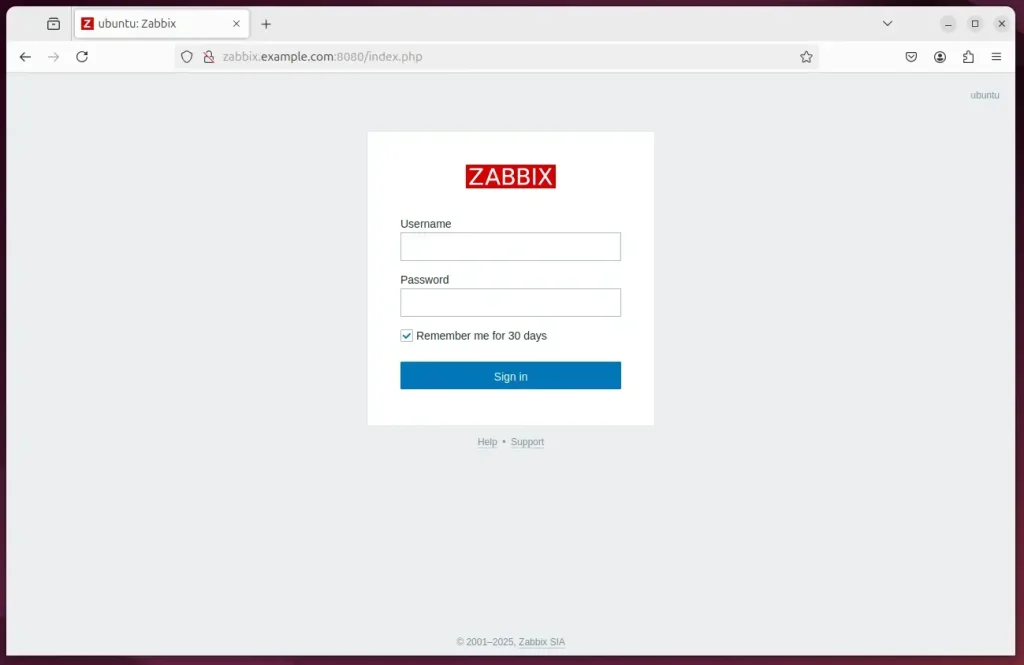
Deployment is complete.
Conclusion:
Pairing Zabbix with Apache on Ubuntu 24.04 establishes a capable monitoring stack. Reviewing the covered milestones:
- Open-source Solution: Zabbix is a robust, open-source tool for monitoring network services, servers, and hardware.
- Compatibility: Installing Zabbix on Ubuntu with Apache ensures compatibility and stability in your server environment.
- Database Support: The installation process involves setting up PostgreSQL as the database backend for Zabbix.
- Package Installation: Essential Zabbix packages and dependencies, such as the Zabbix server, frontend, and agent, are easily installed via the repository.
- Configuration Simplicity: Configuring the application is straightforward, including creating a PostgreSQL user and database.
- Access to Monitoring: Once setup is complete, you can access the Zabbix web interface through your browser, allowing easy monitoring and management.
- Default Credentials: Users can log in using default credentials, enabling quick access after installation.
Executing this Zabbix installation guide delivers functional system monitoring on Ubuntu 24.04. Apache handles web presentation, granting browser-based access to performance metrics.
Where is the Zabbix config file in Ubuntu?
A: Open the configuration file located at /etc/zabbix/zabbix_agentd. conf and update the Server, ServerActive, and Hostname parameters according to your monitoring setup.
Was this guide helpful?

About the Author
Richard
Tech Writer, IT Professional
Richard, a writer for Geek Rewind, is a tech enthusiast who loves breaking down complex IT topics into simple, easy-to-understand ideas. With years of hands-on experience in system administration and enterprise IT operations, he’s developed a knack for offering practical tips and solutions. Richard aims to make technology more accessible and actionable. He's deeply committed to the Geek Rewind community, always ready to answer questions and engage in discussions.




No comments yet — be the first to share your thoughts!