How to install the Tor Browser on Ubuntu 24.04

You can install the Tor Browser on Ubuntu 24.04 by downloading the latest bundle directly from the Tor Project’s official website.
Tor Browser is a free, open-source application designed for anonymous web browsing. It works by channeling your internet connection through a distributed network of over 7,000 volunteer-operated relays.
Using the official bundle ensures you get the most current and secure version of Tor Browser for your Ubuntu 24.04 system.
Install Tor Browser on Ubuntu 24.04 by opening a terminal and running `sudo apt update && sudo apt upgrade` followed by `sudo apt install tor torbrowser-launcher`. Alternatively, use Flatpak or download the official archive from the Tor Project website.
Install the Tor Browser via APT Command
Let’s start with the APT command. This is a common way to install software on Ubuntu. Tor browser packages are available via Ubuntu’s default repositories, so you won’t need to install any extra packages.
Before you install Tor Browser, it’s a good idea to update your system. This makes sure all your existing packages are current and helps prevent any conflicts. Run this command to update Ubuntu 24.04:
Run the command below to update Ubuntu 24.04.
sudo apt update && sudo apt upgrade
Once your system is updated, you can install Tor Browser with this command:
sudo apt install tor torbrowser-launcher
Keep in mind that the version installed this way might not be the absolute latest.
Install the Tor Browser via Flatpak
Another way to install the Tor Browser on Ubuntu is to use the Flatpak package manager with Flathub.
You must first install Flatpak to use it to install the Tor browser. The command below will install Flatpak on Ubuntu.
sudo apt install flatpak
Once installed, run the command below to enable Flatpak.
sudo flatpak remote-add --if-not-exists flathub https://flathub.org/repo/flathub.flatpakrepo
Finally, install the Tor Browser using the command below.
flatpak install flathub com.github.micahflee.torbrowser-launcher
Download and install the Tor browser manually
Finally, you can install the Tor Browser by downloading its archive package from its official download page and manually installing it.
To do that, run the command below to download the current version. Remember to swap in the version number you find on the download page.
wget https://www.torproject.org/dist/torbrowser/13.5.1/tor-browser-linux64-13.5.1_ALL.tar.xz
Once downloaded, run the command below to extract the downloaded file.
tar -xvJf tor-browser-linux64-13.5.1_ALL.tar.xz
Next, move the Tor Browser files to the `/usr/local/share/` directory using the command below.
sudo mv tor-browser /usr/local/share/
Then, navigate to the Tor browser file and register the desktop application using the command below.
cd /usr/local/share/tor-browser
./start-tor-browser.desktop --register-app
Launching the Tor Browser
The Tor Browser should be installed and ready to use. To launch Tor, use the command below.
tor-browser
If you installed it via Flatpak, then run the command below.
flatpak run com.github.micahflee.torbrowser-launcher
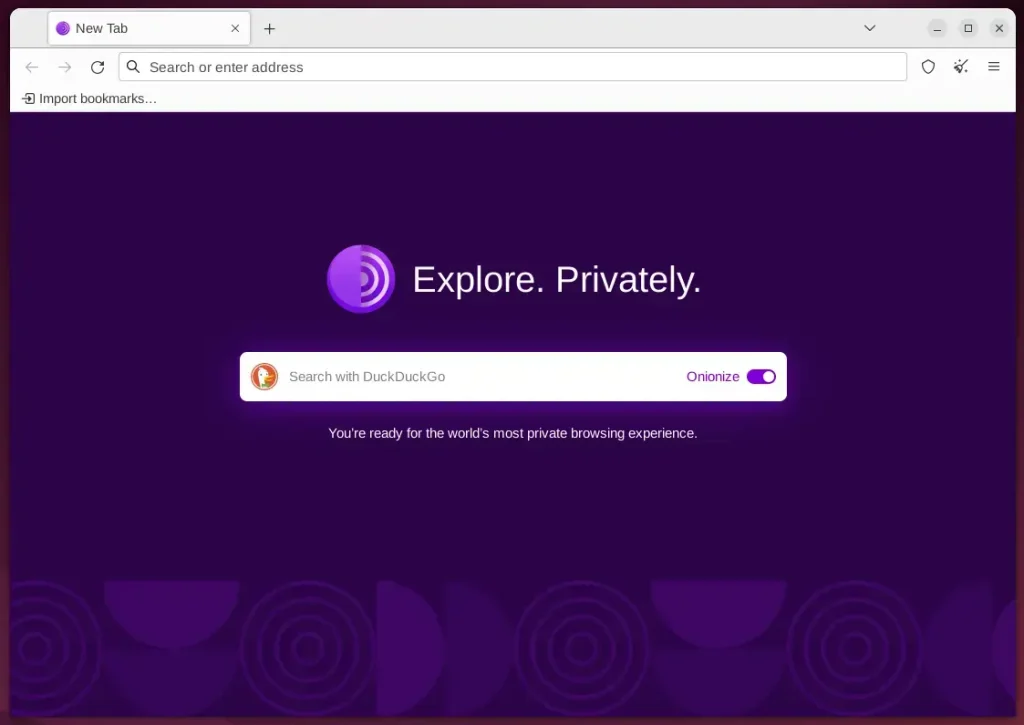
From your desktop, open the Application panel and search for Tor Browser.
Tor Browser should be ready to use.
Uninstall Tor Browser
If you no longer want to use the Tor Browser, you can uninstall or remove it using the command below.
sudo apt remove tor torbrowser-launcher
flatpak remove  --delete-data com.github.micahflee.torbrowser-launcher
That should do it!
Conclusion:
- The Tor Browser is a valuable tool for anonymous communication and browsing, providing a secure way to browse the internet without revealing identity or location.
- Users can install the Tor Browser on Ubuntu 24.04 using the APT command, Flatpak package manager with Flathub, or manually download the archive package from the official download page.
- Launching the Tor Browser is straightforward; users can easily uninstall it if it’s no longer needed.
Was this guide helpful?
0% of readers found this helpful (1 votes)

About the Author
Richard
Tech Writer, IT Professional
Richard, a writer for Geek Rewind, is a tech enthusiast who loves breaking down complex IT topics into simple, easy-to-understand ideas. With years of hands-on experience in system administration and enterprise IT operations, he’s developed a knack for offering practical tips and solutions. Richard aims to make technology more accessible and actionable. He's deeply committed to the Geek Rewind community, always ready to answer questions and engage in discussions.



No comments yet — be the first to share your thoughts!