


This post shows new users how to install the Plex desktop app on Ubuntu Linux in 2026. Plex is a popular way to stream your movies, music, and photos at home or on the go.
Why use the Plex desktop app? It provides a smooth, native experience for watching your media directly on your computer instead of using a web browser.
What happens when done? You will have a dedicated app icon in your system, allowing you to launch your media library with one click.
If you haven’t set up your media library yet, you can learn download Plex for Linux here.
How to install the Plex server on Ubuntu Linux %%LNK1%%
How to install the Plex Desktop app on Ubuntu Linux
Plex offers an official app to play your content. You can choose between two easy ways to install it.
Option 1: Using Snap
Snap is built into Ubuntu by default. Open your terminal and run this command:
sudo snap install plex-desktop
Option 2: Using Flatpak (Flathub)
If you prefer to avoid Snap, you can use Flatpak. First, ensure Flatpak is installed on your system. Then, install the Plex app from Flathub by running:
flatpak install flathub tv.plex.PlexDesktop
How to launch the app
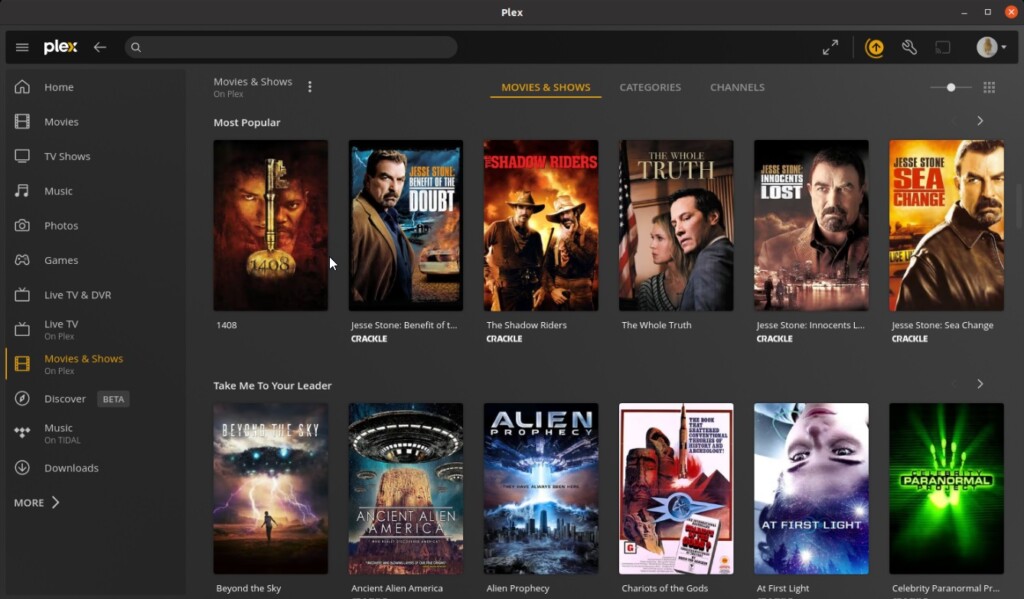
Once the installation finishes, open your Activities overview or click the Show Applications icon in your dock. Search for “Plex” and click the icon to start streaming.
Conclusion
Plex makes it easy to enjoy your media collection on Ubuntu. By using Snap or Flatpak, you can get the official player running in minutes.
Troubleshooting
If you notice performance issues or visual glitches, keep these two things in mind:
- Hardware Decoding: If playback is choppy, ensure your graphics drivers are up to date. The Plex app works best when it can use your GPU to decode video.
- Wayland Support: Ubuntu 26.04 uses Wayland by default. If the app does not launch or flickers, try logging out and selecting “Ubuntu on Xorg” from the gear icon on the login screen to see if that resolves the display conflict.
%%IMG1%%


Leave a Reply Cancel reply