

How to Install MYKI Password Manager on Ubuntu Linux

This brief tutorial shows students and new users how to install MYKI Password Manager on Ubuntu 20.04 | 18.04 LTS systems.

MYKI is a cross-platform password manager that helps secure your password locally across multiple devices. Unlike most password managers, MYKI allows you to use your fingerprint, Face ID, or PIN code to access the app without always needing to type your master password.

MYKI seamlessly syncs across your devices via end-to-end encryption and automatically stores and fills your 2-factor authentication token. At the same time, you browse, providing the convenience of not constantly typing your password to log in online.

Whether you’re a single user or a member of a team of workers for a company, MYKI should work for you.

For more about MYKI, please visit its homepage.

To get started with installing MYKI on Ubuntu, follow the steps below:

There are multiple ways to install MYKI. Below are two methods you can use to get it working in Ubuntu. Choose either one for your environment.

Install via Official DEB Package

Most Ubuntu users might want to install MYKI from its office DEB package. Simply go to its download page and download a package developed for Debian-based systems, including Ubuntu.

Select the MYKI For Debian (.deb)
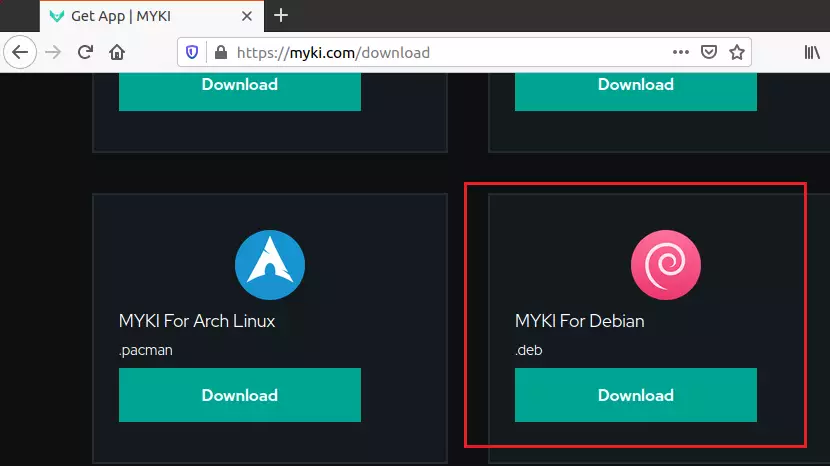
MYKI Password Manager installation screen on Ubuntu

That should get downloaded to the Downloads folder of your home directory. Open Ubuntu File Manager and go to the Downloads folder.

Right-click the downloaded file and select Open With Software Install.
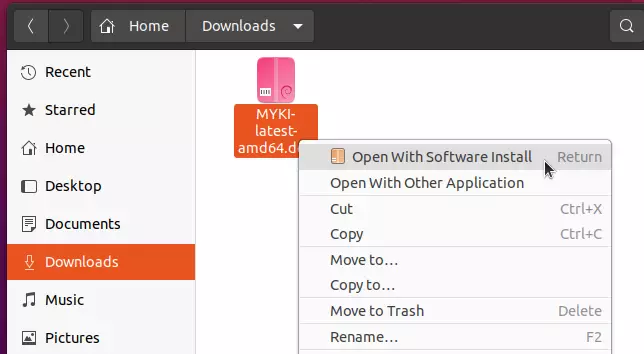
MYKI installation progress on Ubuntu system

That should open the Ubuntu software installation app. From there, click Install.
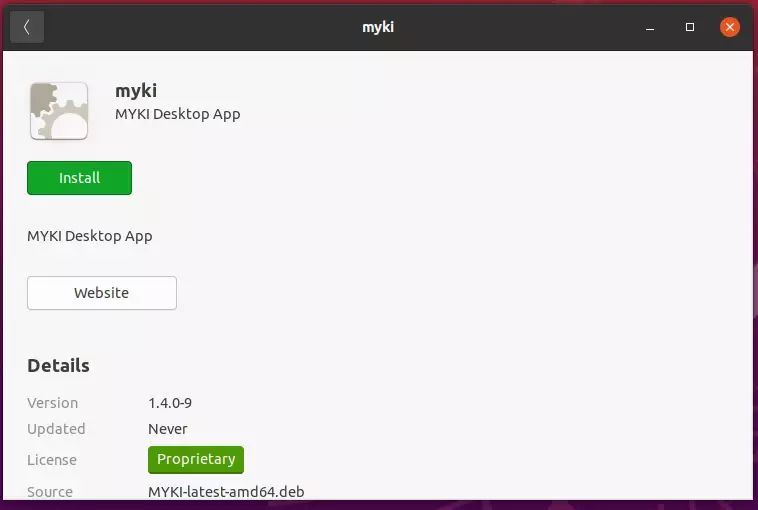
MYKI Password Manager in Ubuntu Software Center

If you get prompted to type your password to it, continue the installation.

After the installation, go to the Activities Overview and search for MYKI. Launch it to open.
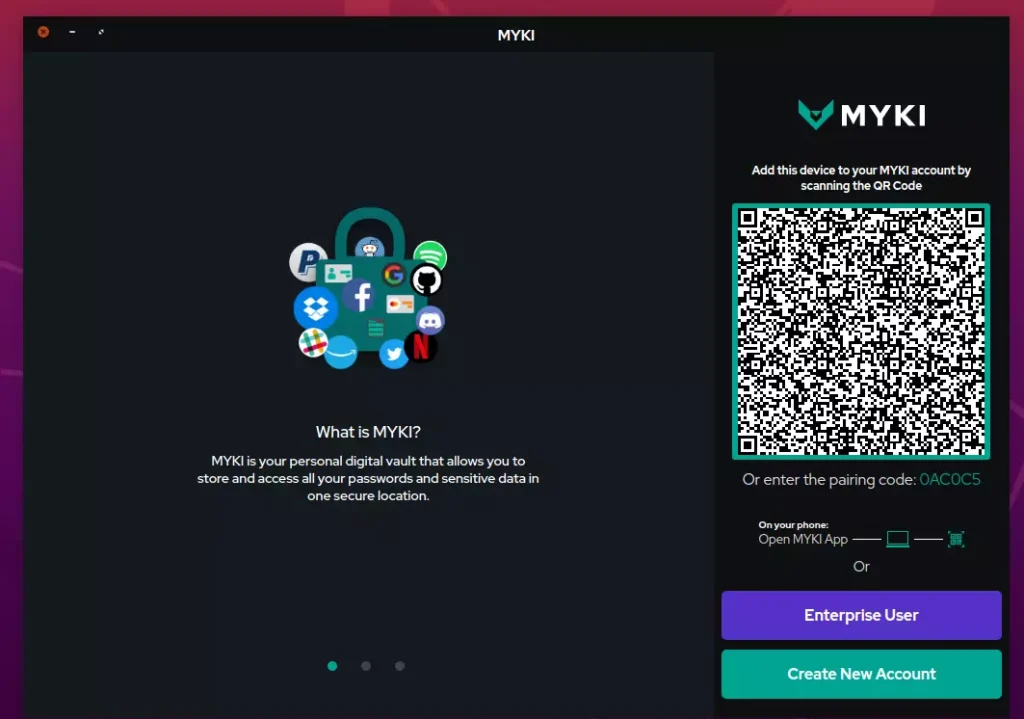
Ubuntu account settings for MYKI Password Manager

Install via Snap

Another way to install MYKI is via Snap package management. Snaps are containerized software packages that are simple to create and install.

Snap applications are packaged with all their dependencies to run on all popular Linux distributions from a single build, allowing them to update automatically and roll back gracefully.

From the same download page, choose the Snap version of the package to download.

To install, simply run the commands below:

sudo apt install snapd
cd ~/Downloads
sudo snap install --dangerous MYKI-latest-amd64.snap

That’s it!

Conclusion:

This post showed you how to install the MYKI password manager on Ubuntu. If you find any error above, please use the form below to report.


Frequently Asked Questions

How do I install MYKI Password Manager on Ubuntu?

You can install MYKI on Ubuntu using either the official DEB package or via Snap. For the DEB package, download it from the MYKI website and use the Software Install app. Alternatively, for Snap, install Snapd and run the installation command for MYKI.

What is MYKI Password Manager?

MYKI is a cross-platform password manager that secures your passwords locally across multiple devices. It allows access via fingerprint, Face ID, or PIN code, eliminating the need to constantly type your master password.

Can I use MYKI on different Linux distributions?

Yes, MYKI can be used on various Linux distributions as it is available as a Snap package. Snap packages are designed to work across different systems, making it easy to install and update MYKI on any supported Linux distribution.

What are the benefits of using MYKI Password Manager?

MYKI offers several benefits, including local password storage, end-to-end encryption, and automatic filling of 2-factor authentication tokens. This enhances security and convenience, allowing users to log in without repeatedly entering passwords.

Is MYKI suitable for teams or just individual users?

MYKI is suitable for both individual users and teams. It provides features that cater to personal password management as well as collaborative environments, making it a versatile choice for various user needs.

Categories:

  1. pamindic Avatar
    pamindic

    /snap/bin/myki ->

    tk-Message: 19:05:14.724: Failed to load module “xapp-gtk3-module”
    [19:05:15.412] [info] starting
    Error org.freedesktop.DBus.Error.Failed: cannot find desktop file “/var/lib/snapd/desktop/applications/myki_MYKI.desktop”
    Could not connect to daemon Retrying…
    ipc socket error { Error: connect ENOENT /tmp/myki_alan.sock
    at PipeConnectWrap.afterConnect [as oncomplete] (net.js:1161:14)
    errno: ‘ENOENT’,
    code: ‘ENOENT’,
    syscall: ‘connect’,
    address: ‘/tmp/myki_alan.sock’ }
    Error: connect ENOENT /tmp/myki_alan.sock
    at PipeConnectWrap.afterConnect [as oncomplete] (net.js:1161:14)
    closecalled true
    dbus[39334]: dbus message iterator has already been closed, or is uninitialized or corrupt
    D-Bus not built with -rdynamic so unable to print a backtrace
    Aborted (core dumped)

Leave a Reply

Your email address will not be published. Required fields are marked *

Exit mobile version
