How to install Bludit CMS with Apache on Ubuntu 24.04

You install Bludit CMS with Apache on Ubuntu 24.04 by first preparing your server and then deploying the Bludit core files within your Apache web root.
Bludit is a fast, open-source flat-file Content Management System (CMS) that doesn’t require a database, making it incredibly lightweight and simple to manage. Unlike database-driven CMSs, Bludit stores your content directly in files.
This setup is ideal for users who want a straightforward website builder without the overhead of a separate database server. Bludit even includes native Markdown support, simplifying content creation.
By the end of this guide, you’ll have a fully functional Bludit site served by Apache on your Ubuntu 24.04 system.
Install Apache and PHP, then download Bludit and extract it to /var/www/. Configure an Apache virtual host file for Bludit and enable it. Finally, restart Apache to serve your Bludit site.
Install Apache HTTP server on Ubuntu
Apache is a popular web server that Bludit needs to run, so let’s install it on your Ubuntu 24.04 system first.
To get started, open your Ubuntu terminal and run the commands below to install the Apache web server.
sudo apt update
sudo apt install apache2
Once Apache is installed, you can use the commands below to start, stop, and enable the Apache web server. This ensures it starts automatically when your server boots up.
sudo systemctl stop apache2
sudo systemctl start apache2
sudo systemctl enable apache2
You can check if the Apache web server is running by opening your web browser and navigating to your server’s localhost or IP address.
http://localhost
When you see the Apache2 Default Page, it confirms that the Apache HTTP server has been successfully installed.
You can find additional help on installing Apache on Ubuntu through the link below.
Install PHP on Ubuntu Linux
Bludit is built with PHP, which is a programming language websites use, so you need to install it on your Ubuntu Linux system.
Next, run the commands below to install the latest PHP version.
sudo apt install php libapache2-mod-php php-intl php-mysql php-curl php-cli php-zip php-xml php-gd php-common php-mbstring php-xmlrpc php-bcmath php-json php-sqlite3 php-soap php-zip
For more details on installing PHP, check out this guide:
Download Bludit files
To get Bludit onto your Ubuntu system, you’ll need to download its files from the official website and then unpack them.
To ensure you always get the latest version, visit the download page for Bludit. Grab the download link, then download the archived package to your computer. After that, extract it.
First, head over to the `/tmp/` directory and download the Bludit files. Then, you’ll move the contents into the Bludit folder that’s part of the Apache web server’s main directory (often called the document root).
The final step here is to change the file permissions. This allows the Apache web server to interact safely with the files, creating a secure environment for your Bludit installation.
cd /tmp/
wget https://www.bludit.com/releases/bludit-3-16-2.zip
sudo unzip bludit-*.zip -d /var/www/
sudo chown -R www-data:www-data /var/www/bludit
After completing all the preceding steps, you’ll continue configuring the Apache web server below to serve your Bludit content.
Run the commands below to create an Apache virtual host file specifically for Bludit.
sudo nano /etc/apache2/sites-available/bludit.conf
Next, copy and paste the following content block into the Apache server block.
<VirtualHost *:80>
  ServerName bludit.example.com
  ServerAlias www.bludit.example.com
  ServerAdmin admin@example.com
  DocumentRoot /var/www/bludit

  <Directory /var/www/bludit/>
       Options FollowSymlinks
       AllowOverride All
       Require all granted
  </Directory>

       ErrorLog ${APACHE_LOG_DIR}/error.log
       CustomLog ${APACHE_LOG_DIR}/access.log combined
</VirtualHost>
Make sure to save the file once you’re done.
Then, run the commands below to enable the virtual host and restart the Apache server.
sudo a2ensite bludit.conf
sudo a2enmod rewrite
sudo systemctl restart apache2
Setup Let’s Encrypt SSL/TLS for Bludit
You can easily add a free Let’s Encrypt SSL certificate to your Bludit website on Ubuntu to make it secure with HTTPS.
Please refer to the post below for additional resources on installing and creating Let’s Encrypt SSL certificates for Apache.
How to set up Let’s Encrypt SSL certificate for Apache on Ubuntu Linux
After you’ve restarted the Apache web server, open your browser and navigate to the server hostname or IP address you defined in the Apache server block.
http://bludit.example.com
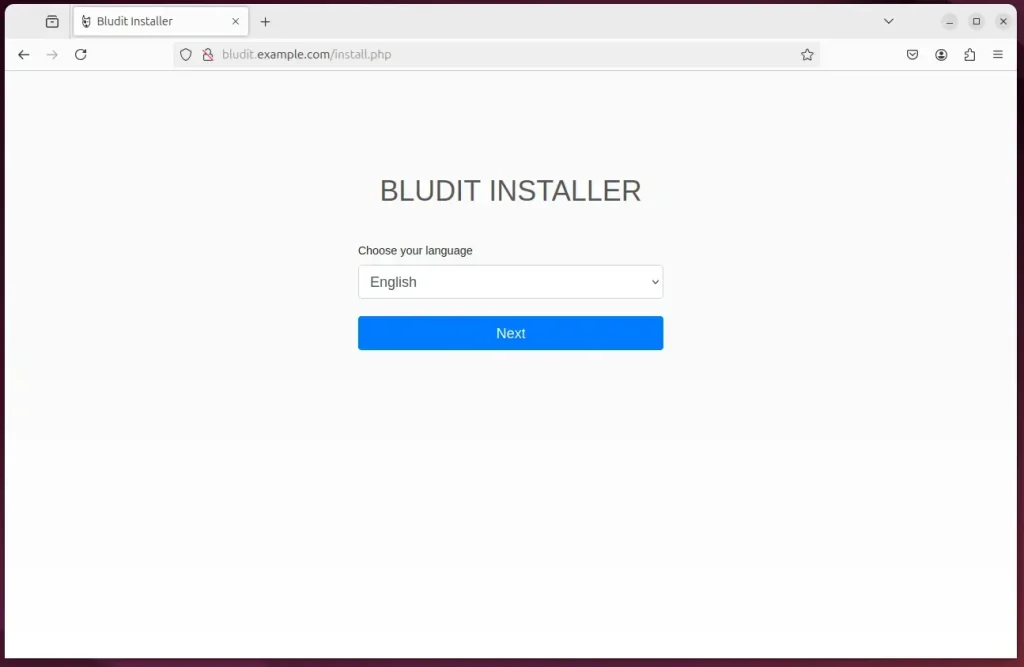
You should see a Bludit installation wizard page appear. Select your preferred installation language and then proceed.
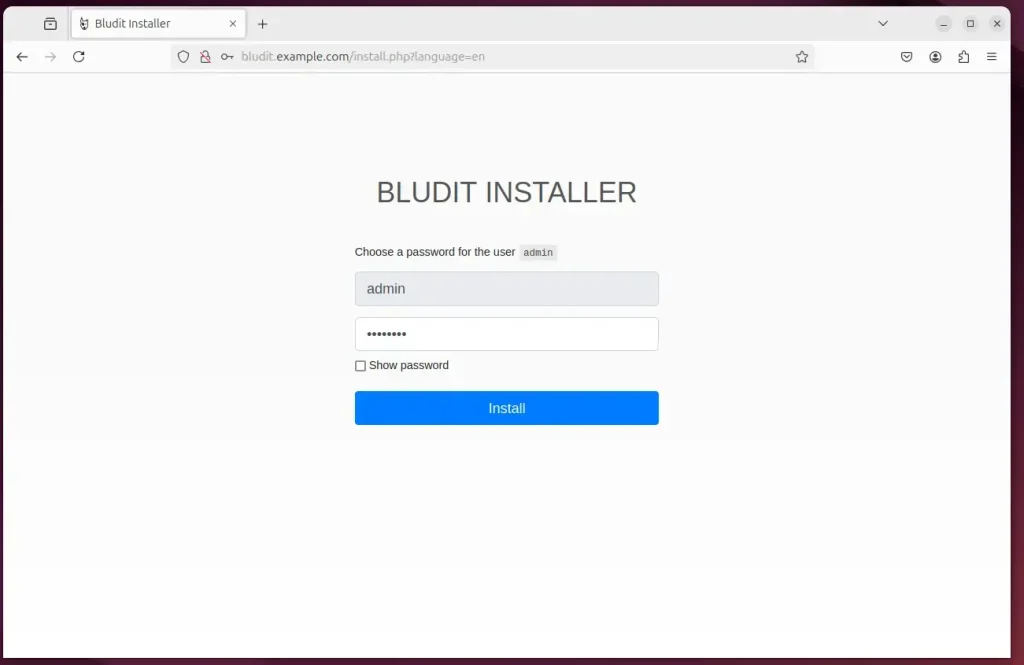
Create an administrator account and continue with the setup.
Bludit should now be installed and ready for you to use.
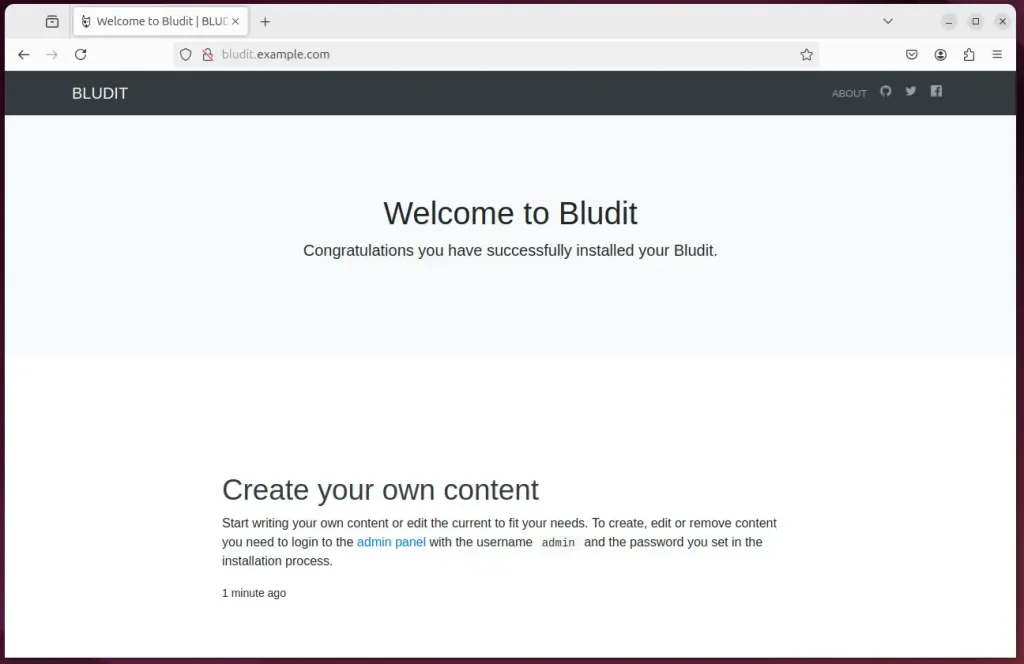
That should do it!
Conclusion:
So, you’ve successfully installed Bludit CMS with Apache on Ubuntu! Here’s a quick recap of what makes it a great choice for managing your website:
- Lightweight Solution: Bludit is a flat-file CMS that simplifies website management without needing a database.
- Easy Setup: The installation involves basic commands, making it accessible even for those with minimal technical experience.
- Flexibility: With native markdown support and a flexible CSS framework, Bludit offers various customization options to suit your needs.
- Secure Installation: Integrating Let’s Encrypt SSL/TLS ensures your site is secure, enhancing user trust.
- User-Friendly: The intuitive admin interface facilitates content management, allowing you to focus on your site’s content rather than technical details.
Now that you’ve followed these steps, your Bludit installation is up and running, ready for you to start creating content and managing your site. Enjoy using your new CMS!
Was this guide helpful?

About the Author
Richard
Tech Writer, IT Professional
Richard, a writer for Geek Rewind, is a tech enthusiast who loves breaking down complex IT topics into simple, easy-to-understand ideas. With years of hands-on experience in system administration and enterprise IT operations, he’s developed a knack for offering practical tips and solutions. Richard aims to make technology more accessible and actionable. He's deeply committed to the Geek Rewind community, always ready to answer questions and engage in discussions.




No comments yet — be the first to share your thoughts!