

This article explains how to disable or remove the Bing AI Chat or Discover button from the sidebar in Microsoft Edge.
The Microsoft Edge browser is the default browser in Windows 11. However, users can switch to their preferred or favorite browser anytime. Edge is based on Chromium, similar to Google Chrome and other Chromium-based browsers today.
The latest version of Microsoft Edge now comes with a built-in Bing AI Chat or Discover feature, which Microsoft also refers to as “Edge Copilot.”. This feature is enabled by default, and there are no settings in Edge that can quickly turn it off or on.
The Windows Registry Editor can hide or unhide the Bing AI Chat button, but you must use caution when changing your computer via the Registry Editor.
You can hide the sidebar on the Microsoft Edge browser, but doing so wouldn’t conceal the Bing Chat or “Discover” button. You may have to use the Registry Editor to hide the Bing Chat button. The steps below show you how to do it.
Hide or unhide the Bing Chat (Discover) feature in Microsoft Edge
As mentioned above, you can hide the sidebar in the Microsoft Edge browser, but the Bing Chat button will always stay on the browser menu bar.
Here’s how to hide the Bing Chat button.
To do that, open the Windows Registry, and navigate to the folder key path listed below.
HKEY_LOCAL_MACHINESOFTWAREPoliciesMicrosoftEdge
If you don’t see the Edge folder key, right-click on the Microsoft parent key, then create the subkey (Edge) folder.
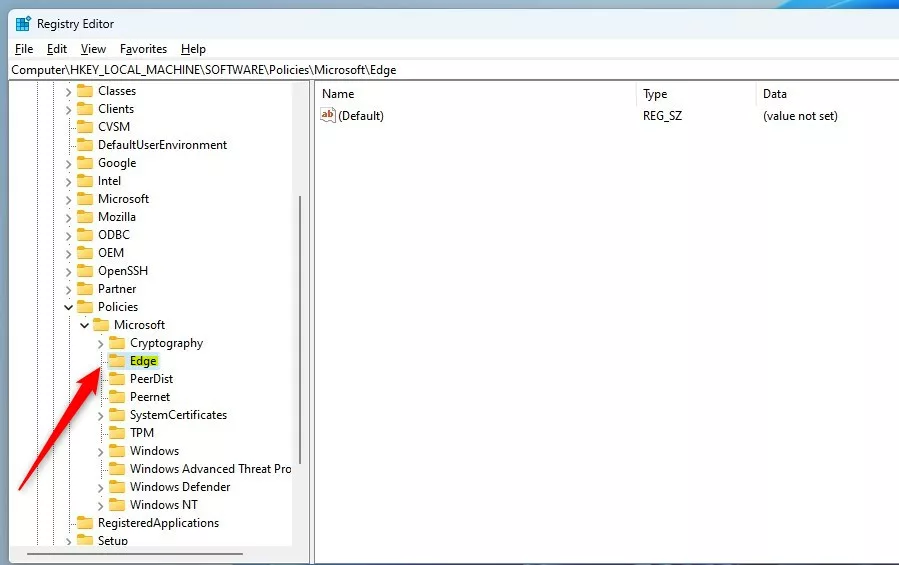
Right-click on the Edge folder key’s right pane and select New -> DWORD (32-bit) Value. Type a new item named HubsSidebarEnabled.
Double-click the new item you created (HubsSidebarEnabled) and make sure the Base option is Decimal, and then update the Value data:
- To turn this feature on. Type 1.
- To turn this feature off. Type 0.
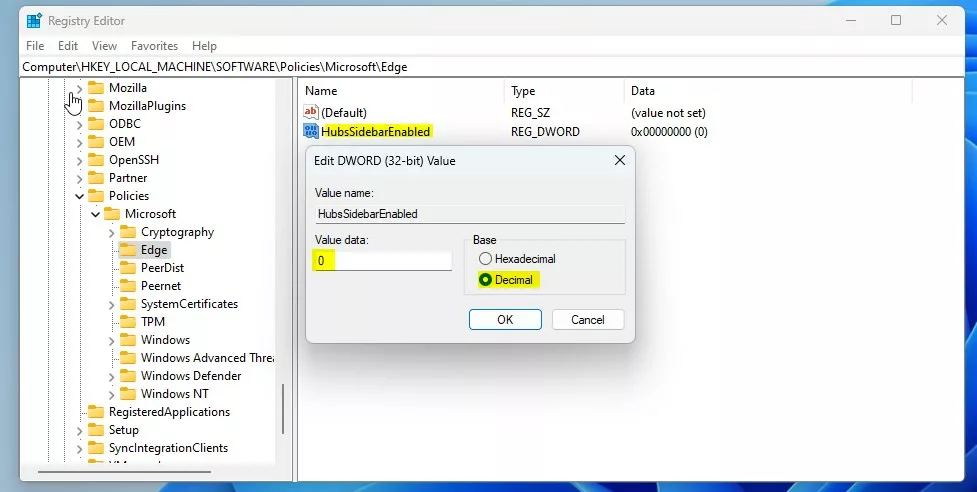
That should do it. Restart your computer for the changes to apply.
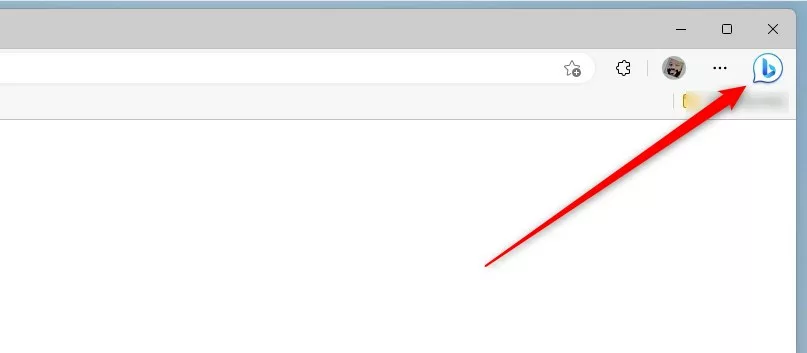
That should do it!
Conclusion:
- The article provided step-by-step instructions for hiding or unhiding the Bing Chat button in the Microsoft Edge browser sidebar.
- It emphasized the caution required when making changes using the Windows Registry Editor.
- Readers were encouraged to share feedback and any additional insights through the comment form provided.


Leave a Reply Cancel reply