

This post describes steps you can take to help you find lost or missing files in Ubuntu Linux.
In many cases, lost or missing documents aren’t deleted or stored on a removable drive; they might be in a folder buried among other folders.
Files downloaded using your web browser are typically saved into a shared folder. Check the Desktop and Downloads folders in your home folder.
If documents are accidentally deleted, they are usually moved to the Trash, where they stay until you manually empty the trash can to recover lost and missing files from the Trash.
Documents you saved on your computer but don’t know where to use the Ubuntu search feature to find them. You can search for files directly from the file manager based on names and types.
How to search for files in Ubuntu Linux
Ubuntu Linux File Manager has a built-in search feature that allows you to find missing files based on names and types.
Use the File Manager app icon on the Dock or from the Activities overview.
If you know where the file may be stored, go to that folder. If not, stay in your home folder.
Click on the Search button or press CTRL + F and type a word or words that you know appear in the file name.
For example, name all invoices with the “Invoice,” type invoice. Words are matched regardless of the case.
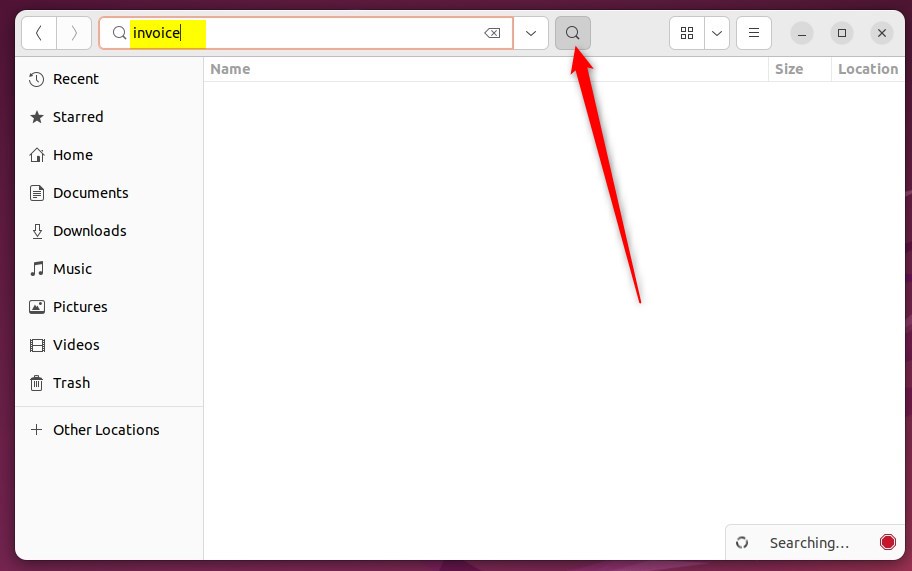
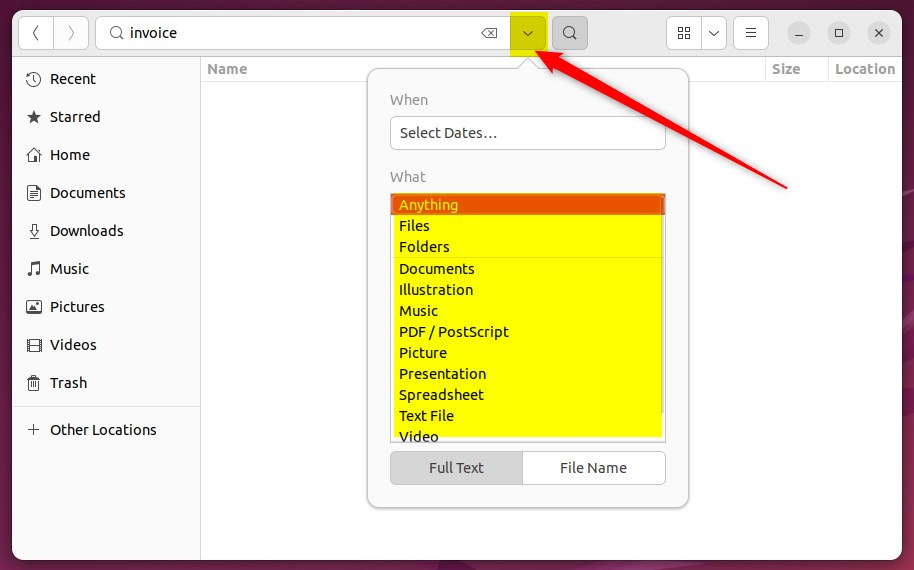
You can narrow your results by date, file type, and whether to search a file’s full text or to only search for file names.
Use the down-down caret to filter your search and narrow it down to specifics:
- When: How far back do you want to search?
- What: What is the type of item?
- Should your search include a full-text search or only the file names?
Files can be hidden from normal views in Ubuntu Linux. You will not see hidden files simply by browsing or searching.
Turn on the hidden file check box to see all hidden files in File Manager.
How to restore deleted files in Ubuntu Linux
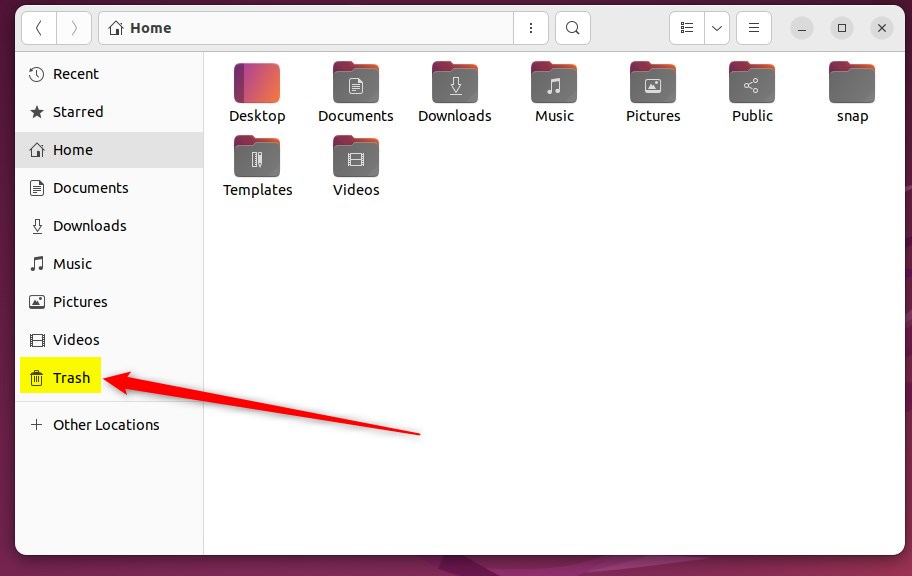
If the file you’re looking for was accidentally deleted, you could restore it from Trash.
In File Manager, select TrashTrashhe Sidebar. If you do not see the Sidebar, press the menu button in the window’s top-right corner and select Sidebar.
If your deleted file is there, click on it and select Restore. It will be restored to the folder from where it was deleted.
If you deleted the file by pressing SHIFT + DELETE or using the command line, the file has been permanently deleted. Unfortunately, files that have been permanently deleted can’t be recovered from the Trash.
That should do it!
Conclusion:
- The search functionality in Ubuntu Linux File Manager provides a convenient way to locate missing files based on names and types while offering options to narrow search results by date and file type.
- It’s important to be aware of the possibility of hidden files in Ubuntu Linux, and users can easily reveal these files by turning on the hidden file checkbox in File Manager.
- For accidentally deleted files, Ubuntu Linux offers the option to restore them from the Trash, providing a safety net for retrieving files that were not permanently deleted. However, files that have been permanently deleted cannot be recovered from the Trash and require alternative restoration methods.


Leave a Reply Cancel reply