

If your Windows 11 computer is acting slowly, having problems, or you want to give it away or sell it, you can factory reset it. This means your PC will be wiped clean and put back to how it was when you first got it.
In this guide, we’ll show you two simple ways to reset your Windows 11 PC: using the Settings app and using the Command Prompt (a special tool for typing commands).
Why Reset Windows 11?
- Make your slow computer faster: Resetting can fix problems and speed things up.
- Remove personal information: If you’re selling or giving away your PC, reset it to erase your files.
- Fix big problems: If your computer has malware or crashes, resetting can help fix it.
Resetting your PC is a helpful way to fix issues and start fresh.
How to Reset Windows 11 Using the Settings App
This is the easiest method if your computer is still working well enough to use.
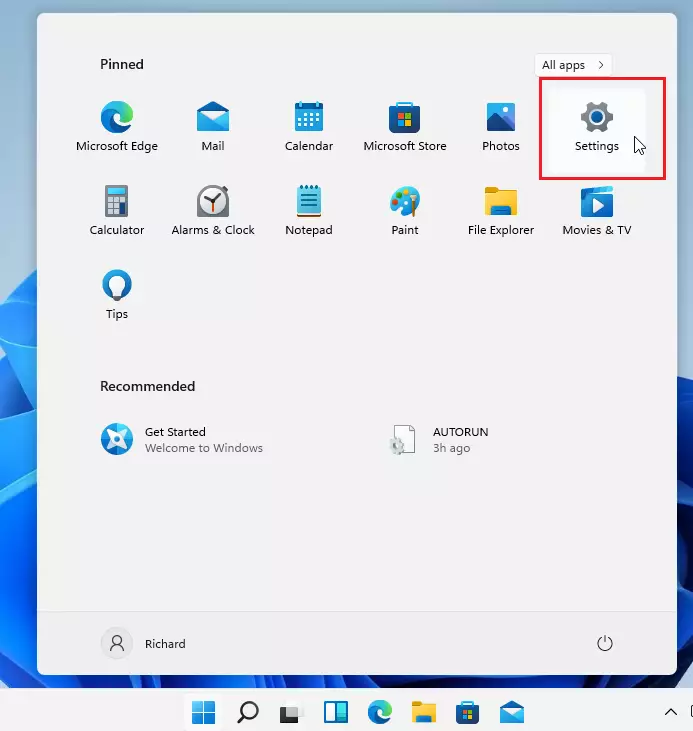
- Open Settings: Click the Start button (Windows icon) at the bottom left, then click Settings.
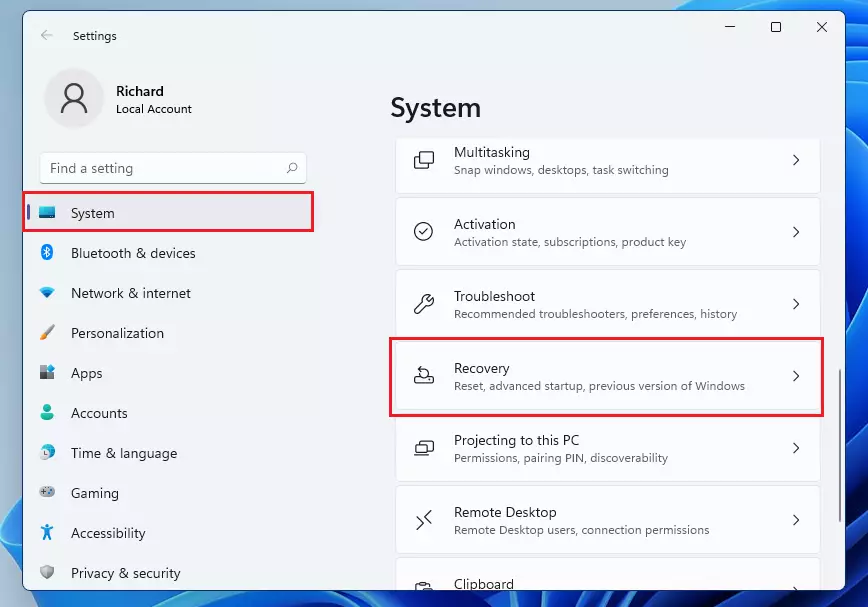
- In Settings, click System on the left side, then select Recovery on the right.
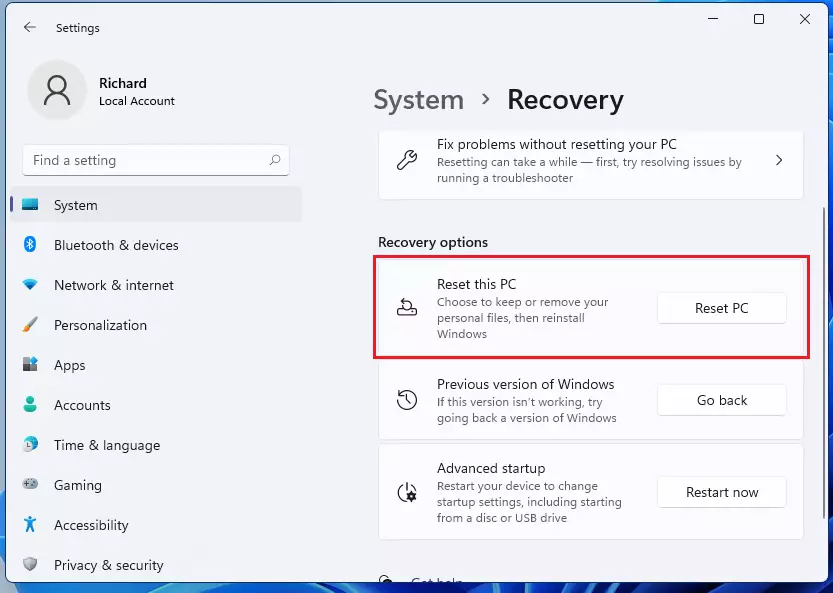
- Click the Reset PC button under “Reset this PC”.
- You will see two options:
- Keep my files: Removes apps and settings but keeps your personal files safe.
- Remove everything: Deletes all your files, apps, and settings — like a clean, fresh start.
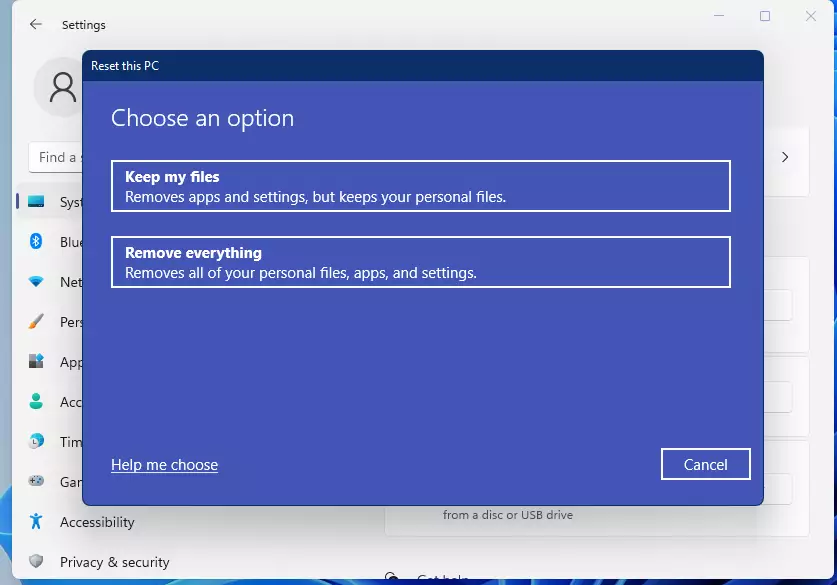
- For a full reset, choose Remove everything.
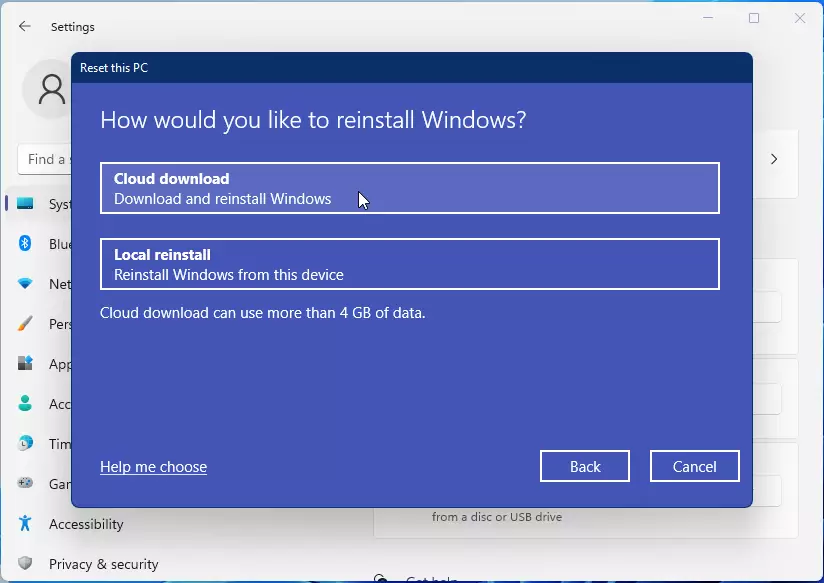
- Next, choose how to reinstall Windows:
- Cloud download: Downloads a fresh copy of Windows 11 from the internet (need internet connection).
- Local reinstall: Reinstalls Windows from your PC’s files (no internet needed).
- You can also click Change settings for extra options, like:
- Clean data: If you’re giving away your PC, this option deletes files more securely (takes longer).
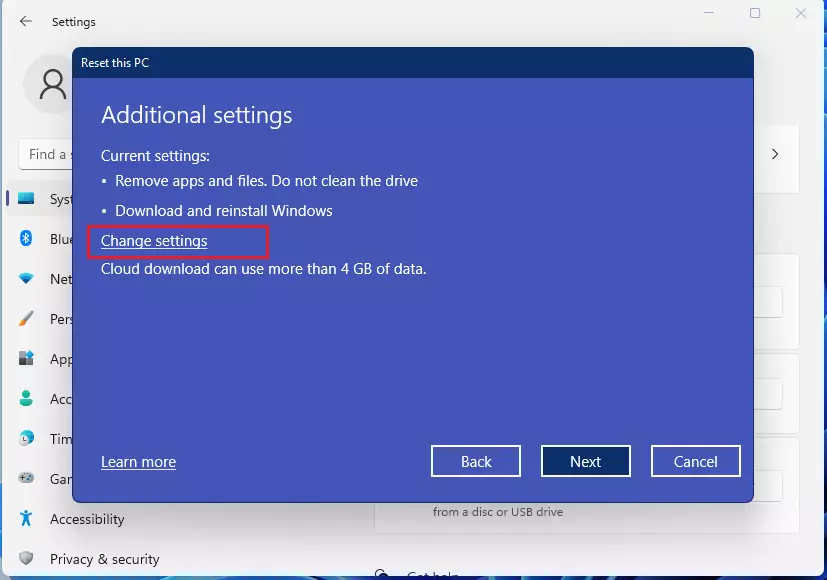
- Click Next, then Reset to start the process.
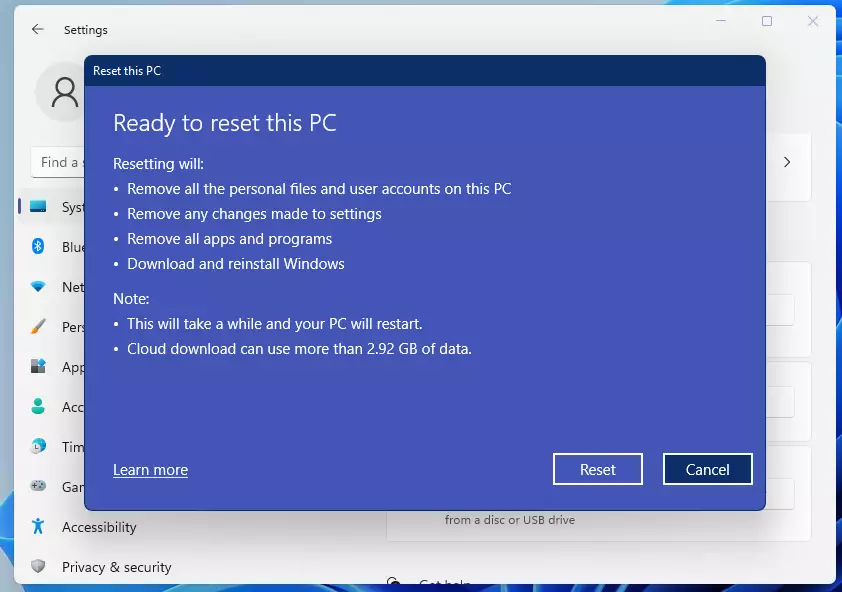
Note: This process can take some time (sometimes hours), so be patient and don’t turn off your PC.
How to Reset Windows 11 Using Command Prompt
If you prefer typing commands or can’t open Settings, try this way:
- Click the Search icon (magnifying glass) on the taskbar, type
Command Prompt. - Right-click the Command Prompt app and choose Run as administrator.

- In the black Command Prompt window, type this command and press Enter:
systemreset --factoryreset - This will open the same reset wizard you saw in Settings. Choose whether to keep your files or remove everything, then follow the steps to finish.
- Remember, removing everything takes more time but is better if you want to securely erase your data before selling or giving away your PC.
Summary
- Fix slow or broken PC: Resetting can make your computer faster and fix problems.
- Erase personal data: Good if you’re selling or giving away your PC.
- Recover from errors: Can fix malware or big system issues.
- Choose what to keep: Keep your files or wipe everything.
- Two ways to reset: Use Settings or Command Prompt.
- Take your time: Resetting can take a while, especially when deleting everything.
By following these easy steps, you can reset your Windows 11 PC and start fresh or prepare it for a new owner.

Leave a Reply Cancel reply