
This article explains how to enable or disable the new “Scareware blocker” feature in the Microsoft Edge browser on Windows 11.
Microsoft Edge is the default browser in Windows 11. However, users can switch to their preferred or favorite browser anytime. Edge is based on Chromium, similar to Google Chrome and other Chromium-based browsers today.
Today, Edge uses Microsoft Defender SmartScreen to block known scams as people encounter them. But what if you’re the first to see a new scam before it can be blocked? What if a scam hits your coworkers, friends, or family?
Microsoft added a new feature in Edge called “Scareware blocker.” Scareware blocker refers to security features within Microsoft Edge designed to protect users from scareware—a type of malware that uses deceptive tactics (e.g., fake virus alerts, urgent warnings) to trick users into downloading malicious software or paying for unnecessary services.
Scareware blocker is rolling out now as a preview for all Edge users on Windows PCs.
The steps below walk you through turning on or off “Scareware blocker” in Edge.
Turn “Scareware blocker” On or Off in Edge
As mentioned, users may see a new “Scareware blocker” feature in the Edge browser being rolled out soon.
Here’s how to enable or disable it.
First, open the Microsoft Edge browser.
Then click on Setting and more (Alt+F) 3 horizontal dots button on the top right corner and select Settings.

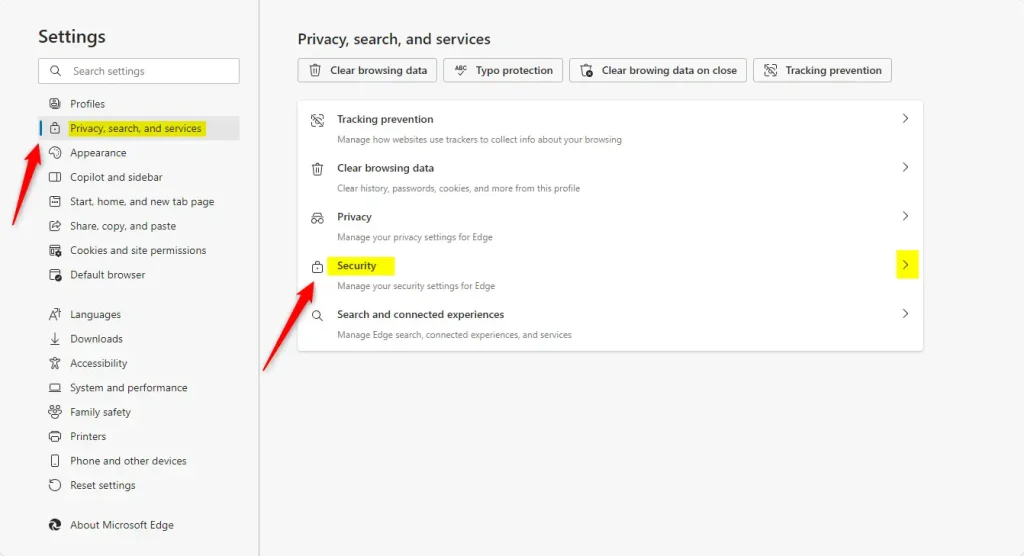
Select “Privacy, search, and services” on the Settings page on the left and click the “Security” tile on the right to expand it.
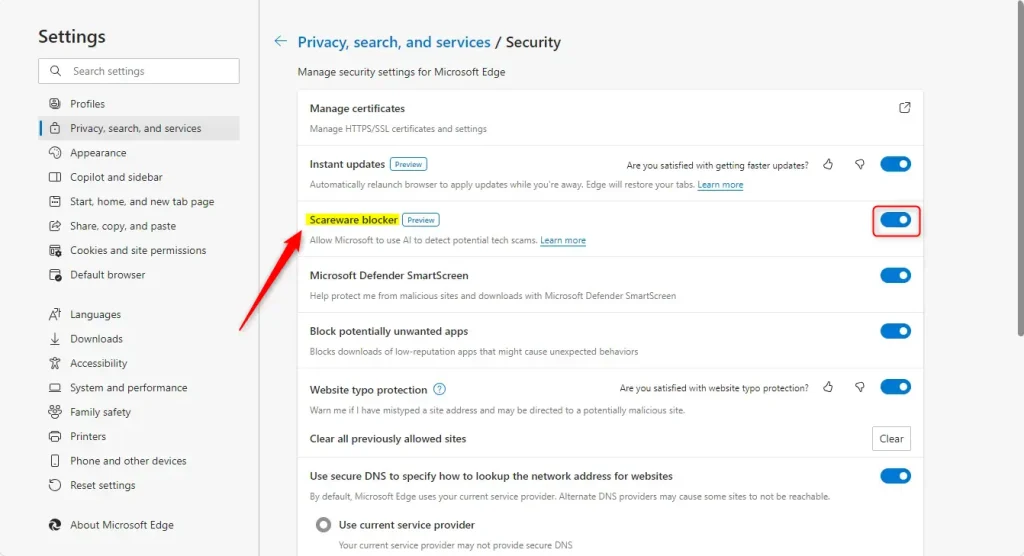
Next, select the “Scareware blocker” tile on the Security page. Then, toggle the switch button to the On or Off position to enable or disable it.
You can close the Edge settings page when finished.
Reference:
Conclusion:
In summary, the new Scareware blocker feature in Microsoft Edge provides protection against deceptive malware tactics. Here are some key takeaways:
- Enhanced Security: The Scareware blocker helps protect users from scareware attacks that trick them into downloading harmful software.
- User Control: Users can easily enable or disable the feature according to their preferences, providing flexibility in their browsing experience.
- Simple Activation: Turning on or off the Scareware blocker requires a few simple steps in the Edge settings.
- Rolling Out for All Users: The feature is currently in preview and available for all Edge users on Windows PCs, enhancing security for a broad audience.
This feature allows users to browse with greater confidence, knowing they have a safeguard against deceptive online threats.



Leave a Reply Cancel reply