
This guide will show you how to turn passkey access for apps on or off in Windows 11. We’ll walk you through it step by step.
What Are Passkeys?
Passkeys are a safer and easier way to log in to your apps and PC. Instead of typing a password every time, you can use Windows Hello features like:
These options make signing in faster and more secure.
When you use Windows Hello, Windows can save your passkey on your device. Then, you can quickly log in using your face, fingerprint, or PIN instead of a password.
By default, apps can ask to create or use passkeys. But you can choose which apps are allowed to do this.
How to Turn Passkey Access On or Off for Apps
Follow these easy steps to enable or disable passkey access for apps on your Windows 11 PC:
- Open Windows Settings: Click the Start menu (the Windows icon on the bottom left) and select Settings. Or, press
Windows key + Ion your keyboard to open Settings quickly. - Go to Privacy & Security: In the Settings window, click Privacy & security from the menu on the left side.
- Find Passkey Settings: On the right side, find and click the Passkey section to open it.
- Turn Passkey Access On or Off: Look for Passkey access and use the toggle switch to turn it On or Off depending on what you want.
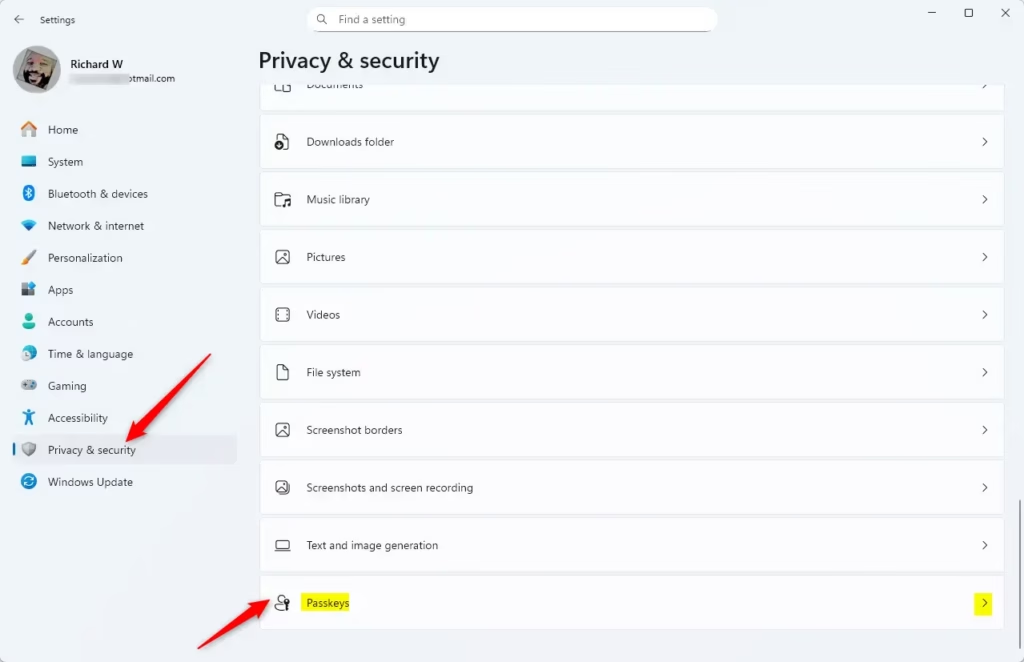
Passkey option inside Privacy & security settings
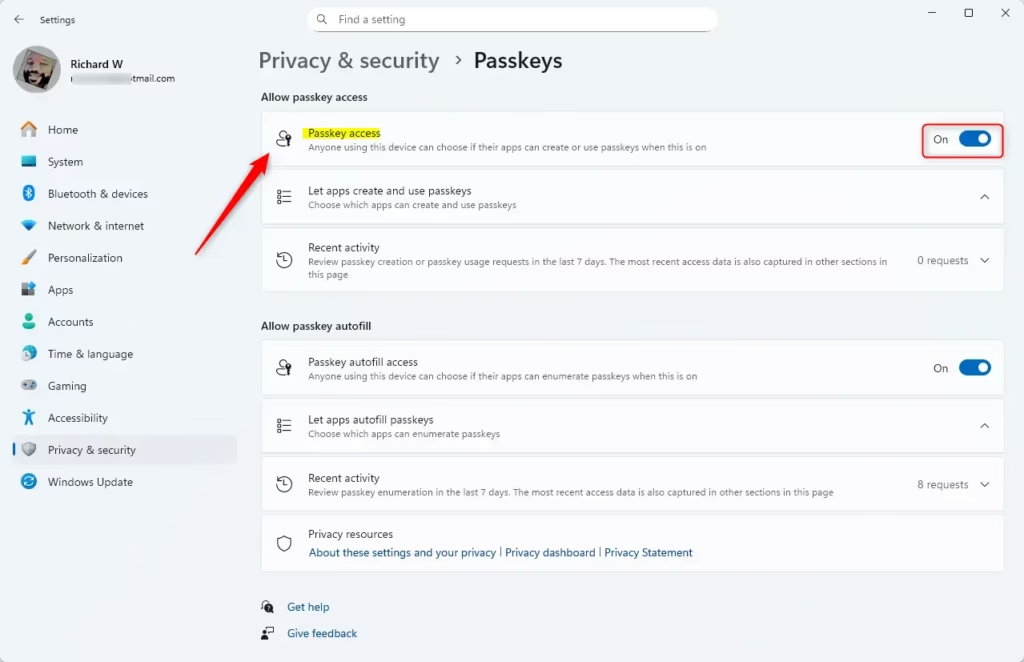
Passkey access turned ON
That’s it! You have now controlled which apps can use passkeys on your Windows 11 device.
Why Use Passkeys?
- They keep your apps and PC more secure than just using passwords.
- Signing in is faster and easier with your face, fingerprint, or PIN.
- You have full control over which apps can use passkeys.
- It’s a simple setting to manage in Windows 11.
- Checking app permissions regularly helps keep your PC safe.
Learn More
Want to know more about Windows Hello and how to keep your PC secure? Check out these resources:
- How to use Windows Hello in Windows 11
- How to sign in with a PIN
- How to set up facial recognition
- How to sign in with your fingerprint
Summary
Passkeys are a modern way to log into your apps and PC. They use Windows Hello features like facial recognition, fingerprints, or PINs instead of passwords. This makes your device more secure and signing in faster. In Windows 11, you can control passkey access by opening Settings, going to Privacy & security, finding the Passkey section, and toggling Passkey access on or off. By managing these settings, you decide which apps can use passkeys on your device.



Leave a Reply Cancel reply