Enable Mobile Hotspot on Ubuntu Linux

You enable a mobile hotspot on Ubuntu Linux by configuring your computer to share its internet connection, transforming it into a portable Wi-Fi router.
This feature lets you create a personal Wi-Fi network from your Ubuntu machine, allowing other devices like smartphones or tablets to connect to the internet wirelessly. It’s a handy way to share your Ethernet, Wi-Fi, or cellular data connection.
Your Ubuntu system broadcasts a new Wi-Fi network, complete with a configurable password, making it accessible for other devices to join. This guide focuses on enabling this functionality, typically found within Ubuntu’s Network Settings.
Click the System Menu in the top-right corner and toggle the Hotspot button. For custom settings like network name and password, open System Settings, navigate to Wi-Fi, and click the Wi-Fi Hotspot button.
How to turn on mobile hotspot in Ubuntu Linux
The fastest way to manage your hotspot in 2026 is through the Quick Settings menu. This is the most efficient method for everyday users.
Using Quick Settings
- Click the System Menu (the battery/network icon) in the top-right corner of your screen.
- Look for the Hotspot button. Click it to toggle the feature on or off instantly.

Configuring Hotspot Settings
Setting up your Ubuntu Linux mobile hotspot is simple, letting you pick a network name and password so others can connect.
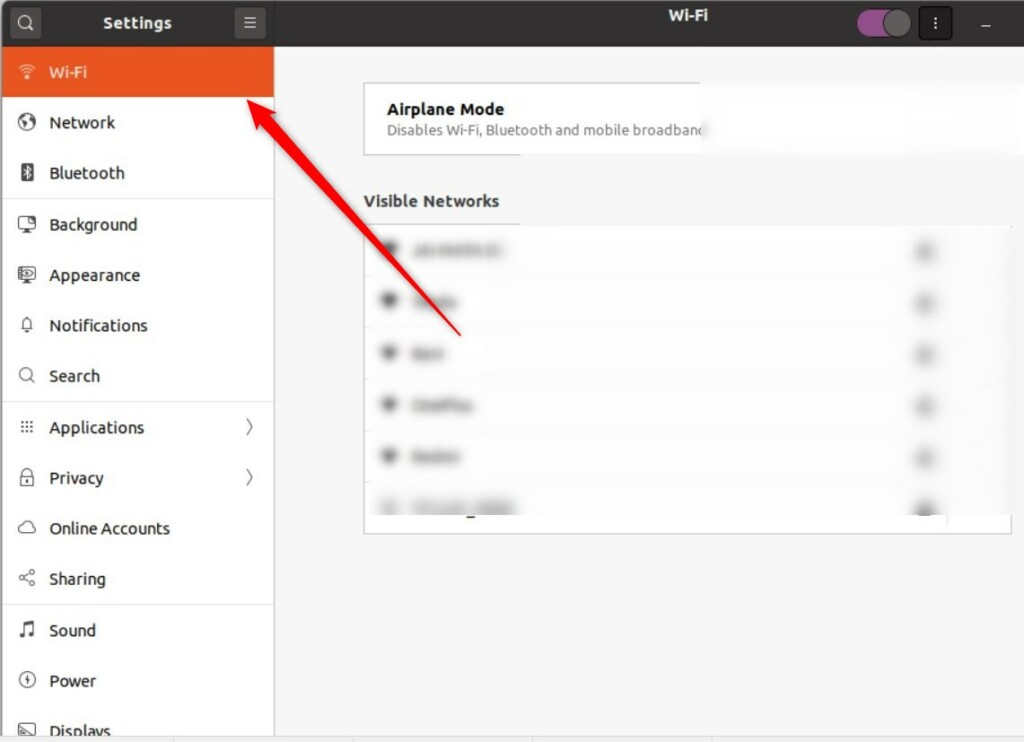
- Open your %📂%LNK0%% System Settings.
- Click the Wi-Fi tab in the sidebar.
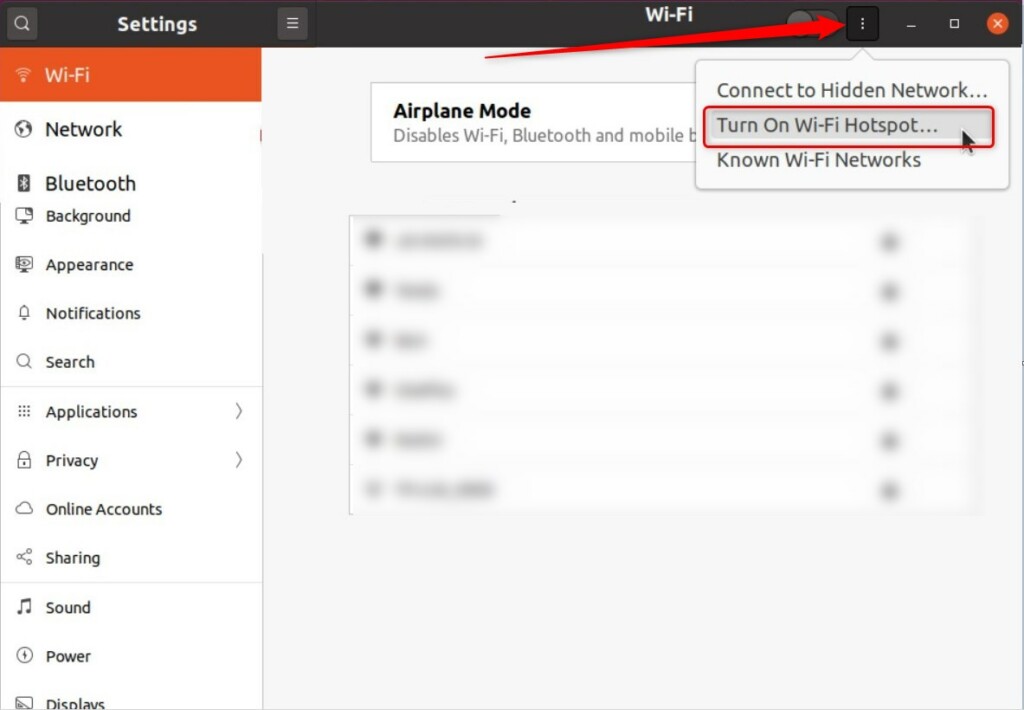
- Click the Wi-Fi Hotspot button located at the top right of the panel.
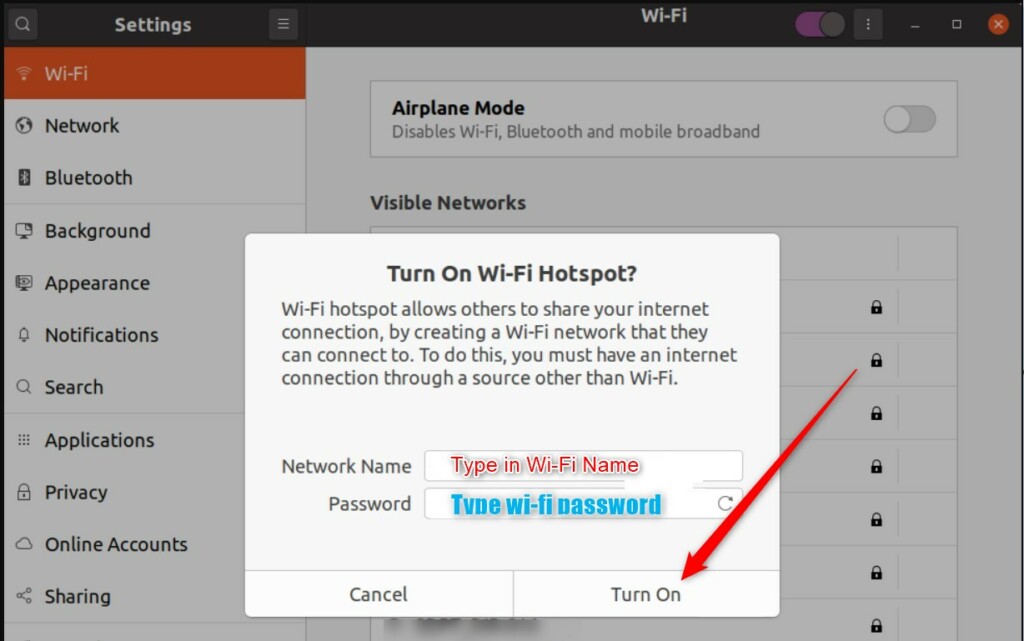
A window will pop up. Here you can configure your connection:
- Network Name: Give your hotspot a name so you can find it.
- Password: Create a strong password to keep your connection secure.
- Security: Set this to WPA3 for the best modern protection. If you have older devices that cannot connect, you may need to switch to WPA2.
- Band: Choose 5 GHz for faster speeds if you are close to your computer. Choose 2.4 GHz for better range and compatibility with older devices.
Once you have entered your details, click Turn On. Your computer will now act as a wireless access point.
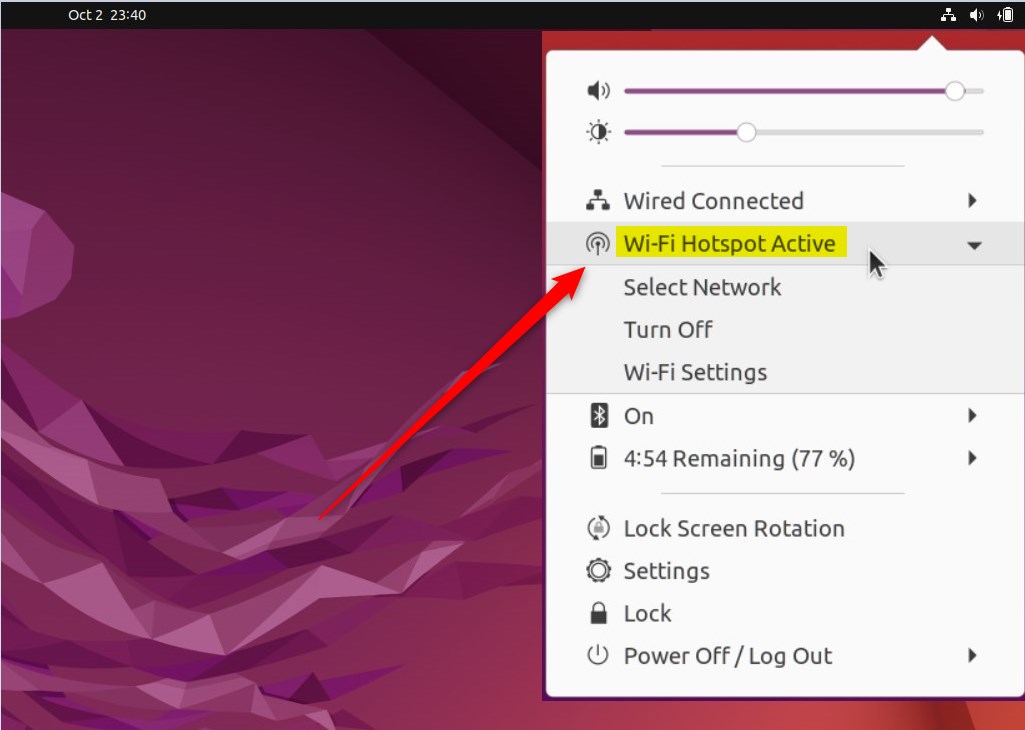
You can see the status of your connection at any time by opening the System menu at the top of your screen. You can also turn the hotspot off from there when you are finished.
That is all there is to it! You are now sharing your internet connection securely with your other devices.
Does Ubuntu have a mobile hotspot?
Yes, Ubuntu can easily act as a mobile hotspot, letting you share your internet connection with other devices.
Was this guide helpful?

About the Author
Richard
Tech Writer, IT Professional
Richard, a writer for Geek Rewind, is a tech enthusiast who loves breaking down complex IT topics into simple, easy-to-understand ideas. With years of hands-on experience in system administration and enterprise IT operations, he’s developed a knack for offering practical tips and solutions. Richard aims to make technology more accessible and actionable. He's deeply committed to the Geek Rewind community, always ready to answer questions and engage in discussions.




No comments yet — be the first to share your thoughts!