

This article explains how to turn on or off the control to change the Mouse keys speed using the CTRL and SHIFT keys in Windows 11.
Mouse keys are a feature in Windows that lets you control your mouse cursor using the numeric keypad on your keyboard. Why would you use this? It can be helpful for people who have trouble using a traditional mouse or trackpad.
When turned on, you can use the 5 key to click. You can use the + key to double-click. The other numeric keys move the mouse cursor around.
When you use the Mouse keys, you can control how fast the pointer moves. You do this by using the CTRL and SHIFT keys. But first, you must turn on the “Hold the Ctrl key to speed up and Shift key to slow down” feature.
Enable or Disable “Hold the Ctrl Key to Speed Up and Shift Key to Slow Down”
Users can enable or disable a feature with mouse keys. This feature lets you control the speed with the CTRL and SHIFT keys. Here’s how to do it.
Step 1: Open the Settings App
First, open the Windows Settings app.
You can do this by clicking on the Start menu and selecting Settings. Or press the keyboard shortcut (Windows key + I) to launch the Settings app.
Step 2: Go to Accessibility Settings
When the Settings app opens, click the Accessibility button on the left. Then select the Mouse tile on the right to expand it.
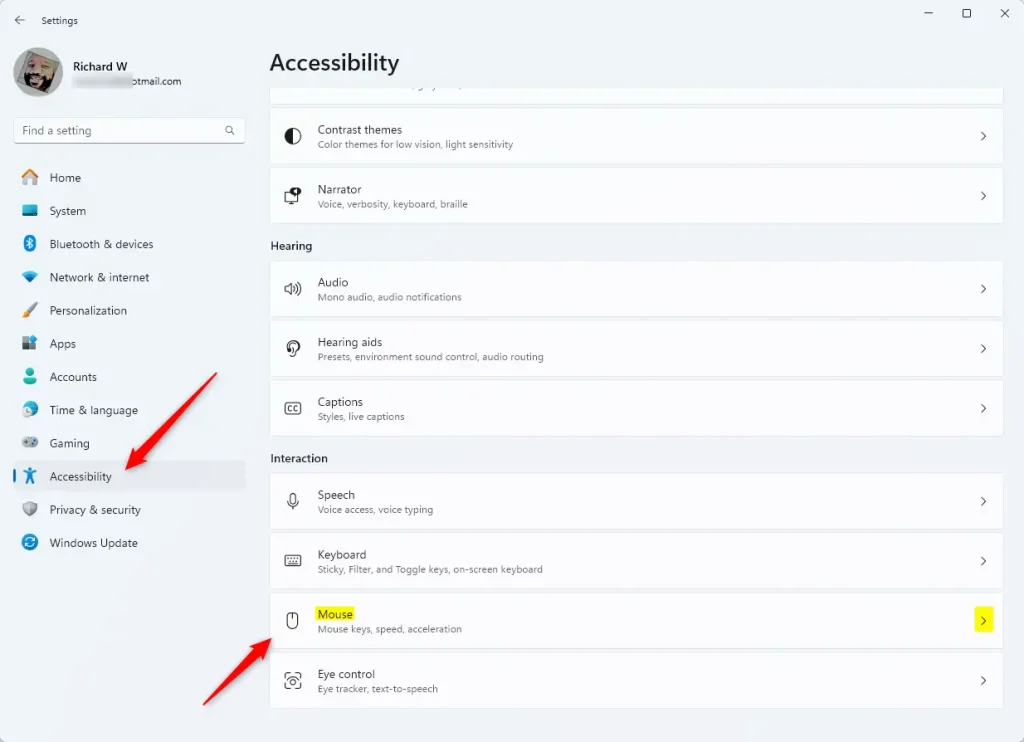
Step 3: Toggle Mouse Keys and Speed Control
On the Mouse settings pane, toggle the Mouse keys button to turn it On. Then, select or deselect the option to “Hold the Ctrl key to speed up and Shift key to slow down” to enable or disable it.
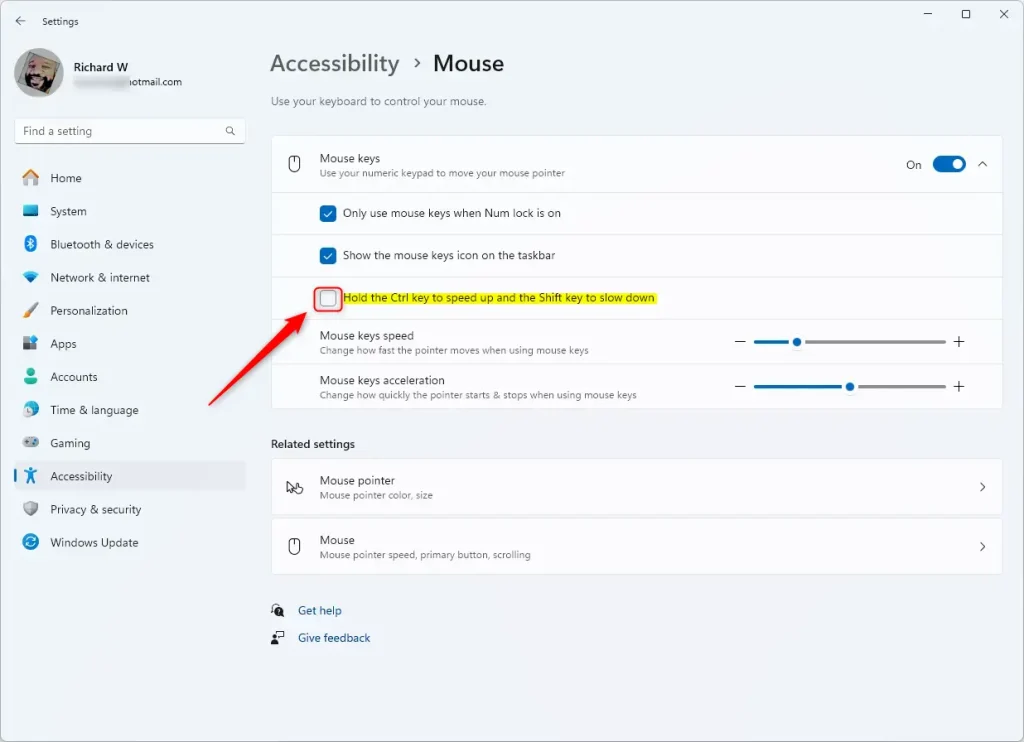
Step 4: Close Settings
Exit the Settings app when done.
Summary
You now know how to enable or disable the feature in Windows 11 that lets you control the Mouse key speed with the CTRL and SHIFT keys. This feature is useful for people who find using a traditional mouse or trackpad difficult. It gives you another way to control the mouse cursor. By following the steps in this article, you can easily adjust the settings the way you like them. This makes your computer easier to use.
We encourage you to use the comments section below to share your feedback, corrections, or additional information with the community.

Leave a Reply Cancel reply