

This post describes how to disable or enable Repeat Keys in Ubuntu Linux.
Most keyboards allow you to repeat a key just by holding it down. So, for example, when you hold down a key on your keyboard, the letter or symbol will be repeated until you release the key.
If you cannot lift your fingers off the keyboard quickly enough, this can result in unintentionally repeated characters. Repeat Keys lets you adjust the repeat rate or disable it altogether.
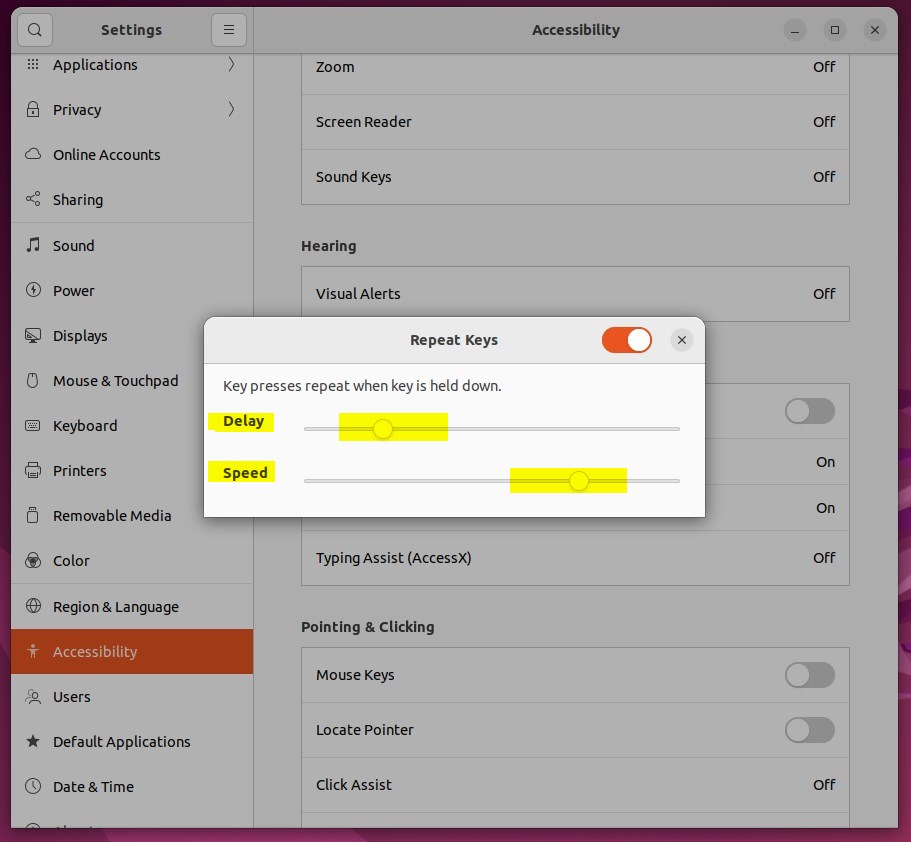
Alternatively, adjust the Delay slider to control how long you have to hold a key down to begin repeating it and adjust the Speed slider to control how quickly key presses repeat.
Below is how to adjust or disable the repeat key rate in Ubuntu Linux.
How to turn on or off the repeat key in Ubuntu Linux
As described above, RepeatKeys lets you adjust or disable the repeat rate altogether if you cannot quickly lift your fingers off the keyboard.
Below is how to manage or disable it in Ubuntu Linux.
Ubuntu Linux has a centralized location for the majority of its settings. From system configurations to creating new users and updating, all can be done from the System Settings panel.

Alternatively, click on the System menu at the top-right corner of the top bar on your desktop.
On the System menu, select Settings, as highlighted below.

In the Settings app, click on the Accessibility tile to open the panel.

In the System Settings -> Accessibility panel, under Typing, select Repeat Keys highlighted below.
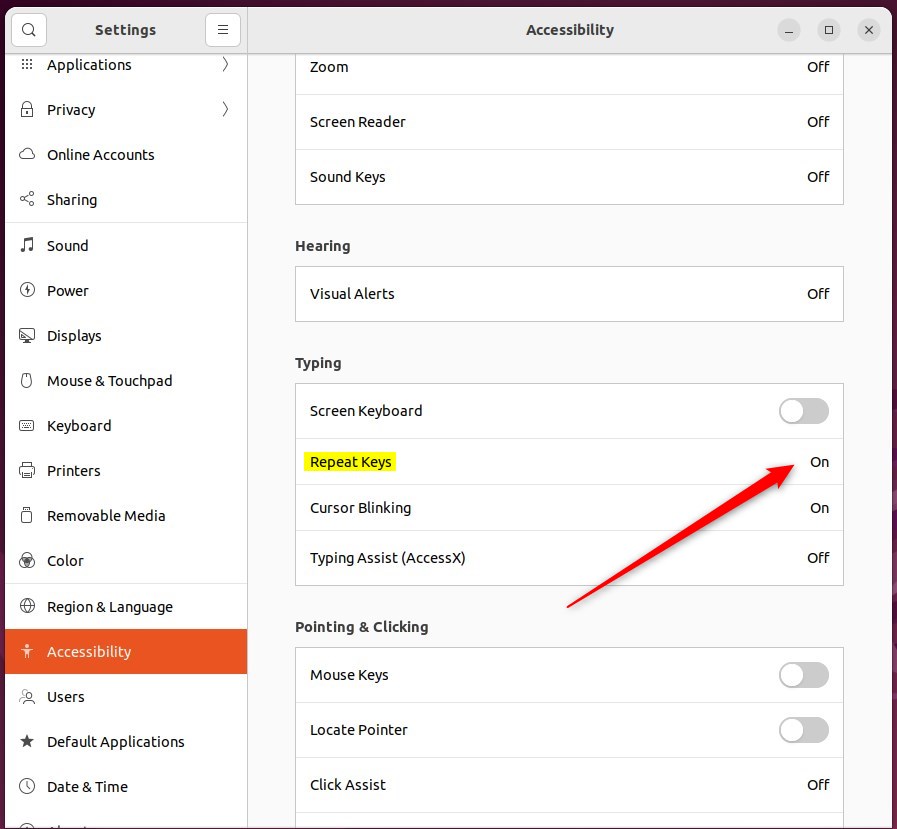
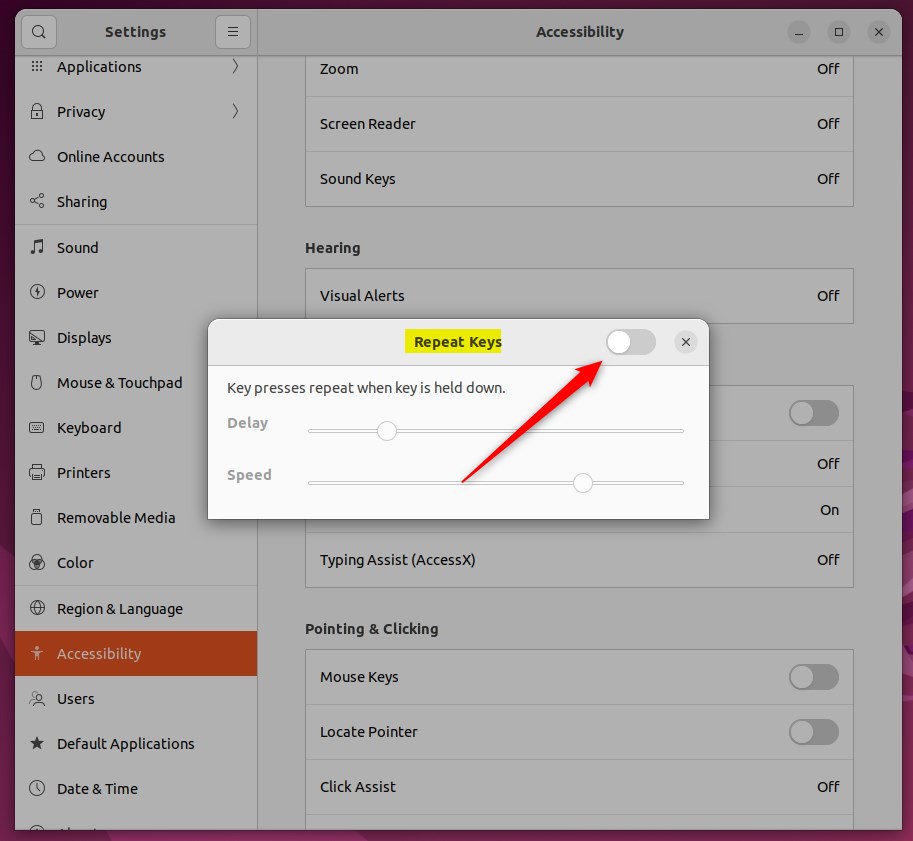
On the Repeat Keys window, toggle the Repeat Keys button to the On position to enable.
To disable it, toggle the button to the Off position.
Alternatively, adjust the Delay slider to control how long you have to hold a key down to begin repeating it and adjust the Speed slider to control how quickly key presses repeat.
That should do it! You can now close the Settings app.
Conclusion:
- Adjusting the repeat rate or disabling repeat keys can prevent unintentionally repeated characters when holding down a key.
- In Ubuntu Linux, you can manage repeat keys through the System Settings panel under Accessibility > Typing > Repeat Keys.
- Alternatively, users can adjust the delay and speed sliders to control key press repetition.
- These steps provide greater control over keyboard input behavior, enhancing the user experience for Ubuntu Linux users.
Leave a Reply Cancel reply