

This post describes steps to enable or disable high Contrast in Ubuntu Linux.
In Ubuntu Linux, you can adjust the Contrast of windows and buttons to help people with low vision and light sensitivity.
The high contrast feature in Ubuntu Linux helps you distinguish between things that differ only by color. It changes the color palette of objects on the screen, bringing out the contrast, which could help you see clearly.
This is not the same as changing the brightness of the whole screen; only parts of the user interface will change.
Below is how to use the high contrast feature in Ubuntu Linux.
How to use high Contrast in Ubuntu Linux
As described above, you can adjust the Contrast of windows and buttons to help people with low vision and light sensitivity using the High Contrast feature in Ubuntu Linux.
Below is how to do that.
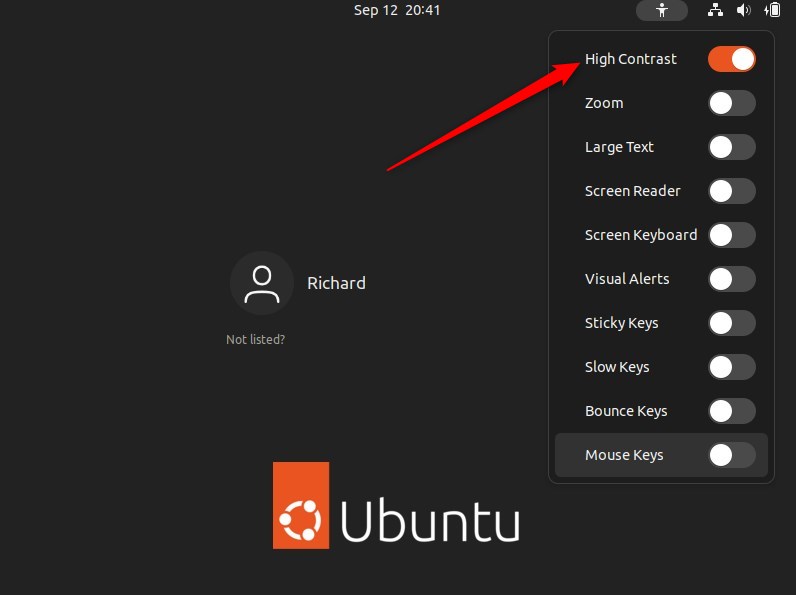
The quickest way to use high Contrast is the accessibility feature on the login screen.
On the login screen, click the accessibility icon highlighted on the screen below and toggle the button to turn on High Contrast.
Alternatively, use the Ubuntu Linux Settings app to use high Contrast.
Ubuntu Linux has a centralized location for the majority of its settings. From system configurations to creating new users and updating, all can be done from the System Settings panel.

Alternatively, click on the System menu at the top-right corner of the top bar on your desktop.
On the System menu, select Settings, as highlighted below.

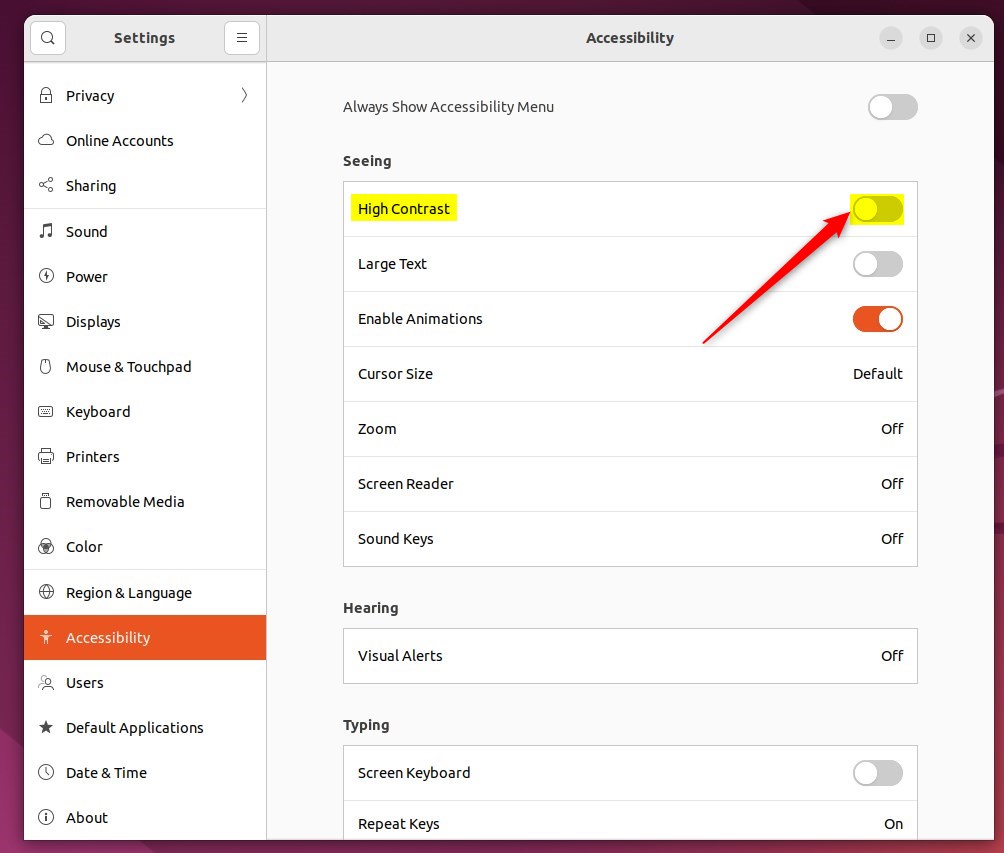
In the Settings app, click on the Accessibility tile to open the panel.

In the System Settings -> Accessibility panel, under Seeing, toggle the switch for High Contract to the On position to enable.
To disable it, move the switch back to the Off position.
You can turn high Contrast on and off by clicking the accessibility icon on the top bar and selecting High Contrast.
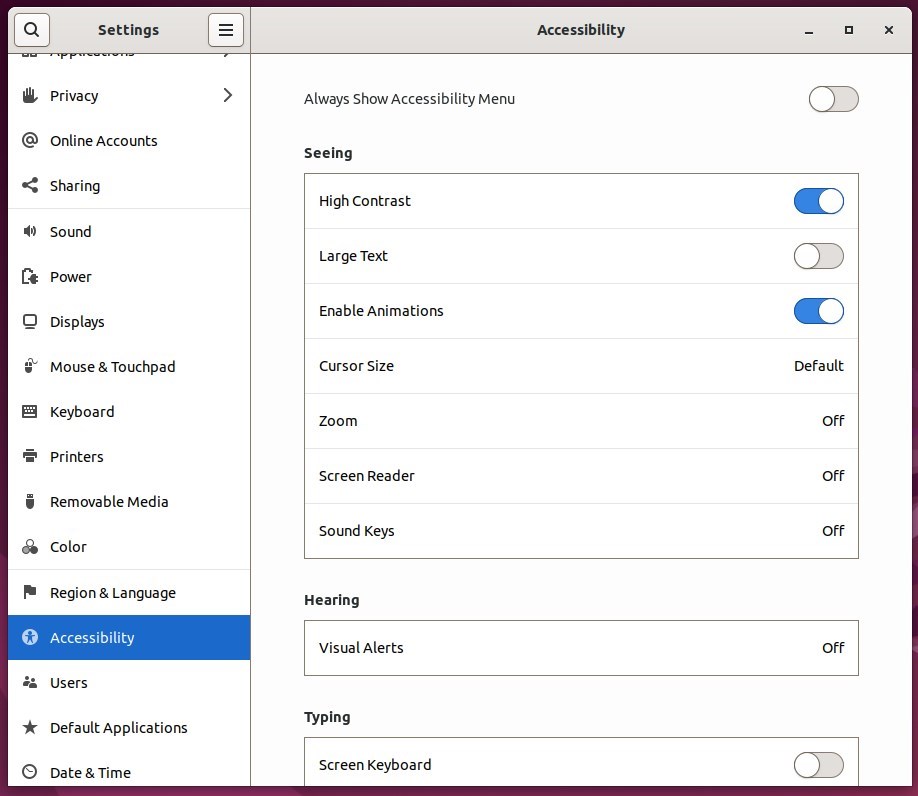
That should do it! You can now close the Settings app.
Conclusion:
- The high contrast feature in Ubuntu Linux provides a valuable tool for users with low vision and light sensitivity.
- By adjusting the contrast of windows and buttons, users can distinguish between objects that differ only by color, offering improved clarity.
- Users can easily enable or disable high contrast through the accessibility feature on the login screen or via the System Settings panel.
- This feature enhances the user experience by offering a customizable interface and promoting inclusivity and accessibility.
- The high contrast feature can significantly improve visibility without impacting the overall screen brightness, providing a tailored solution for users facing visibility challenges.


Leave a Reply