

This post describes steps to enable or disable displaying recently used files or file history in Ubuntu Linux.
By default, Ubuntu Linux keeps track of recent files and folders you open so you can quickly access them when you need to in the future.
All the files you open frequently will be displayed at the top of the list. This feature was added to help improve your productivity.
It also makes finding items you have worked on in the file manager easier. However, this can also be a privacy nightmare. You can turn it off anytime and turn it on when you want to use it.
Below, we will show you how to enable or disable the listing of recently used files in Ubuntu Linux.
How to enable or disable file history in Ubuntu Linux
As described above, Ubuntu Linux keeps track of recent files and folders you open so you can quickly access them when you need to in the future.
If you don’t want to display recently used files, the steps below show you how to disable or enable them.
Ubuntu Linux has a centralized location for the majority of its settings. From system configurations to creating new users and updating, all can be done from the System Settings panel.

Alternatively, click on the System menu at the top-right corner of the top bar on your desktop.
On the System menu, select Settings, as highlighted below.

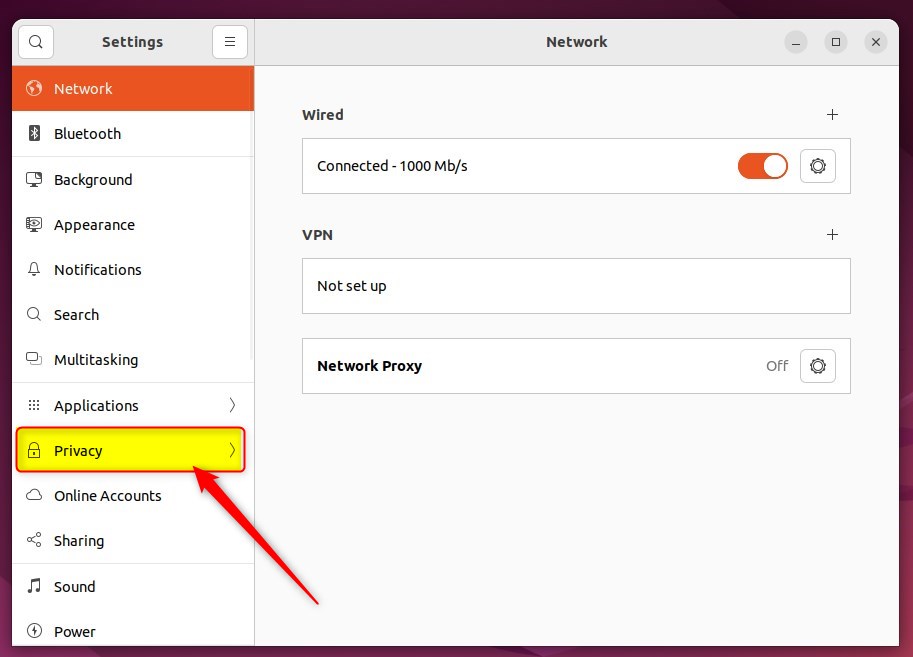
Click on the Privacy tile to open the panel in the Settings app.
In the System Settings -> Privacy settings panel, select File History & Trash to open the panel.
In the System Settings -> Privacy -> File History & Trash setting pane, toggle the File History switch to the Off position to disable it.
To re-enable this feature, switch the File History switch to On.
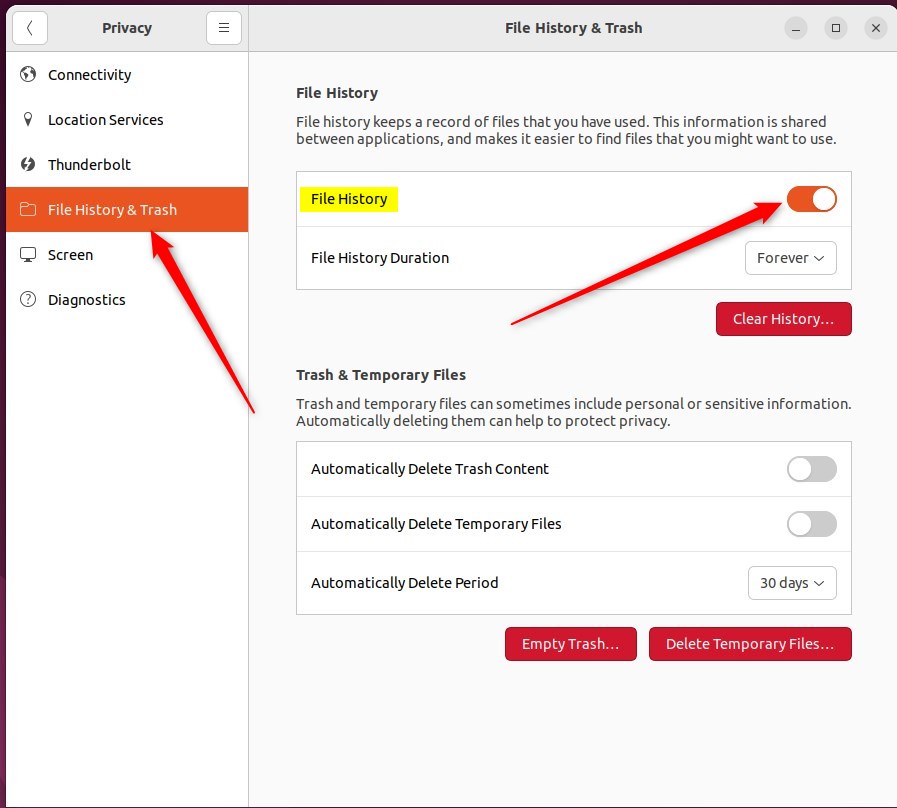
Under File History Duration, select how long to retain your file history. Choose from options 1 day, 7 days, 30 days, or Forever.

Use the Clear History… button to purge the history immediately.
This setting will not affect how your web browser stores information about the websites you visit.
That should do it! You can now close the Settings app.
Conclusion:
- Disabling or enabling the file history in Ubuntu Linux can help you manage your privacy and access to recent files and folders effectively.
- Following the simple steps outlined in this post, you can easily customize the file history settings to suit your preferences.
- Remember that this setting does not affect how your web browser stores information about the websites you visit, so consider additional privacy measures if needed.
- Understanding and controlling these settings empowers you to balance convenience and privacy while using Ubuntu Linux.
With these steps, you can take control of your file history in Ubuntu Linux based on your specific needs and preferences.


Leave a Reply Cancel reply