

This article describes steps to turn on or off dark Style or mode in Ubuntu Linux.
Dark mode in Ubuntu Linux helps reduce eye strain and improves battery life for laptops and tablets.
The Dark mode has colors designed to work well in a low-lit environment. This option is for the Start menu, taskbar, and action center.
The Light mode is designed to work well during daylight hours.
When the dark mode is enabled, you can choose an accent color or have Ubuntu Linux select one (the accent color will provide a contrast with, or match, your wallpaper and windows color).
Below is how to turn on or off dark mode in Ubuntu Linux.
Turn on or off Dark Mode in Ubuntu Linux
As described above, the dark Style (mode) in Ubuntu Linux helps reduce eye strain and improves battery life for devices like laptops and tablets.
Below is how to turn on or off dark mode in Ubuntu Linux.
Ubuntu Linux has a centralized location for the majority of its settings. From system configurations to creating new users and updating, all can be done from the System Settings panel.

Alternatively, click on the System menu at the top-right corner of the top bar on your desktop.
On the System menu, select Settings, as highlighted below.

Click on the Appearance tile to open the panel in the Settings app.
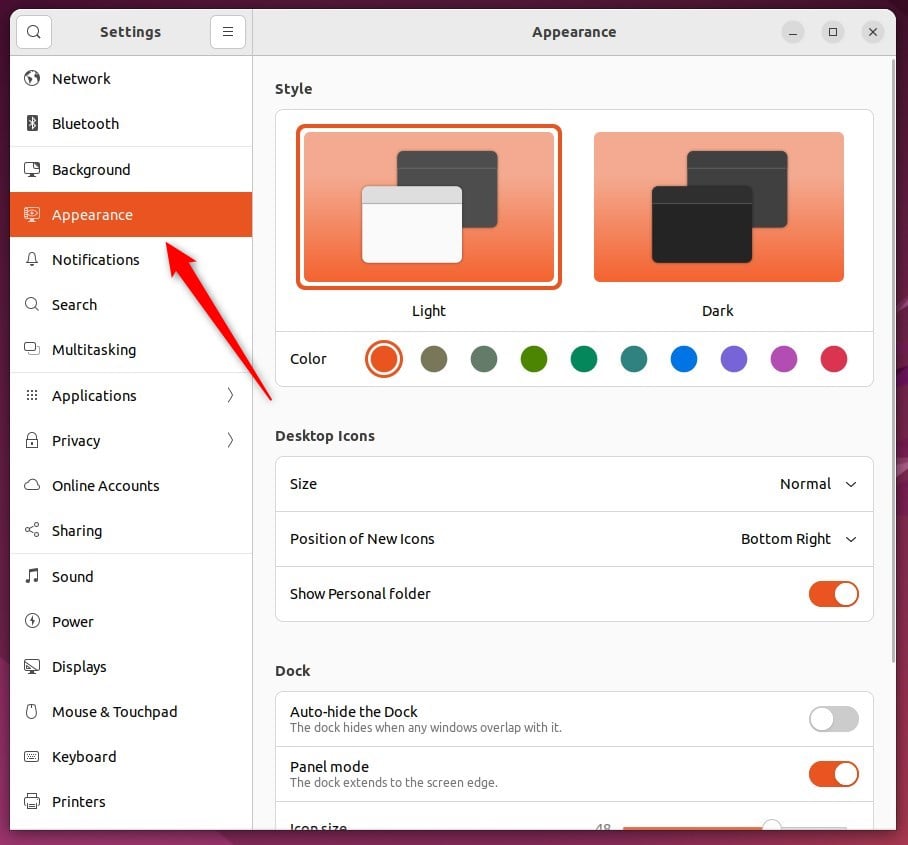
In the System Settings -> Appearance panel, under Style, select the Dark style template to choose the dark mode.
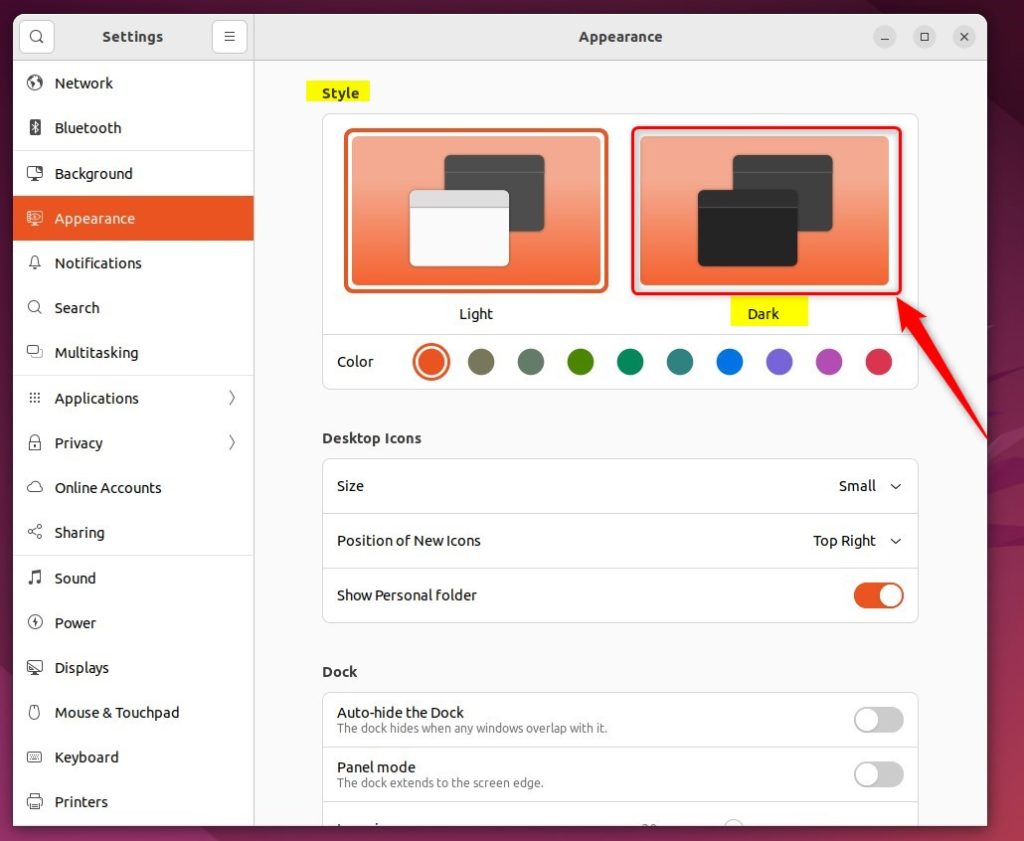
When you do, the Style should change to dark mode.
You can also choose an accent color or have Ubuntu Linux select one (the accent color will contrast with or match your wallpaper and windows color).
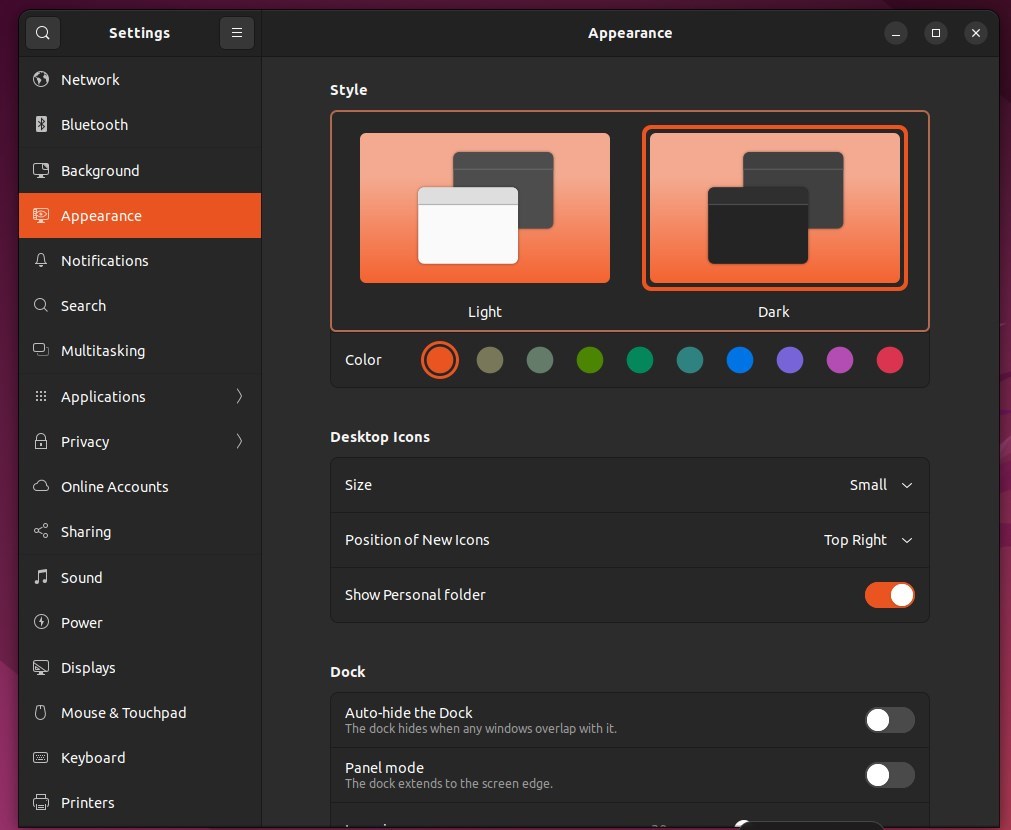
That should do it!
Conclusion:
- Enabling dark mode in Ubuntu Linux reduces eye strain and improves battery life for laptops and tablets.
- The dark mode is designed with colors that work well in low-lit environments, providing a comfortable viewing experience.
- Following the steps outlined in this article, users can easily toggle between light and dark mode in Ubuntu Linux, as per their preference.


Leave a Reply Cancel reply