
This guide will show you how to turn the Copilot Actions feature on or off in the Copilot app on Windows 11.
What is Copilot Actions?
Copilot Actions is a handy feature that helps you get things done on your computer. Just tell Copilot what you want to do in simple words, and it will try to finish the task for you by working with desktop and web apps.
Steps to Turn On or Off Copilot Actions
Follow these simple steps to enable or disable Copilot Actions:
- Open the Copilot app:
Click on the Copilot icon. If you don’t see it, you can search for “Copilot” in the Start menu.For more details on opening Copilot, see this guide.
- Sign in to your Microsoft account:
If you aren’t signed in yet, you’ll need to log in with your Microsoft account to save your settings.Need an account? Learn how to create one here.
- Go to Settings:
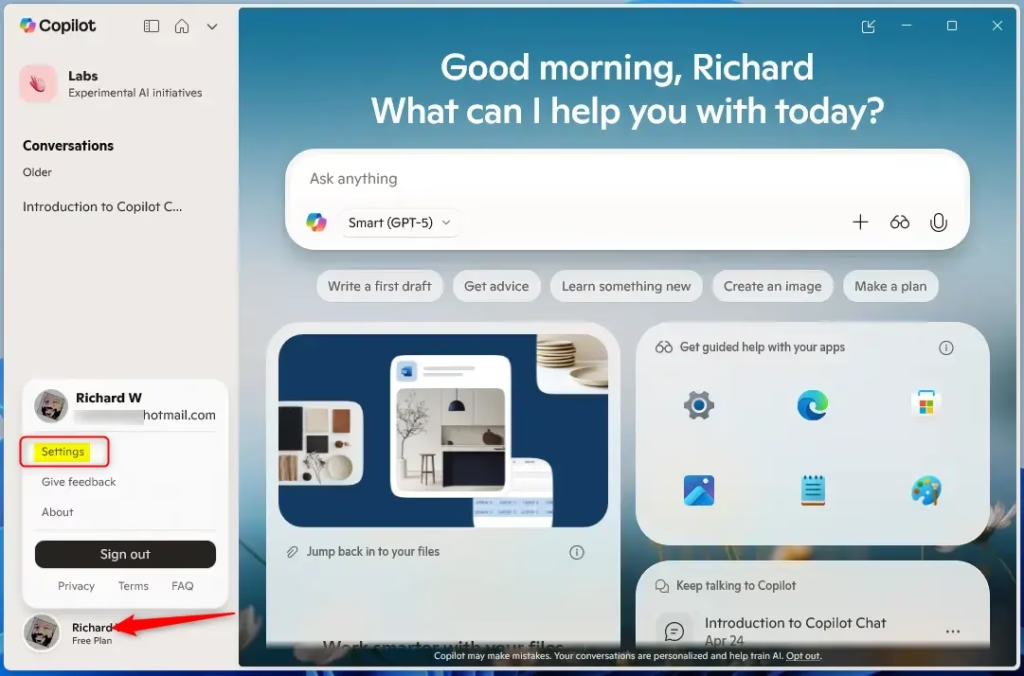
In the Copilot app, click the Account button (usually your profile picture or initials), then select Settings.
- Turn Copilot Actions on or off:
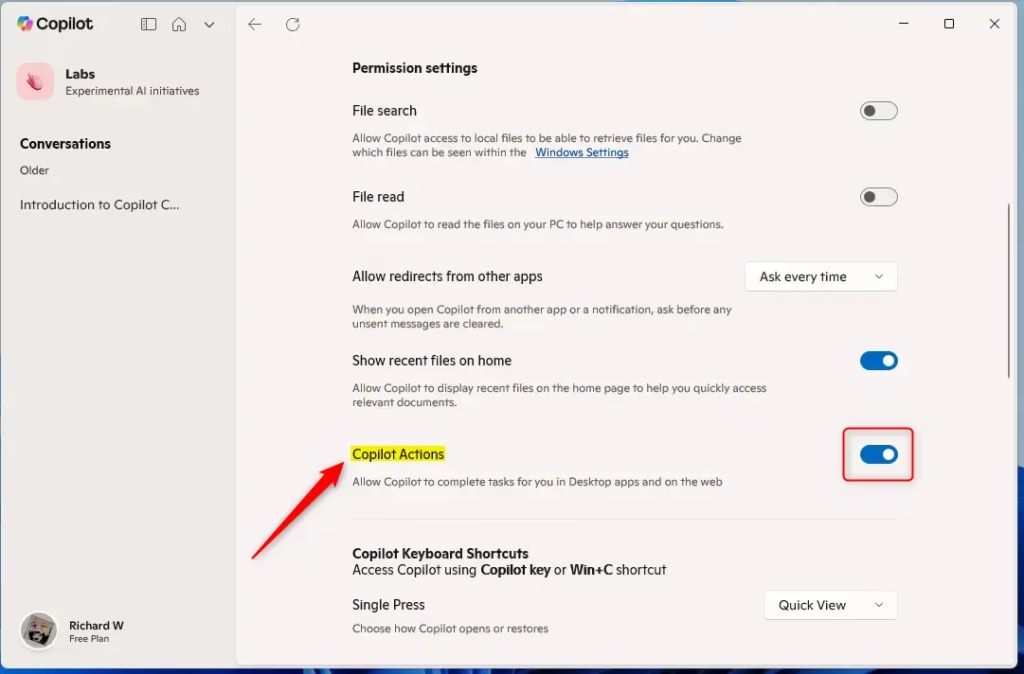
In Settings, look for Permission settings and find the Copilot Actions option. Use the toggle button to switch the feature on (blue) or off (gray).
- Close Settings:
When you’re done, just exit the Settings page. Your choice will be saved automatically.
Visual Guide
Here are pictures to help you find the settings:
Why Use Copilot Actions?
- Easy to use: Copilot understands your words and helps you finish tasks.
- Save time: It works with apps and websites automatically for you.
- Customize your experience: You can turn it on or off anytime.
- Works with your Microsoft account: Keeps your settings synced.
More Helpful Links
- Official Microsoft info on Copilot Actions
- How to enable or disable Windows Copilot
- How to sign in or out of Copilot
Summary
Turning Copilot Actions on or off in Windows 11 is simple and lets you decide how you want to use the Copilot app. Just open Copilot, sign in, go to Settings, and toggle the feature.
This can help you get more done quickly and easily on your PC.


Leave a Reply Cancel reply