
This guide explains how to turn the Copilot Actions feature on or off in Microsoft Edge. This feature allows the AI to perform tasks for you while you browse the web.
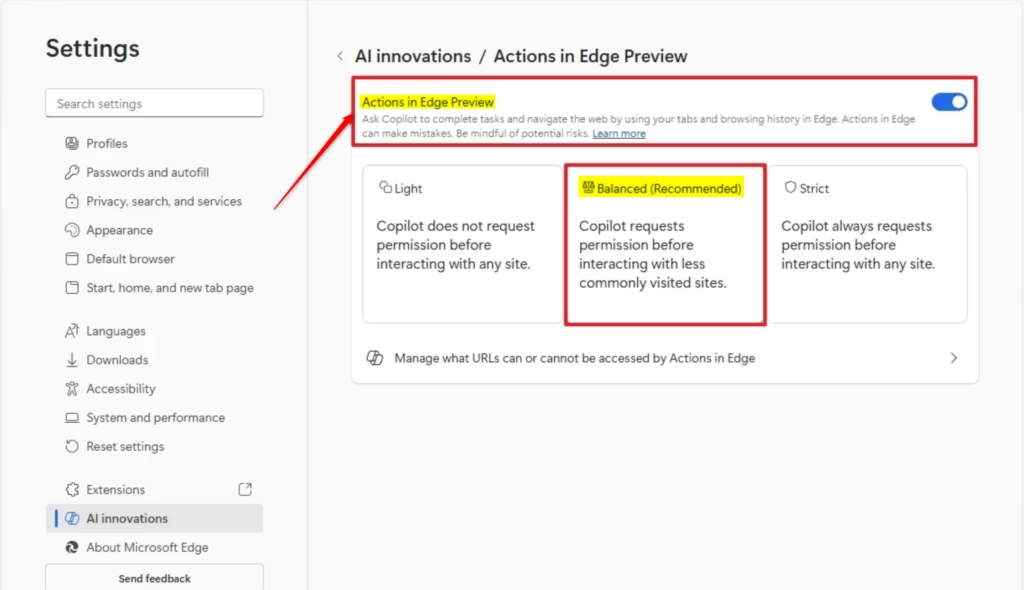
Open Microsoft Edge settings, navigate to AI innovations, then select Actions in Edge Preview. Toggle the switch to On and choose your preferred permission level: Light, Balanced, or Strict.
Why use Copilot Actions?
Copilot Actions can help you save time by handling repetitive tasks, such as navigating to specific websites or summarizing information. It is designed to make your browsing experience more efficient by acting as a personal assistant.
What happens when done?
Once you change these settings, Microsoft Edge will either permit or restrict the AI from interacting with websites on your behalf based on your chosen security level.
Note: You do not need administrative privileges to change these browser settings.
How to change Copilot Actions settings
- Open Microsoft Edge.
- Click the Settings and more (three dots) menu icon in the top right corner and select Settings.
- Click on AI innovations in the left sidebar.
- Select Actions in Edge Preview in the right pane.
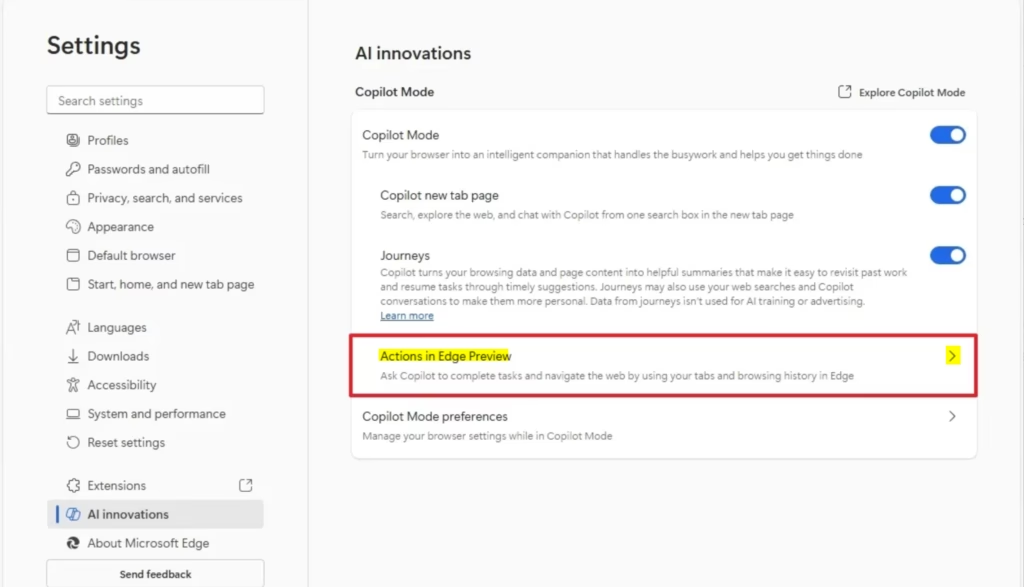
Turn On Copilot Actions
You can turn on Copilot Actions in Edge by finding the ‘Actions in Edge Preview’ setting and switching it to ‘On’. After that, you get to choose how much control you give the AI on websites, picking from Light, Balanced, or Strict security levels.- Switch Actions in Edge Preview to the On position.
- Choose your preferred permission level:
- Light (least secure): Allows the AI to act on most sites without asking you first.
- Balanced (recommended): The AI works on trusted sites automatically but asks for permission on unfamiliar sites.
- Strict (most secure): The AI asks for your permission before working on any website.
- Click Manage what URLs can or cannot be accessed by Actions in Edge to create your own custom lists of allowed or blocked websites.
Turn Off Copilot Actions
- Switch Actions in Edge Preview to the Off position. This is the default setting for most users.
Once you have finished, you can simply close the Settings tab.
Summary
Copilot Actions can help you browse the web automatically, but it’s smart to be careful. You can control how much the AI does by choosing security settings like Light, Balanced, or Strict, and you can also manage which sites the AI can use, giving you control over your browsing.
References:
Copilot Actions in Edge – Microsoft Support
How do I turn on Copilot in Edge browser?
To enable Copilot in Microsoft Edge, click the three-dot menu icon in the top right corner and select Settings. Navigate to the AI innovations tab in the left sidebar. From there, locate the Copilot settings and toggle the switch to the On position to activate the AI assistant features.
How to enable Windows Copilot AI in 🪟 Windows 11?
You can enable Windows Copilot in Windows 11 by opening the Settings app, navigating to Personalization, and selecting Taskbar. Locate the Copilot (preview) option and toggle the switch to On. Once enabled, the Copilot icon will appear on your taskbar, allowing you to launch the AI assistant instantly.
How to access Copilot actions?
You can access Copilot Actions by opening Microsoft Edge. Go to the three-dot menu, then Settings, and click on ‘AI innovations’ in the left menu. On the right side, you’ll see ‘Actions in Edge Preview,’ where you can turn it on and choose your security level.
How to disable Copilot in Edge 🪟 Windows 11?
To disable Copilot in Edge on Windows 11, just open Edge, click the three dots, and go to Settings. Then, find ‘AI innovations’ and switch the ‘Actions in Edge Preview’ setting to ‘Off’ to stop the AI from doing tasks on websites.
Was this guide helpful?

About the Author
Richard
Tech Writer, IT Professional
Richard, a writer for Geek Rewind, is a tech enthusiast who loves breaking down complex IT topics into simple, easy-to-understand ideas. With years of hands-on experience in system administration and enterprise IT operations, he’s developed a knack for offering practical tips and solutions. Richard aims to make technology more accessible and actionable. He's deeply committed to the Geek Rewind community, always ready to answer questions and engage in discussions.




No comments yet — be the first to share your thoughts!