
This tutorial shows you how to turn Controlled Folder Access on or off in Windows 11. This feature works with Microsoft Defender Antivirus to keep your files safe.
Microsoft Defender Antivirus is antivirus software built into Windows 11. It helps protect your computer from viruses, malware, and other harmful threats.
Controlled folder access is a security feature that protects your important files from dangerous apps and threats, such as ransomware. When ransomware attacks your computer, it can lock up your files and demand payment to unlock them.
Why Use Controlled Folder Access?
Controlled Folder Access stops bad apps from changing your files. It works by comparing apps against a list of trusted programs. When an untrusted app tries to access your protected folders, you get a warning.
How Does It Work?
The feature only lets approved apps into your protected folders. You pick which folders to protect—usually your Documents, Pictures, Downloads, and similar folders. Apps on the trusted list can work normally. Apps not on the list cannot make changes to files in protected folders.
New apps get added to the trusted list automatically based on how common they are and how safe they seem. You can also manually approve apps yourself.
Important: You need to be signed in as an administrator to change this setting. Your computer must also have Real-time Protection turned on.
OPTION ONE: Use Windows Security Settings
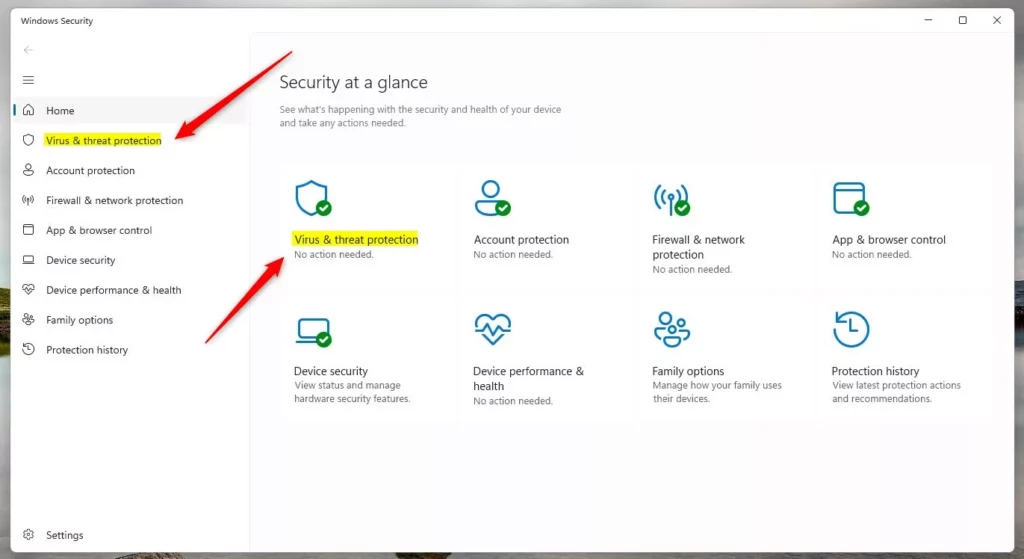
- Open Windows Security.
- Click on Virus & threat protection.
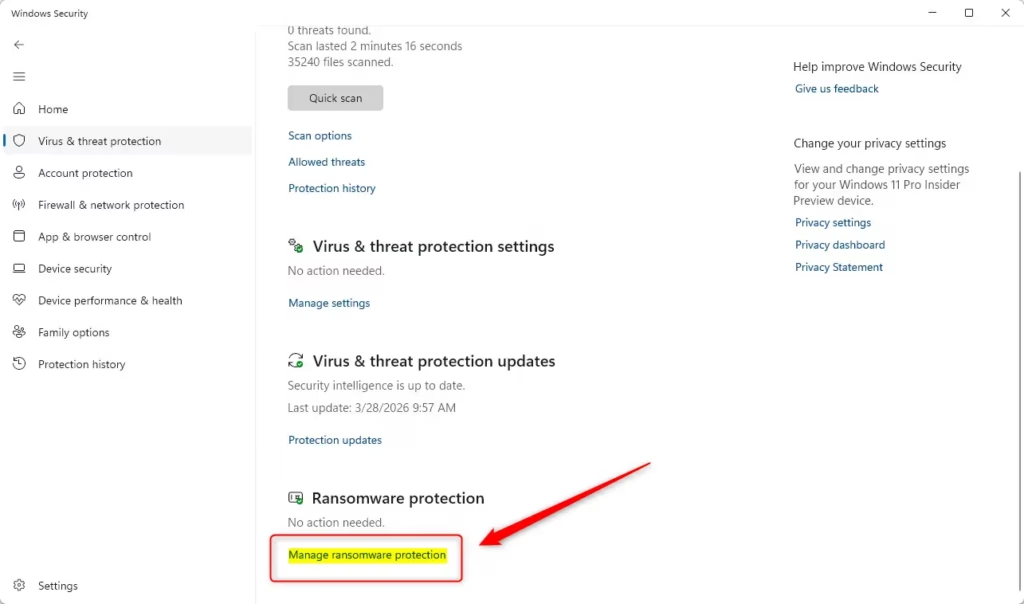
- Do one of these:
- Click Manage ransomware protection under Ransomware protection, OR
- Click Manage settings under Virus & threat protection settings, then click Manage Controlled folder access
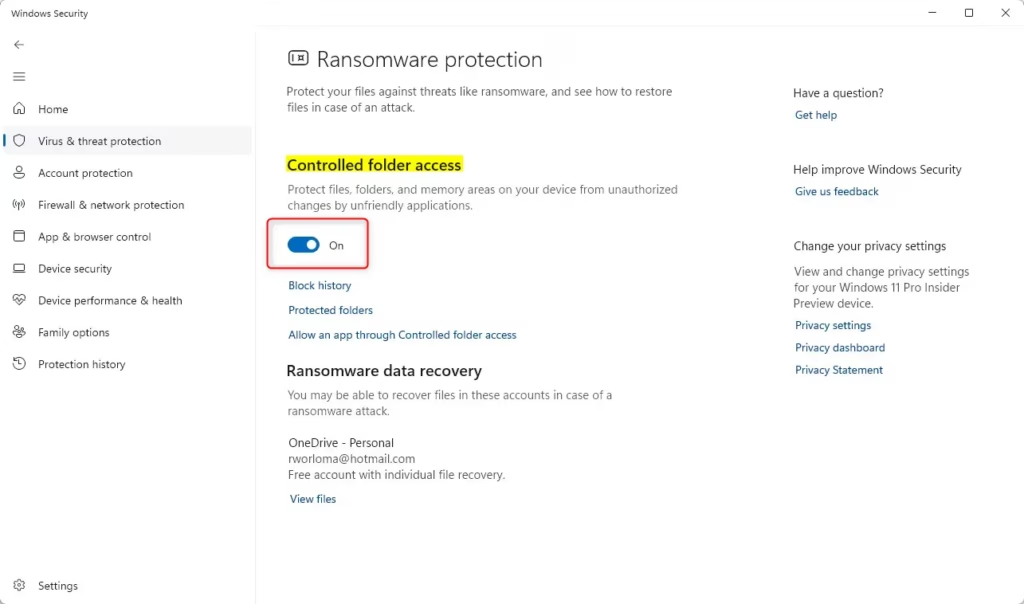
- ⚠️ Admin Required: Turn Controlled folder access On or Off (the default setting).
- If a dialog box appears asking for permission, click Yes.
- Close Windows Security when finished.
OPTION TWO: Use Command Line
- ⚠️ Admin Required: Open Windows Terminal (Admin) and choose either Windows PowerShell or Command Prompt.
- Copy and paste one of the commands below, then press Enter:
- To Turn On Controlled Folder Access:
Set-MpPreference -EnableControlledFolderAccess Enabled - To Turn Off Controlled Folder Access (default):
Set-MpPreference -EnableControlledFolderAccess Disabled
- To Turn On Controlled Folder Access:
- Close Windows Terminal when finished.
OPTION THREE: Use Local Group Policy Editor
Note: This option only works on Windows 11 Pro, Enterprise, and Education editions. Use Option Four if you have Windows 11 Home.
- ⚠️ Admin Required: Open the Local Group Policy Editor (gpedit.msc).
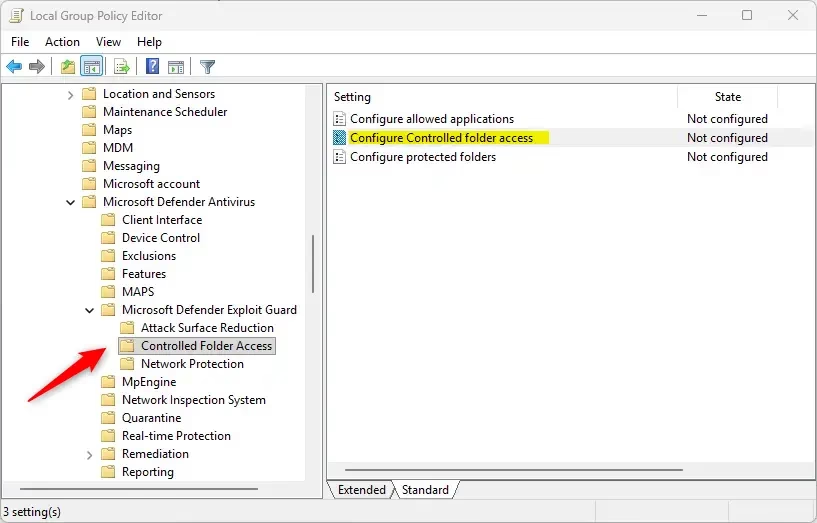
- In the left panel, navigate to this location:
Computer Configuration\Administrative Templates\Windows Components\Microsoft Defender Antivirus\Microsoft Defender Exploit Guard\Controlled folder access - In the right panel, double-click the Configure Controlled folder access policy.
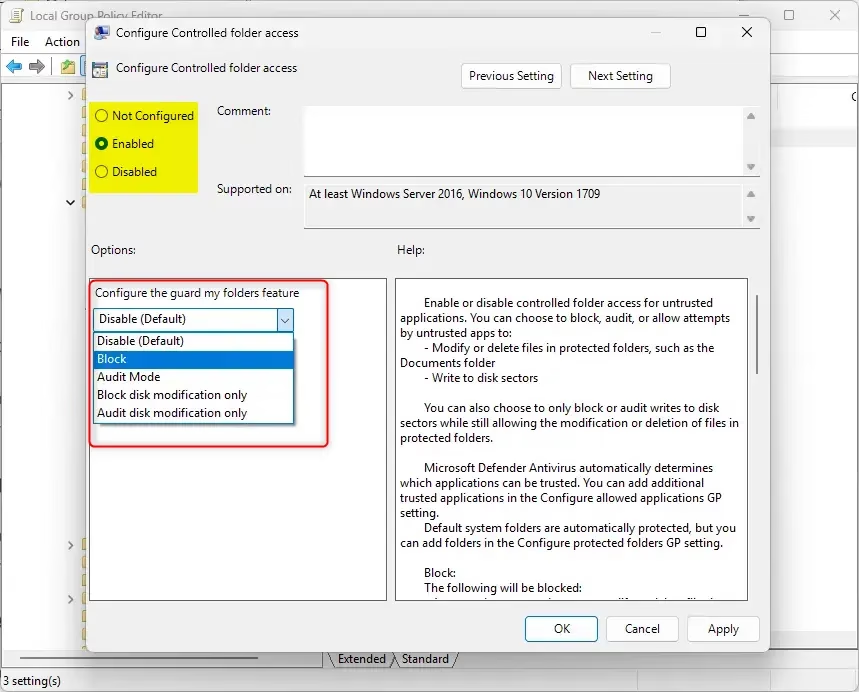
- Choose one of these options:
To Always Turn On Controlled Folder Access:
- Select Enabled.
- In the Configure the guard my folders feature dropdown, select Block.
- Click OK.
To Turn Off Controlled Folder Access:
- Select Enabled.
- In the Configure the guard my folders feature dropdown, select Disable (Default).
- Click OK.
To Use Default Settings:
- Select Not Configured.
- Click OK.
- Close the Local Group Policy Editor.
OPTION FOUR: Use Registry Editor
⚠️ Admin Required: Use this method on all Windows 11 editions, including Home.
To Always Turn On Controlled Folder Access:
Click the Download button below to download the file, then follow the installation steps.
reg add "HKLM\SOFTWARE\Policies\Microsoft\Windows Defender\Windows Defender Exploit Guard\Controlled Folder Access" /v EnableControlledFolderAccess /t REG_DWORD /d 1 /f
To Turn Off Controlled Folder Access:
reg add "HKLM\SOFTWARE\Policies\Microsoft\Windows Defender\Windows Defender Exploit Guard\Controlled Folder Access" /v EnableControlledFolderAccess /t REG_DWORD /d 0 /f
To Use Default Settings:
reg delete "HKLM\SOFTWARE\Policies\Microsoft\Windows Defender\Windows Defender Exploit Guard\Controlled Folder Access" /v EnableControlledFolderAccess /f
Summary
What is Controlled Folder Access? It is a security feature in Windows 11 that prevents dangerous apps from changing your files.
Why should you use it? It protects your important documents and personal files from ransomware and other malicious software.
How do you turn it on? You have four options: use Windows Security settings, run a command, edit Group Policy (Pro/Enterprise/Education only), or edit the Registry. All methods require administrator access.
What happens when it is on? Trusted apps can access your protected folders normally. Untrusted apps are blocked, and you receive a warning when they try to access protected files.
Leave a Reply Cancel reply