
This guide shows you how to turn Windows Security notifications on or off for all users in Windows 10 and Windows 11.
Why would you do this? The Notifications page in Windows Security settings lets you control notifications. But it doesn’t cover everything. You won’t see critical alerts, like when virus protection turns off.
What happens when you disable all notifications? You’ll stop getting Windows Security alerts completely. This is helpful if you use a third-party antivirus program but keep getting notifications about Microsoft Defender being disabled.
Important: You need admin rights to make these changes.
Option One: Using Local Group Policy Editor
Note: This method only works on Windows 10/11 Pro, Enterprise, and Education. If you have Home edition, use Option Two instead.
- Open the Local Group Policy Editor. Type
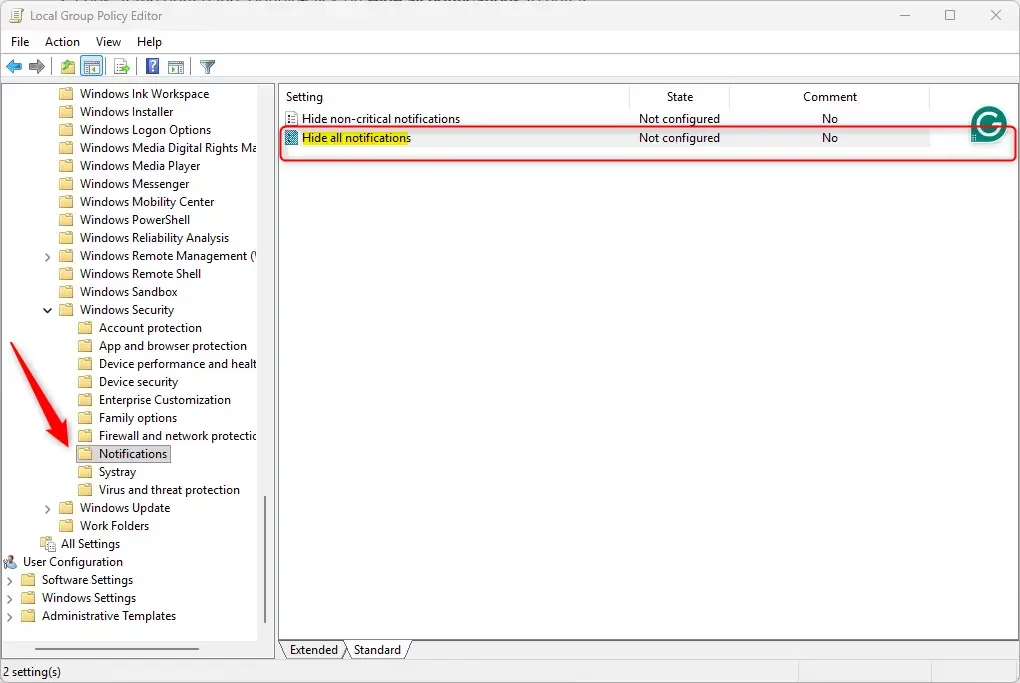
gpedit.mscin your search bar and press Enter. - In the left pane, navigate to this location:
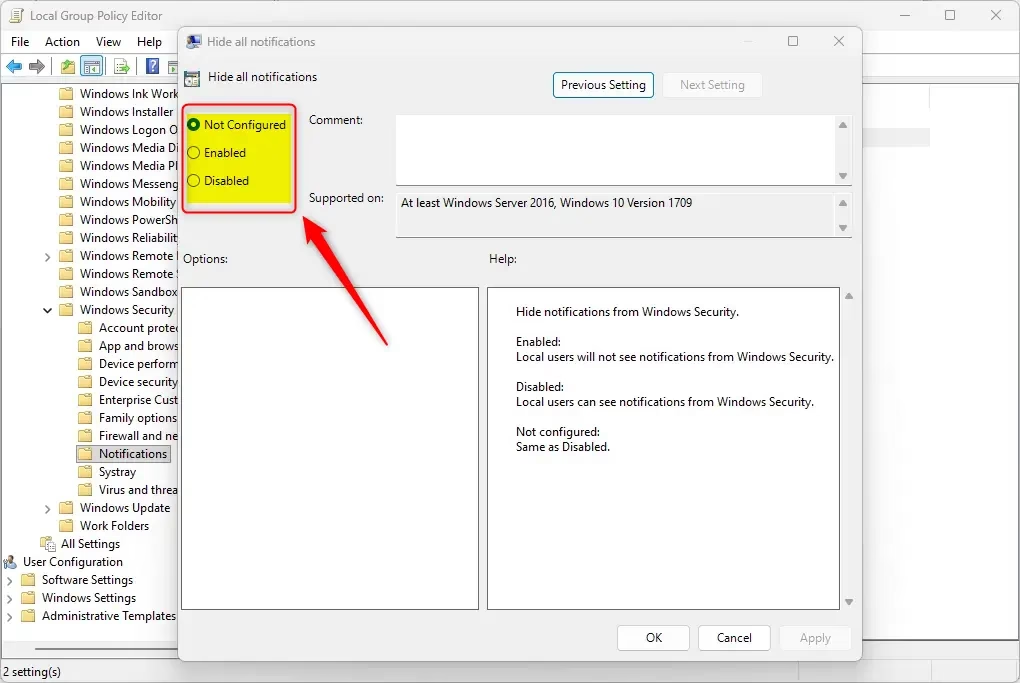
Computer Configuration > Administrative Templates > Windows Components > Windows Security > Notifications - Look at the right pane. Double-click on Hide all notifications to edit it.
- To enable (turn on) all notifications:
- Select the dot next to Not Configured
- Click OK
- To disable (turn off) all notifications:
- Select the dot next to Enabled
- Click OK
- Close the Local Group Policy Editor.
Option Two: Using Registry with Commands
This method works on all Windows 10/11 editions, including Home.
Right-click on Windows Terminal and choose Run as administrator
To enable (turn on) all notifications: Copy and paste this command:
[HKEY_LOCAL_MACHINE\SOFTWARE\Microsoft\Windows Defender Security Center\Notifications]
"DisableNotifications"=-
[HKEY_LOCAL_MACHINE\SOFTWARE\Policies\Microsoft\Windows Defender Security Center\Notifications]
"DisableNotifications"=-
[HKEY_LOCAL_MACHINE\SOFTWARE\Policies\Microsoft\Windows Defender Security Center\Notifications]
"DisableEnhancedNotifications"=-
To disable (turn off) all notifications: Copy and paste this command:
reg delete "HKLM\SOFTWARE\Microsoft\Windows Defender Security Center\Notifications" /v DisableNotifications /f
reg add "HKLM\SOFTWARE\Policies\Microsoft\Windows Defender Security Center\Notifications" /v DisableNotifications /t REG_DWORD /d 1 /f
Press Enter and wait for the command to finish.
Summary
You now know two ways to control all Windows Security notifications. Option One uses the Group Policy Editor (Pro/Enterprise/Education only). Option Two uses Registry commands in Windows Terminal (all editions). Choose whichever method works for your Windows version. Disabling notifications stops all Windows Security alerts, which is useful if you use another antivirus program. Remember: you need admin rights to make these changes.


Leave a Reply Cancel reply