
Dark mode in Windows 11 makes your screen easier on your eyes, especially in dark rooms or at night. It also helps your laptop or tablet save battery by using darker colors.
Steps to Turn on Dark Mode in Windows 11
Follow these simple steps to switch your Windows 11 to dark mode:
- Open Settings:
Click the Start menu (the Windows icon at the bottom-left corner of your screen) and choose Settings.
OR press Windows key + I on your keyboard to open Settings quickly.
Learn more about Windows Settings
- Go to Personalization:
In the Settings window, look at the menu on the left and click Personalization.
- Select Colors:
On the right side, click on Colors to see color options. - Choose Dark Mode:
Find the option that says Choose your mode and click the dropdown menu.
Select Dark from the list. - See the Change:
Your screen colors will change right away to dark mode!
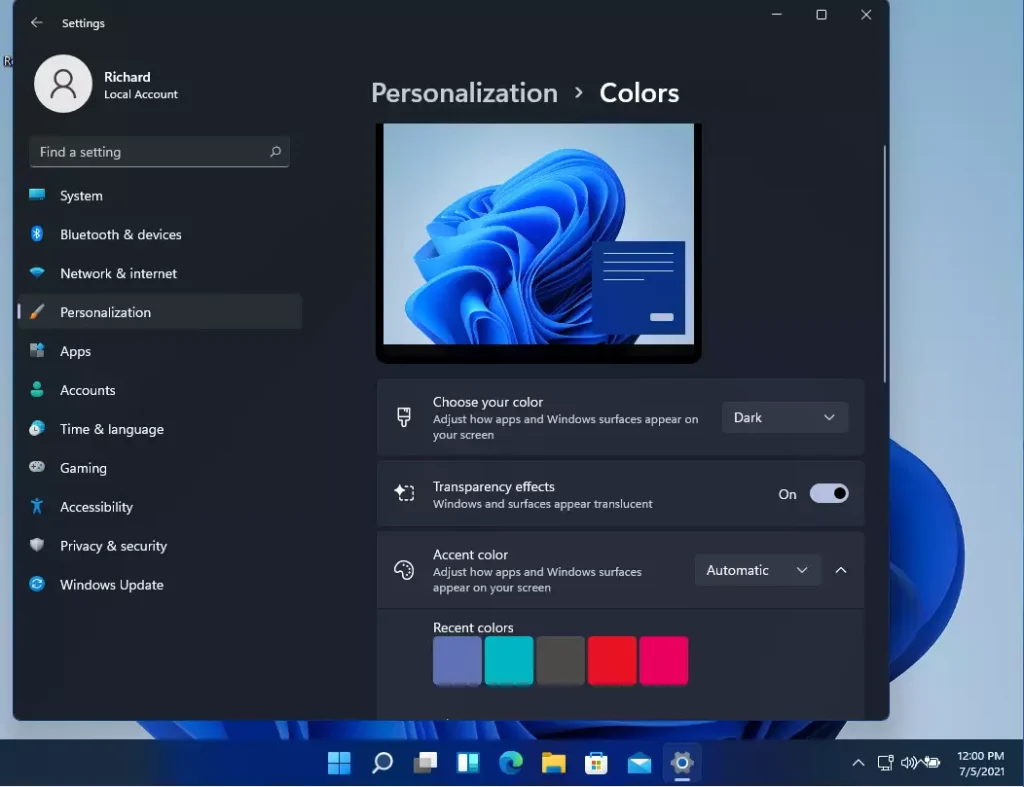
That’s it! You have successfully turned on dark mode.
Why Use Dark Mode?
- It makes it easier on your eyes, especially in low light or at night.
- The screen looks nicer and is less bright, reducing eye fatigue.
- Using dark colors helps your laptop or tablet save battery power.
- Turning it on is quick and easy.
- It can make your computer more comfortable to use for a long time.
Try using dark mode for a more pleasant and energy-saving computer experience!


Leave a Reply Cancel reply