How to Edit the Hosts File in Windows 11

This guide will help you easily edit the Hosts file on your Windows 11 computer. The Hosts file is a simple text file that tells your computer how to connect website names (like example.com) to internet addresses (called IP addresses).
Why Would You Edit the Hosts File?
- Block websites: Stop your computer from visiting certain websites by redirecting them.
- Test websites: Web developers use the Hosts file to test websites on their own computer before making them live.
- Fix network issues: Sometimes you want to link a name to a specific IP address for easier local access.
Where is the Hosts File Located?
The Hosts file is stored in this location on your computer:
C:\Windows\System32\Drivers\etc\hostsWhat Does the Hosts File Look Like?
It looks like a simple text file with lines like this:
# This is a comment - lines starting with # are ignored by your computer
127.0.0.1 localhost
# 127.0.0.1 example.com (this line is ignored because it starts with #)
Note: The IP address and website name should have at least one space or tab between them.
How to Edit the Hosts File: Step-by-Step
Step 1Open Notepad as Administrator
The Hosts file controls important network settings. You need special permission (admin rights) to edit it. %📂%ADMIN_FLAG_1%%
- Click on the Start button or press the Windows key.
- Type
Command Promptin the search box. - Right-click on Command Prompt in the results and select Run as administrator.
Step 2Open the Hosts File in Notepad
In the Command Prompt window, type the following command and press Enter:
notepad.exe C:\Windows\System32\Drivers\etc\hostsThis will open the Hosts file in Notepad with the permission to edit and save changes.
Step 3Add Your Changes
Scroll to the bottom of the file and add your new entries. For example, to make your computer treat example.com as your own local computer (useful to block or test the site), add this line:
127.0.0.1 example.comStep 4Save Your Changes
Click File > Save in Notepad to save the file.
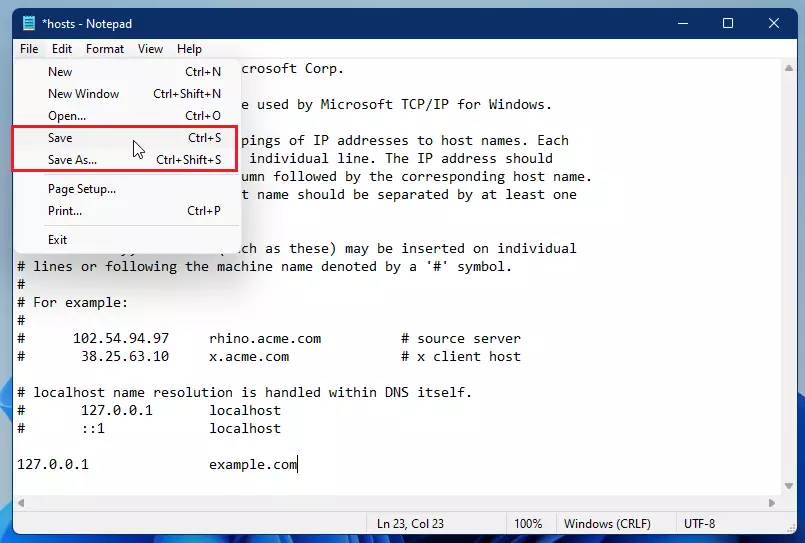
Your changes will take effect immediately — no restart needed!
Tips and Things to Remember
- Always run Notepad as administrator to make sure you can save the changes.
- Make a backup: Before you edit, copy the original Hosts file somewhere safe. This way, you can restore it if something goes wrong.
- Use # for comments: If you want to disable a line without deleting it, just put a
#at the start of that line. - Changes are instant: After saving, your computer immediately uses the new settings.
Summary
- The Hosts file lets you control how your computer finds websites.
- You can block websites or test your own sites locally.
- You must run Notepad as an administrator to edit and save the file.
- Always save a backup before making changes.
If you want to learn more about the Hosts file, here is a helpful Microsoft support page: Microsoft: Hostname Resolution
Was this guide helpful?

About the Author
Richard
Tech Writer, IT Professional
Richard, a writer for Geek Rewind, is a tech enthusiast who loves breaking down complex IT topics into simple, easy-to-understand ideas. With years of hands-on experience in system administration and enterprise IT operations, he’s developed a knack for offering practical tips and solutions. Richard aims to make technology more accessible and actionable. He's deeply committed to the Geek Rewind community, always ready to answer questions and engage in discussions.




No comments yet — be the first to share your thoughts!