
This guide will show you simple steps to download and use themes on your Windows 11 computer.
What is a Theme?
A theme changes how your desktop looks. It updates your wallpaper (the background picture), colors, sounds, and even how your mouse pointer appears. Windows 11 comes with built-in themes, but you can download many more from the Microsoft Store.
How to Change Themes on Windows 11
Follow these simple steps to pick a new theme:
- Open Settings: Click the Start button (the Windows icon in the bottom-left corner), then click Settings. Or press Windows key + I on your keyboard to open Settings quickly.
- In the Settings window, click Personalization on the left side menu.
- Next, click Themes on the right side.
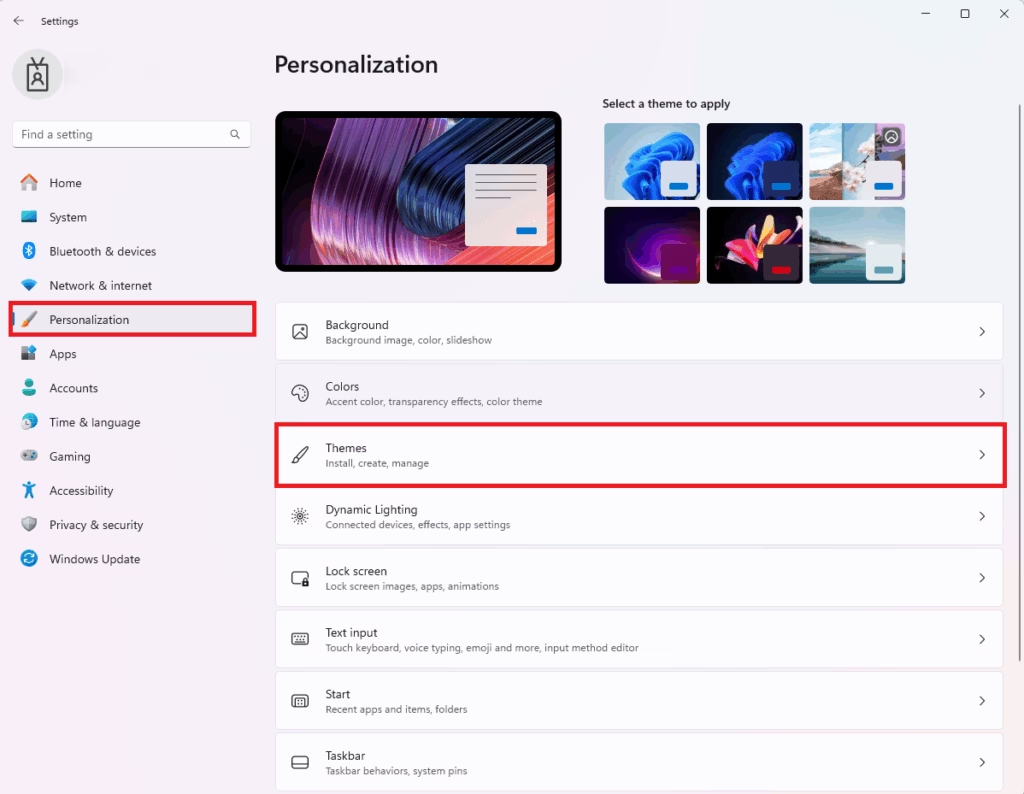
Here, you will see some default themes made by Windows. Just click on any of them to try it out!
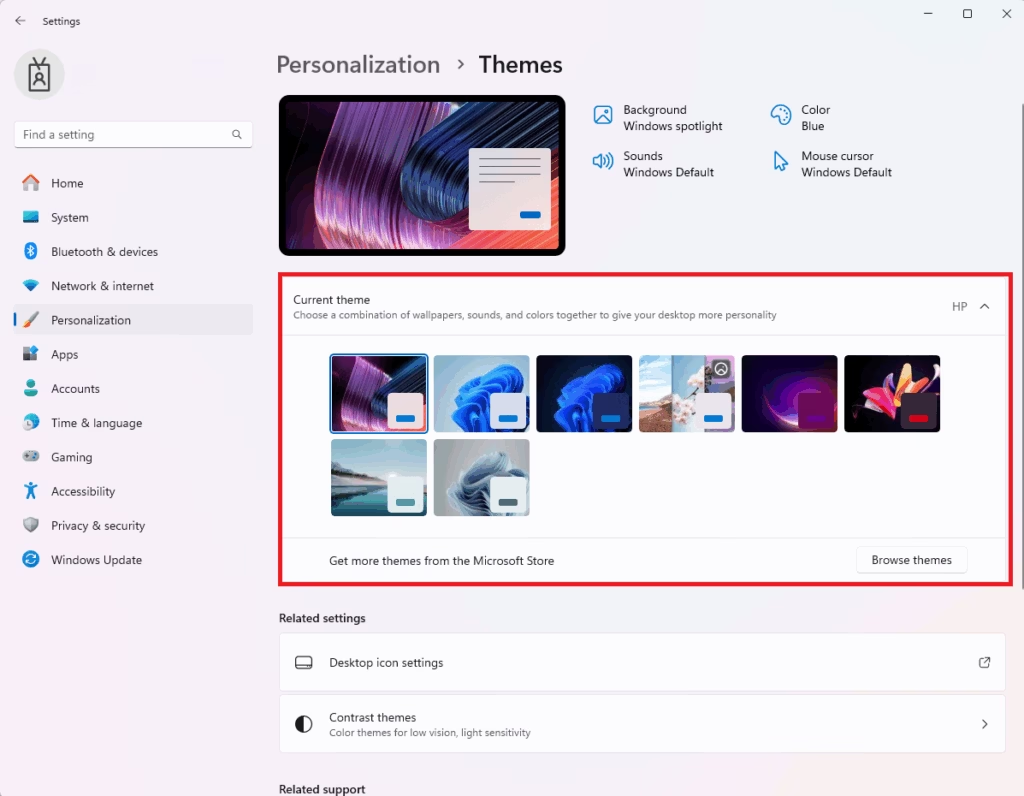
How to Download New Themes from Microsoft Store
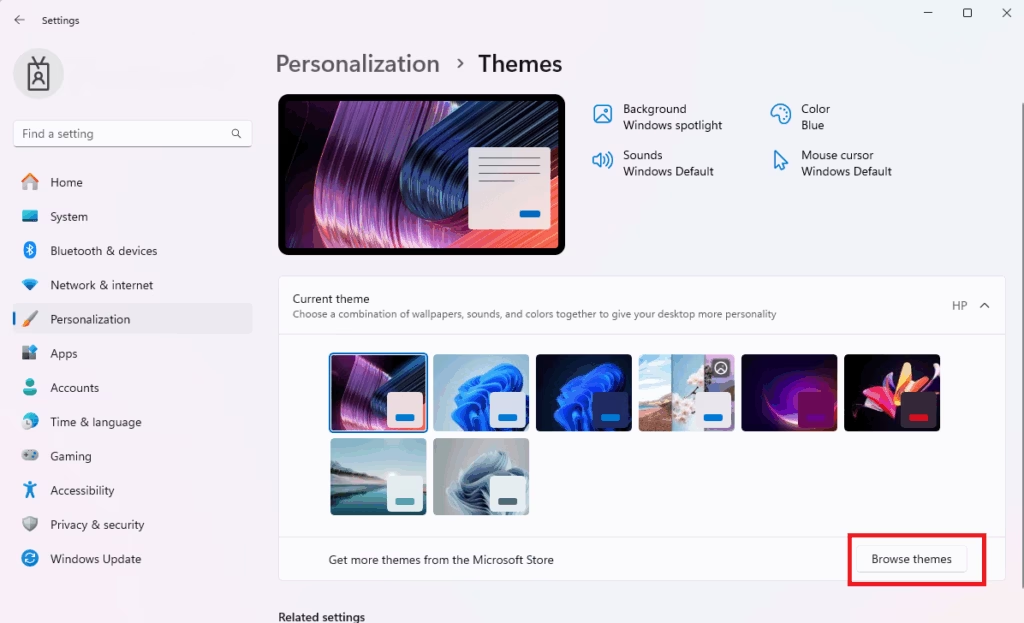
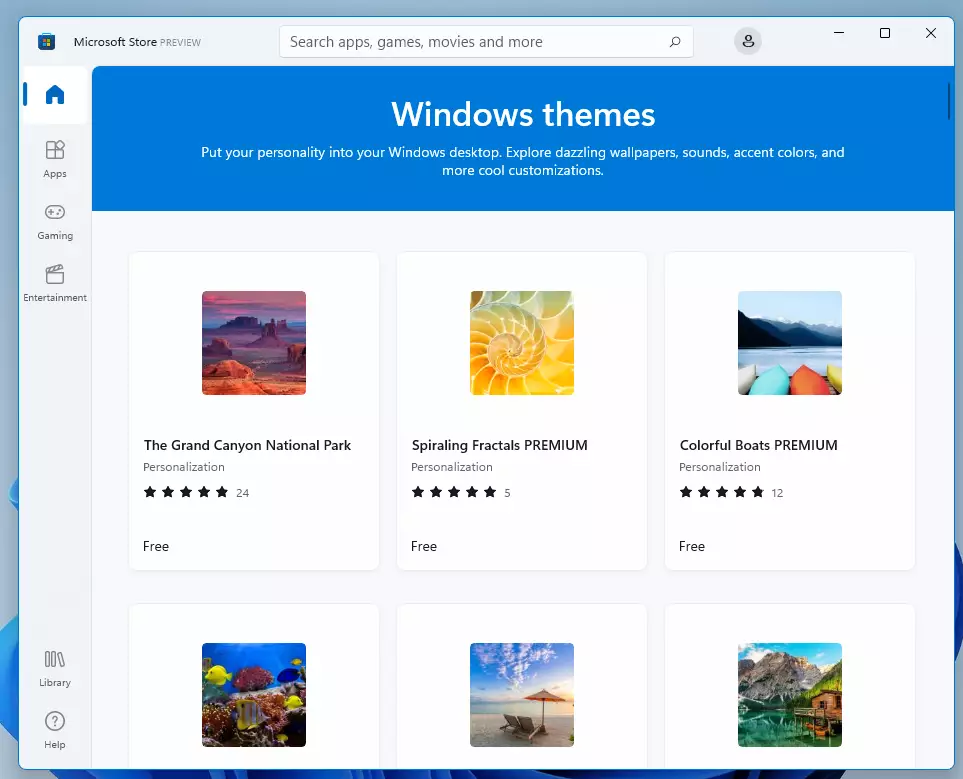
You can find many more themes online through the Microsoft Store. Some are free, and some you pay for. Here’s how to get them:
- In the Themes settings (from the steps above), click the Browse themes button. This will open the Microsoft Store and show you many themes you can download.
- Look through the themes. When you find one you like, click it.
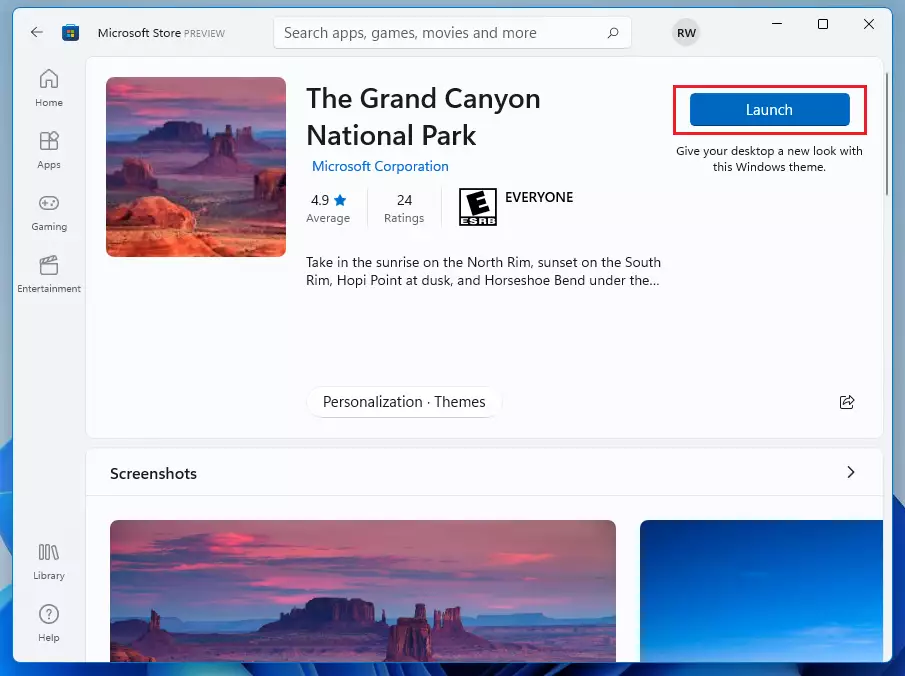
- Click the Get or Download button to add the theme to your computer. Note: You need to be signed in with a Microsoft account to download themes. If you don’t have one, you can create one for free here.
- After the download finishes, click Launch to open the theme in Settings.
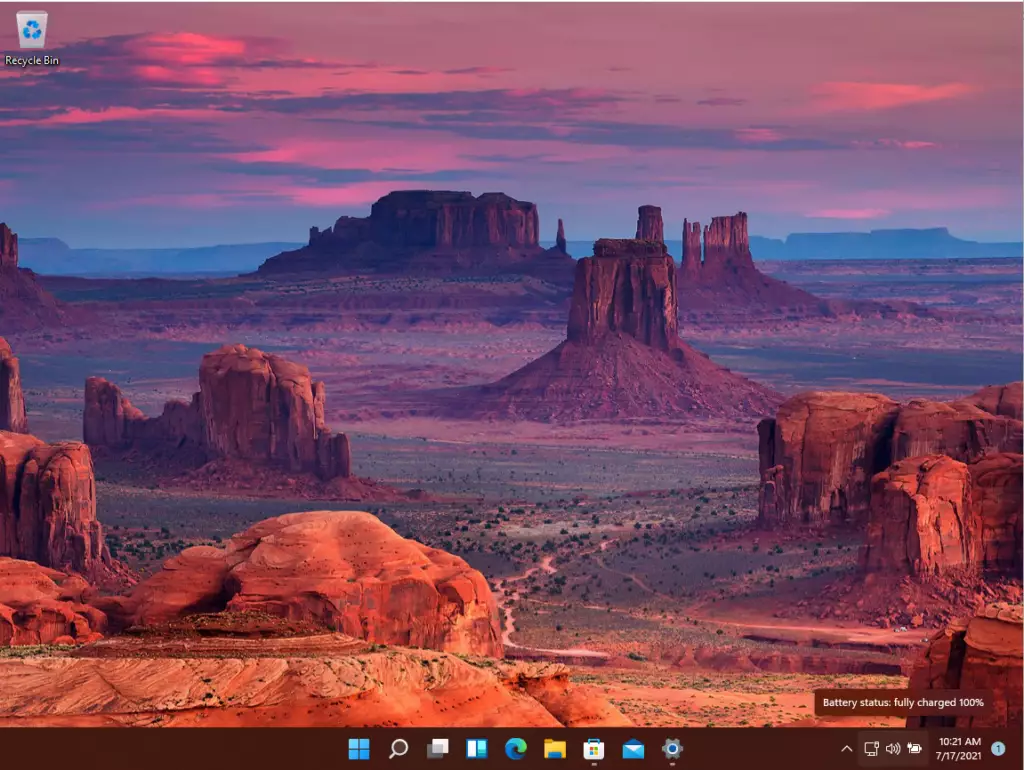
- Click on the new theme to apply it to your desktop.
Extra Tip: Customize Parts of Your Theme
If you don’t want to change everything, you can just change your wallpaper, colors, or sounds separately.
In the Personalization settings, try these options:
- Background: Change only your wallpaper.
- Colors: Pick your favorite color for buttons and menus.
- Sounds: Change system sounds like notifications.
- Mouse Cursor: Change how your mouse pointer looks.
Summary
- Windows 11 lets you change how your desktop looks by using themes.
- You can use the built-in themes or download new ones from the Microsoft Store.
- Downloading themes is easy and helps make your computer feel like your own.
- There are many themes to choose from, so find one that fits your style.
- You can also customize individual parts like background and colors if you prefer.
- Enjoy making your Windows 11 computer look just the way you want!



Leave a Reply Cancel reply