
Do you want to control which apps can talk to devices that aren’t paired with your Windows 11 PC? This guide will show you how. You can turn this feature on or off to protect your privacy and control what your apps can do.
Why This Matters
Windows 11 lets you decide if apps can communicate with unpaired devices. Unpaired devices are gadgets that your PC hasn’t officially connected to yet. This might include gaming consoles, smart devices, or other electronics nearby.
What Happens When You Change This Setting?
When you turn this setting On, apps can send and receive information with unpaired devices near your PC. When you turn it Off, apps cannot communicate with devices that aren’t paired to your computer. This gives you more privacy and control.
How to Control This Using Windows Settings (Easiest Method)
- Press
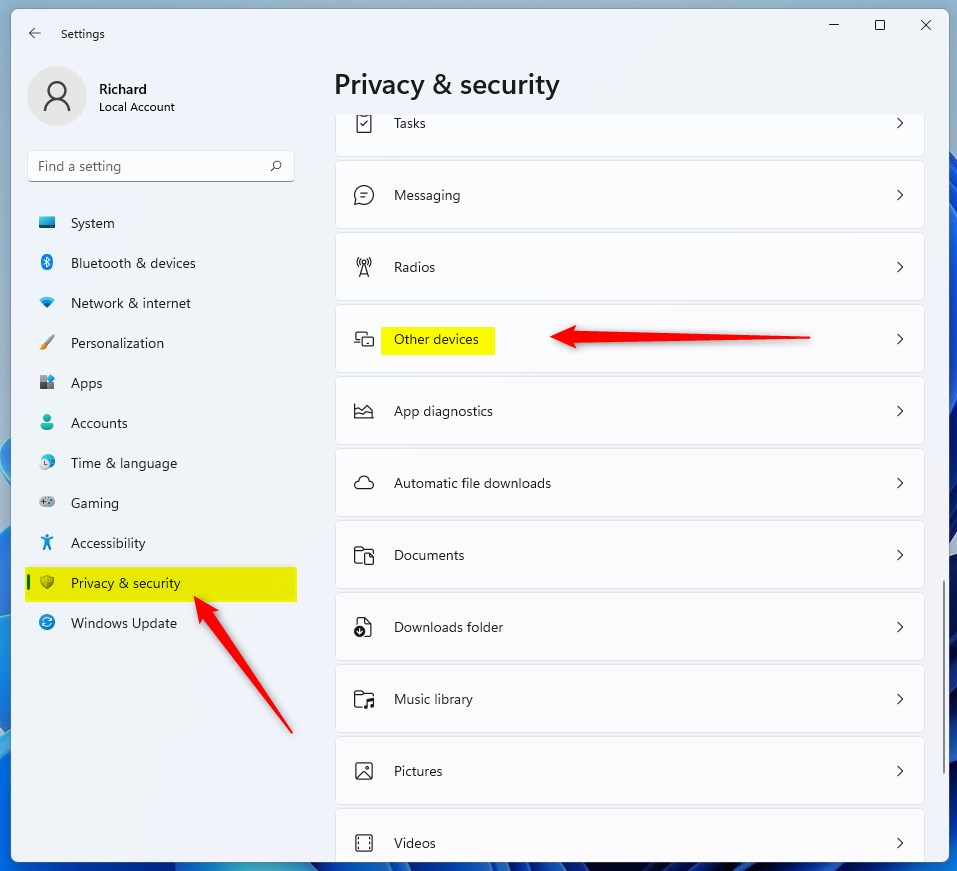
Windows key + Ion your keyboard to open Settings. Or click the Start button and select Settings. - Click Privacy & security from the menu on the left side.
- Scroll down on the right side. Then click Other devices.
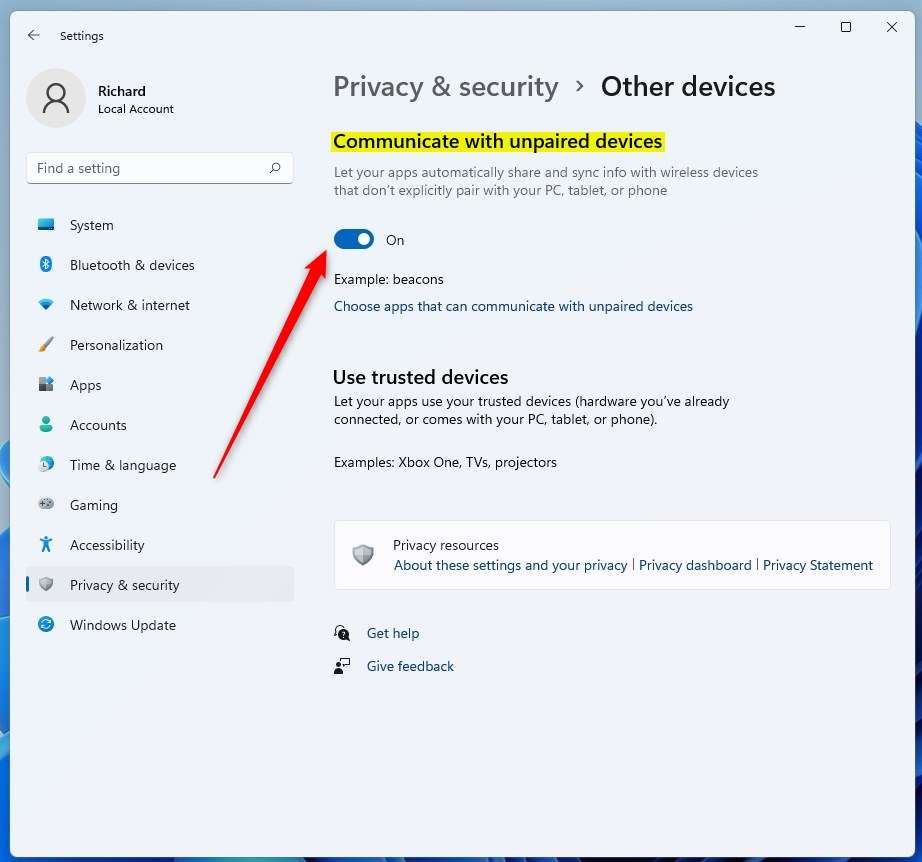
- Look for the option called Communicate with unpaired devices.
- Toggle the switch to On to let apps communicate with unpaired devices. Toggle it to Off to block this.
How to Control This Using Local Group Policy Editor (Advanced Users)
Note: This method only works on Windows 11 Pro or higher.
- Click the Start button. Type
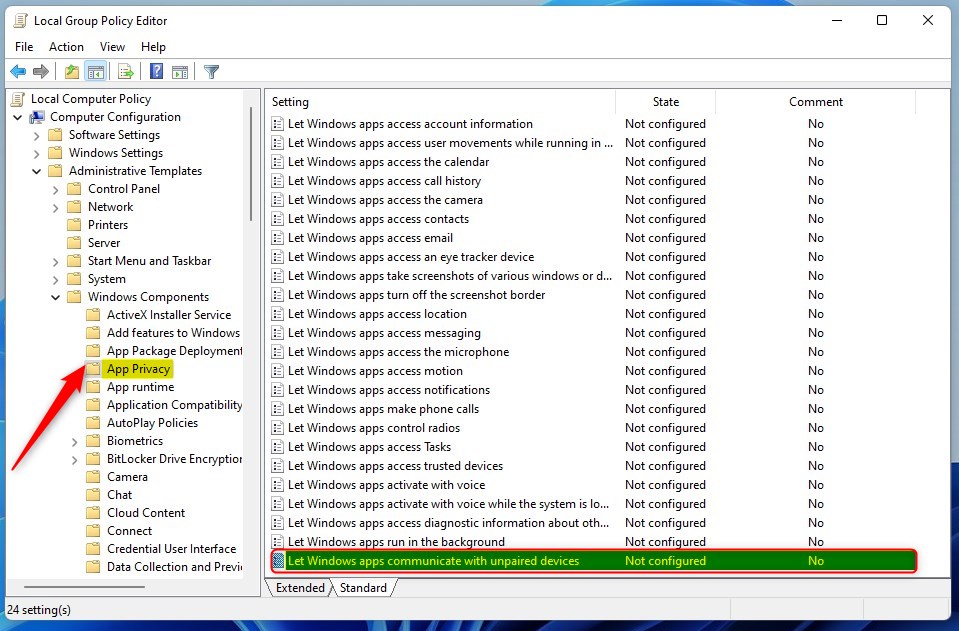
Edit group policyand press Enter. - In the Local Group Policy Editor window, follow this path on the left side:
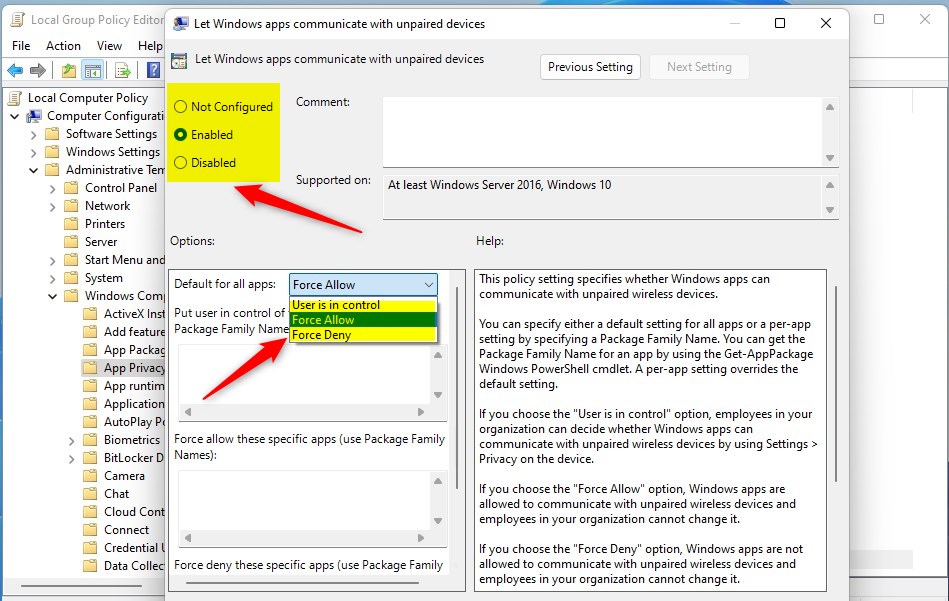
Computer Configuration > Administrative Templates > Windows Components > App Privacy - On the right side, find and double-click Let Windows apps communicate with unpaired devices.
- Choose one of these options:
- Not Configured – This is the default setting.
- Enabled – Allows apps to communicate with unpaired devices.
- Disabled – Blocks apps from communicating with unpaired devices.
- If you select Enabled, go to the “Options” section. Choose Force Allow to let all apps communicate with unpaired devices. If you select Disabled, choose Force Deny to block all apps.
- Click OK to save your changes.
- Close the Local Group Policy Editor.

Summary
You can control whether apps on your Windows 11 PC can talk to devices that are not paired with your computer. This helps protect your privacy and stops unwanted connections with nearby devices. Use the Settings app for an easy approach. Use the Group Policy Editor if you want more detailed control and have Windows 11 Pro or higher. Turning this setting off means apps cannot share data with unpaired devices, giving you more control over your system. To learn more about Windows 11 settings, check out this guide on how to open the Registry in Windows 11.



Leave a Reply Cancel reply