Connecting to Hidden WiFi on Ubuntu

You connect to a hidden WiFi network on Ubuntu by manually entering the network’s name (SSID) and security details.
Hidden WiFi networks do not broadcast their SSID, meaning they won’t appear in your Ubuntu system’s list of available networks. This often leads users to search for methods to connect without the network name being visible by default.
To connect, you’ll typically need to know the exact SSID and the WiFi password for the hidden network. This process is straightforward in Ubuntu’s network settings.
How to connect to hidden WiFi networks with Ubuntu Linux
These steps apply to the default GNOME desktop environment found in standard Ubuntu. If you are using Ubuntu flavors like Kubuntu or Xubuntu, the menu paths or settings windows may look different.
You must know your exact WiFi name and password. To start, open the Settings app from your desktop menu.

Alternatively, click the System menu at the top-right of your screen and select Settings.

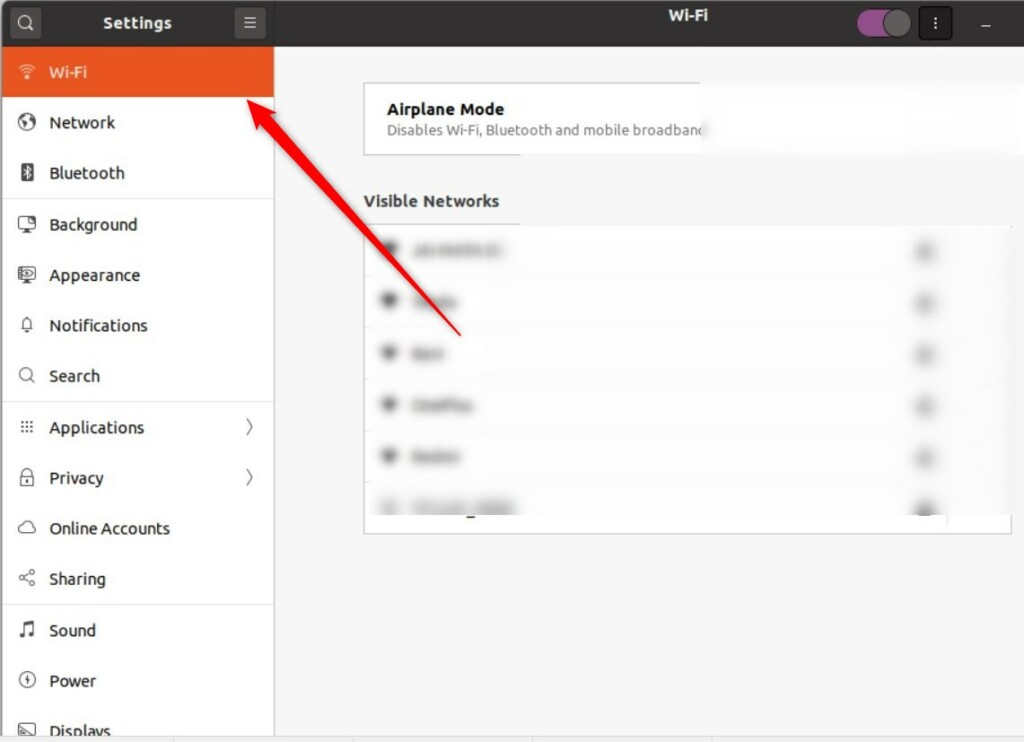
Click the WiFi tab on the left side of the window.
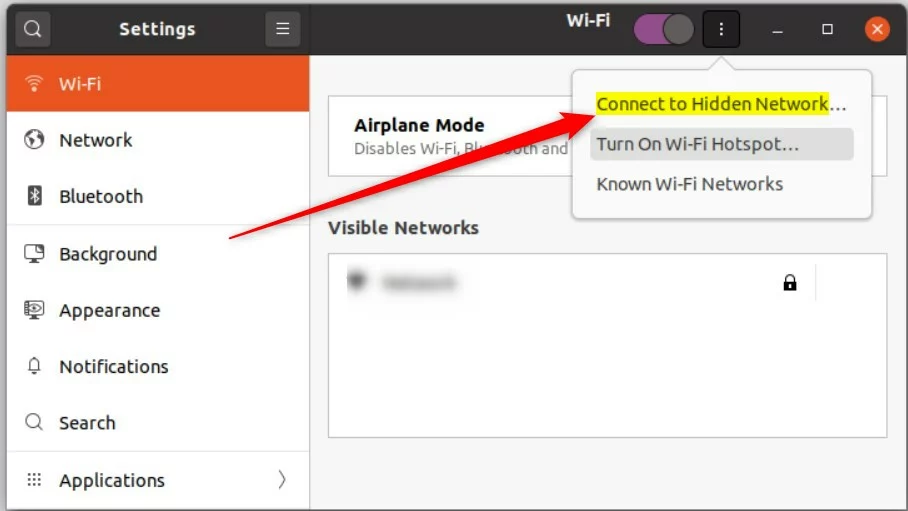
Click the three-dot menu icon and select Connect to Hidden Network…
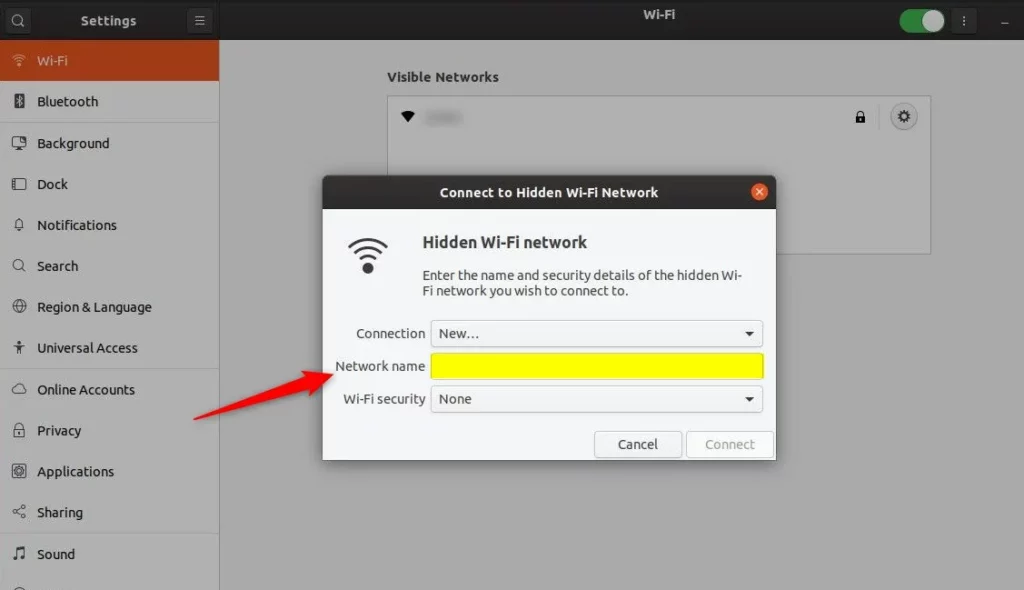
Type the hidden WiFi SSID
Enter the network details into the boxes provided:
- Network name: Type the hidden SSID here. It must be exact.
- Security type: Select your security protocol. Use WPA3-Personal if your router supports it, as it is the modern standard.
- Password: Enter your security key.
Click the Connect button when finished.
If the information is correct, your computer will join the network.
Using the Command Line
If you prefer the terminal or need to troubleshoot, you can use a command. Open your terminal and type: nmcli dev wifi connect <SSID> --hidden. Replace <SSID> with your network name. This is a quick alternative for advanced users.
Conclusion
Connecting to a hidden network is easy once you have the right details. Remember that hiding your network is not a substitute for strong security. Always use %📂%LNK0%% WPA3 encryption to keep your data safe. Using the %📂%LNK1%% Settings panel makes managing these connections simple for every Ubuntu user.
Was this guide helpful?

About the Author
Richard
Tech Writer, IT Professional
Richard, a writer for Geek Rewind, is a tech enthusiast who loves breaking down complex IT topics into simple, easy-to-understand ideas. With years of hands-on experience in system administration and enterprise IT operations, he’s developed a knack for offering practical tips and solutions. Richard aims to make technology more accessible and actionable. He's deeply committed to the Geek Rewind community, always ready to answer questions and engage in discussions.




No comments yet — be the first to share your thoughts!