Auto-Start Applications on Ubuntu Login

You can set applications to automatically launch when you log into your Ubuntu desktop.
This feature lets you pre-load your essential programs as soon as your desktop appears, saving you the clicks to open them manually. You can control which applications start, choosing from system defaults or adding your own custom software.
For instance, you might want your preferred music player or a critical development tool to open automatically every time you power on your PC, ensuring your workflow starts instantly. This is particularly useful for frequently used applications like Spotify or your IDE.
Open Startup Applications from the Activities overview or by running `gnome-session-properties`. Click Add, then enter the application’s name and command to have it launch automatically on login.
How to get applications to startup at login in Ubuntu Linux
As described above, like Windows and other modern operating systems, you can configure applications to start up every time a user logs into their desktop in Ubuntu Linux.
Here’s how you can set up applications to start automatically when you log into Ubuntu Linux.
Ubuntu has a tool called Startup Applications that handles this. You use this tool to configure apps to auto-start.
To open Startup Applications, click the Activities overview dashboard and search for Startup Applications.
Alternatively, you can press Alt+F2 and type `gnome-session-properties`.
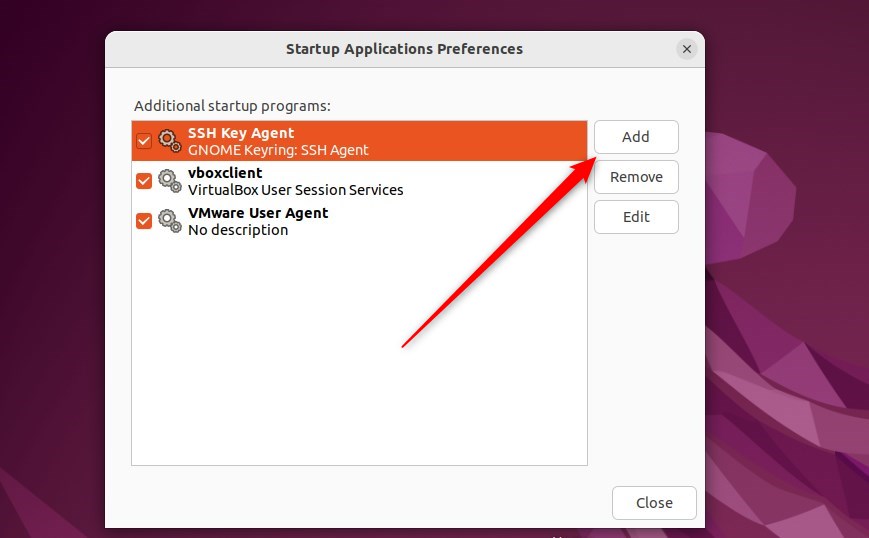
Once Startup Applications opens, click Add. Then, enter the command that runs when you log in (you can skip the Name and Comment fields if you like).
For example, to make Firefox start automatically, type Firefox in the Command field and confirm with Add.
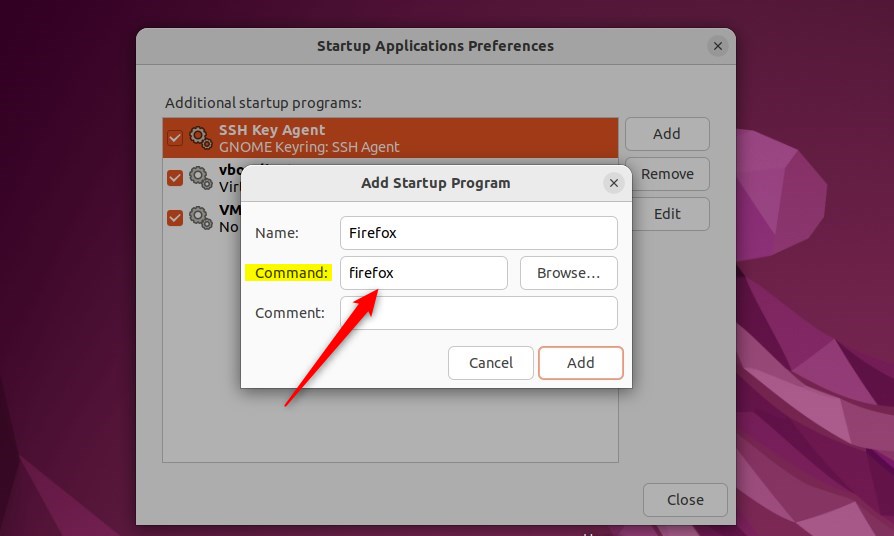
You can type the command, click the Browse… button, and select a command.
You’ll usually find the commands for applications you want to auto-start in the /usr/bin folder. If you don’t know the command for the application you want to automatically startup, use the Browse… button and go to the /usr/bin directory.
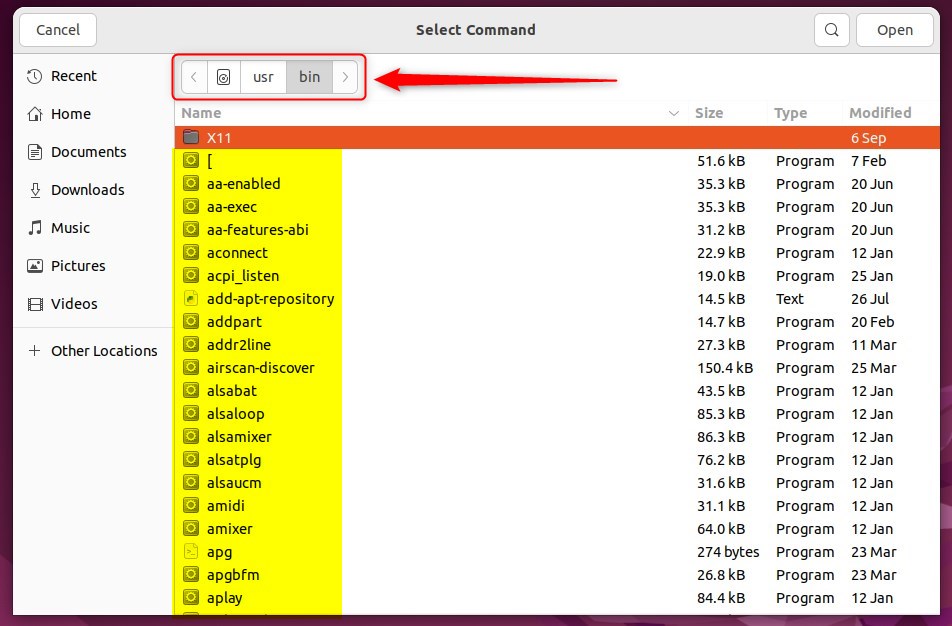
Choose the application you wish to run from the list and click Add to include it.
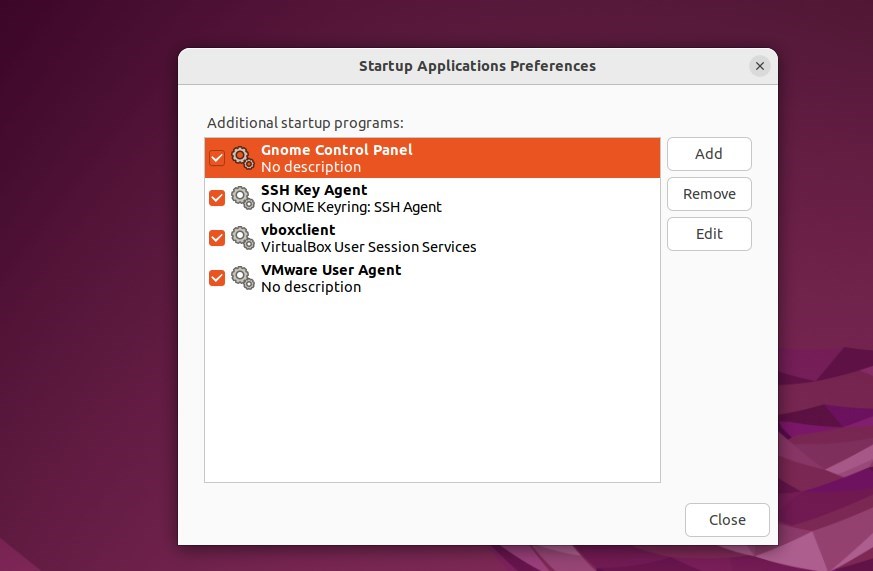
The application will automatically start the next time you boot up and log in.
That should do it!
Conclusion:
- Configuring startup applications in Ubuntu Linux is a straightforward process that enhances user experience.
- The Startup Applications tool simplifies the setup by allowing users to automatically add application commands to start at login.
- Users can also browse the /usr/bin directory to find the commands for applications they wish to set for auto-start.
- This customization ensures that preferred applications are readily available upon logging in, streamlining workflow and saving time.
Was this guide helpful?

About the Author
Richard
Tech Writer, IT Professional
Richard, a writer for Geek Rewind, is a tech enthusiast who loves breaking down complex IT topics into simple, easy-to-understand ideas. With years of hands-on experience in system administration and enterprise IT operations, he’s developed a knack for offering practical tips and solutions. Richard aims to make technology more accessible and actionable. He's deeply committed to the Geek Rewind community, always ready to answer questions and engage in discussions.


No comments yet — be the first to share your thoughts!