
Windows 11 lets you sign in quickly and safely using Windows Hello. This means you can use your face, a PIN, or your fingerprint instead of a password.
If your computer has more than one camera (like a front and back camera), you can pick which camera Windows Hello uses to recognize your face. Here’s a simple guide to help you choose your default Windows Hello camera.
What is Windows Hello?
Windows Hello is a way to log into your computer without typing a password. You can use:
- A PIN number
- Facial recognition (your face)
- Fingerprint scanner
Using Windows Hello makes signing in faster and more secure.
How to Pick Your Default Camera for Windows Hello Face Login
If your PC has more than one camera, you can choose which camera Windows Hello uses to recognize your face. Follow these easy steps:
- Open the Settings app:
– Click the Start menu button and choose Settings, or
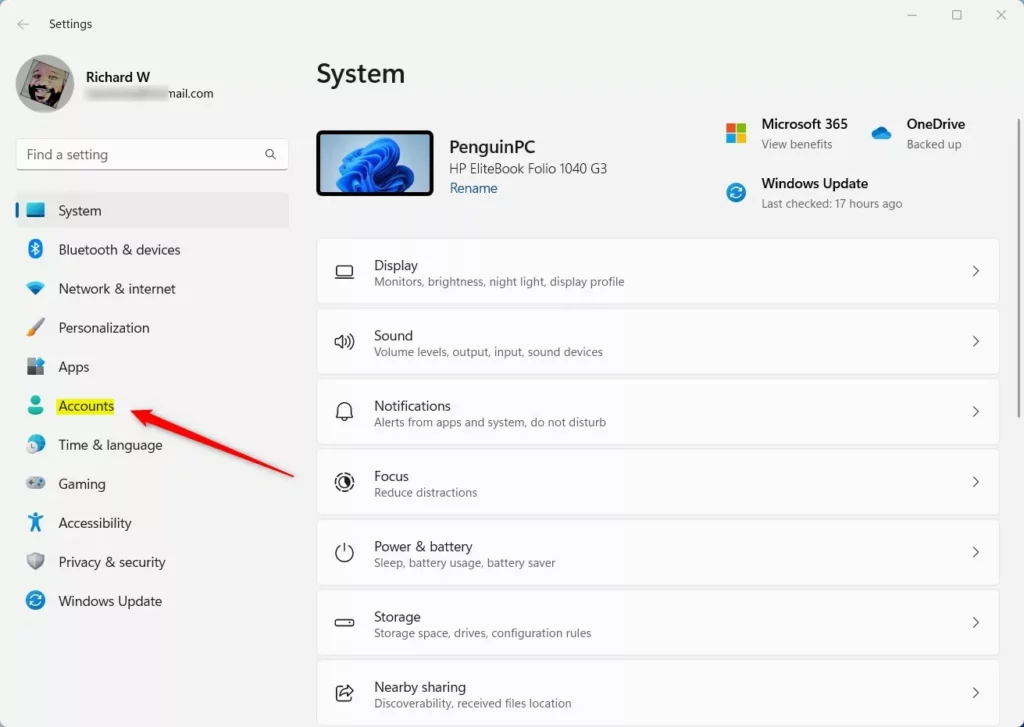
– Press Windows key + I on your keyboard. - Go to Accounts:
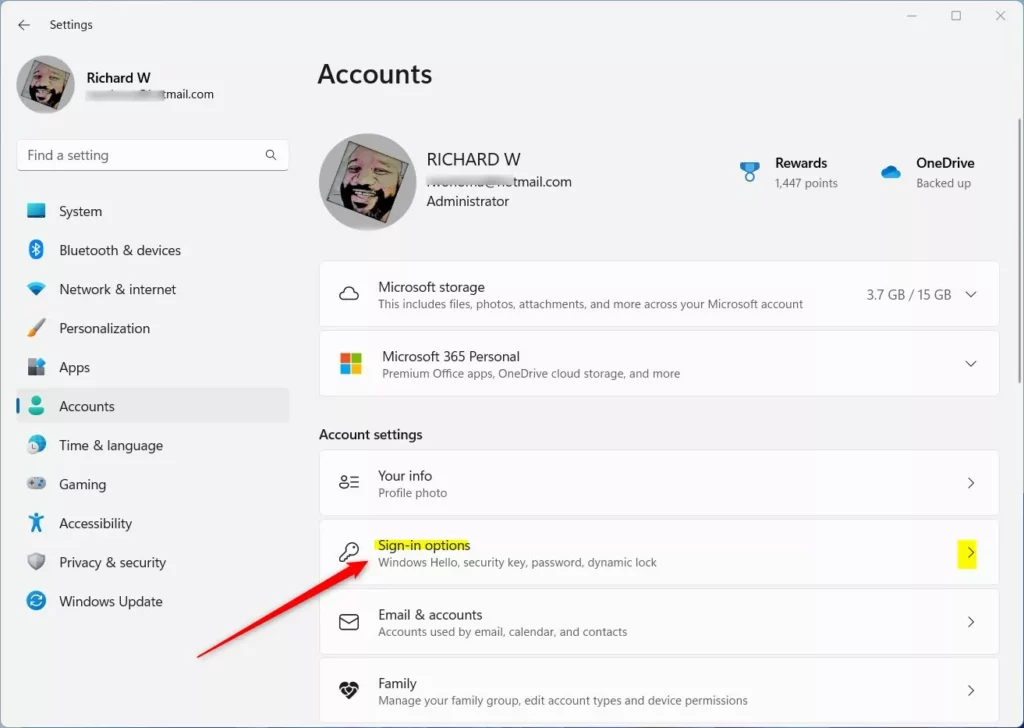
In the Settings window, click Accounts on the left side. - Find Sign-in options:
Click on Sign-in options on the right side. - Choose Facial recognition (Windows Hello):
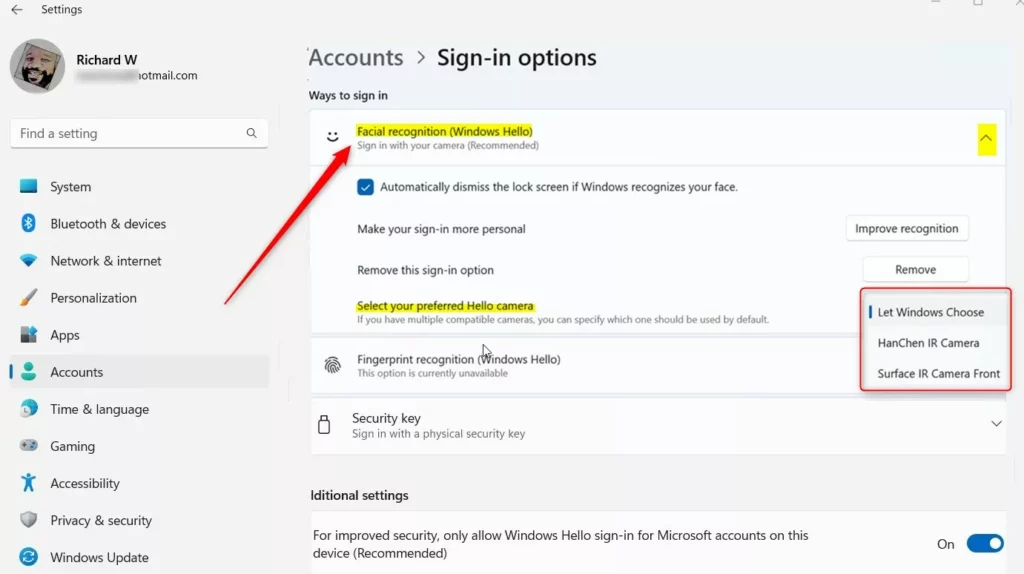
Scroll to Ways to sign in and click on Facial recognition (Windows Hello) to expand it. - Select your preferred camera:
Under the facial recognition options, you will see a dropdown to choose your default camera. Pick the camera you want Windows Hello to use. - Close Settings:
After selecting your camera, simply close the Settings app. Your choice is saved automatically.
Images to help you find the right settings:
Summary
- Windows Hello helps you sign into your PC securely and easily using your face, PIN, or fingerprint.
- If your PC has multiple cameras, you can now pick which camera Windows Hello uses for facial recognition.
- Just follow the steps above to choose your default Windows Hello camera and enjoy easier sign-ins!
If you want to learn more about setting up Windows Hello or other sign-in methods, check out these helpful guides:


Leave a Reply Cancel reply