If you want to know which version of Windows 11 is installed on your computer, this guide will show you simple steps to find out. Knowing your Windows version helps you install the right software and drivers so your PC works well.
Why Should You Check Your Windows Version?
- Different Windows versions may need different software or drivers.
- Helps you fix problems or update your PC properly.
- Knowing your Windows version is easy and useful, even if you just want general info.
Method 1: Use the Run Box to See Your Windows Version
Follow these quick steps:
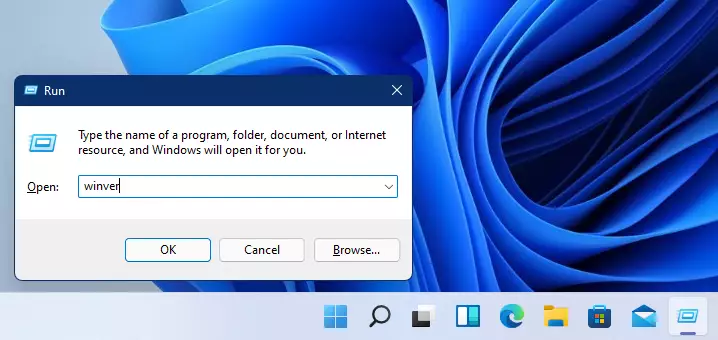
- Press the Windows key + R on your keyboard. This opens a small box called Run.
- Type
winverin the box and click OK or press Enter.
winver
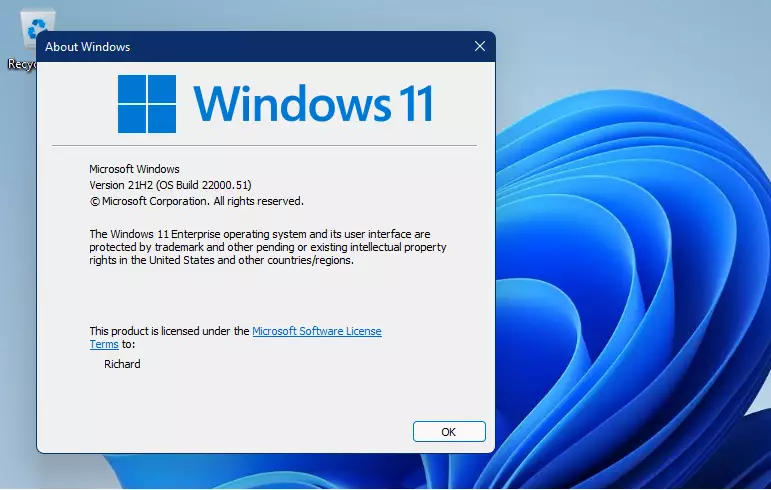
A small window will pop up showing the Windows version and build number. This is usually enough information for most needs.
Method 2: Find More Details in Windows Settings
For extra details about your Windows edition and system type, try this:
- Click the Start button (the Windows icon at the bottom-left).
- Select Settings (gear icon).
- In Settings, click System from the menu on the left.
- Scroll down and click About on the right side.
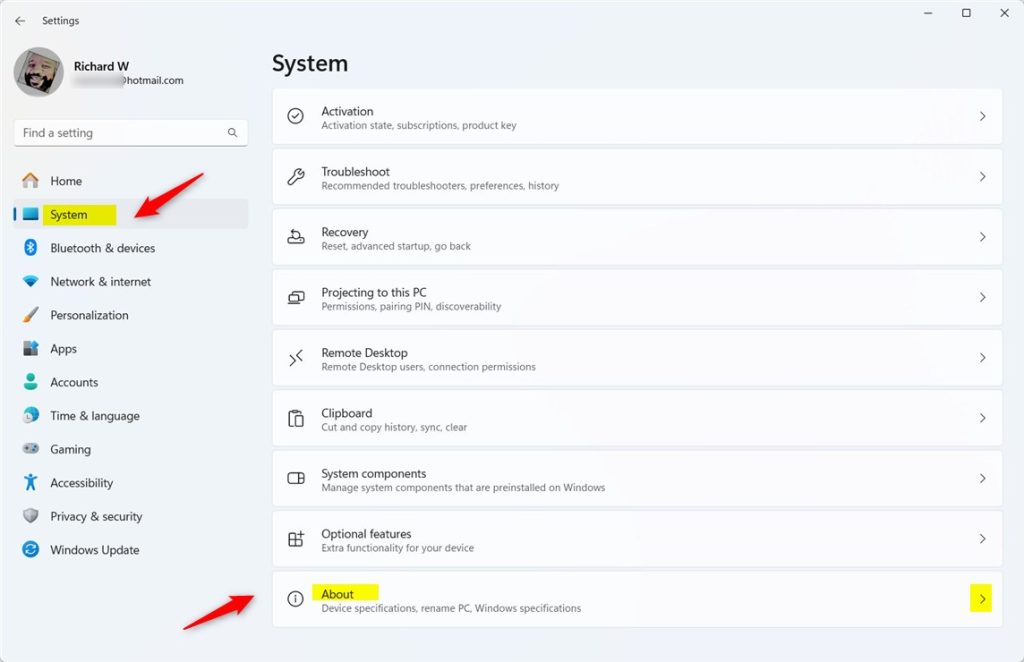
Here, you’ll see:
- Your device name and processor type
- How much RAM (memory) you have
- Under Windows specifications, your Windows edition (like Home, Pro, or Enterprise) and version number
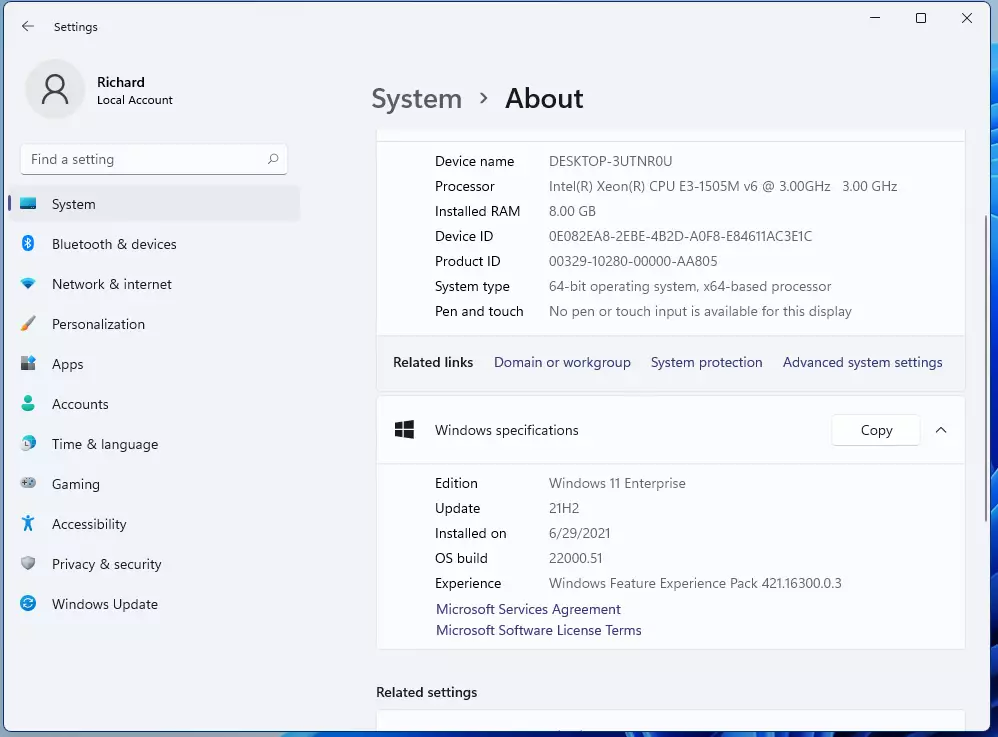
For example, the screenshot above shows Windows 11 Enterprise and that it’s a 64-bit system.
Method 3: Use System Information for Full Details
If you want even more info about your PC, you can use the System Information tool:
- Click the Search icon (magnifying glass) on the taskbar.
- Type System Information and click the app when it appears in the list.
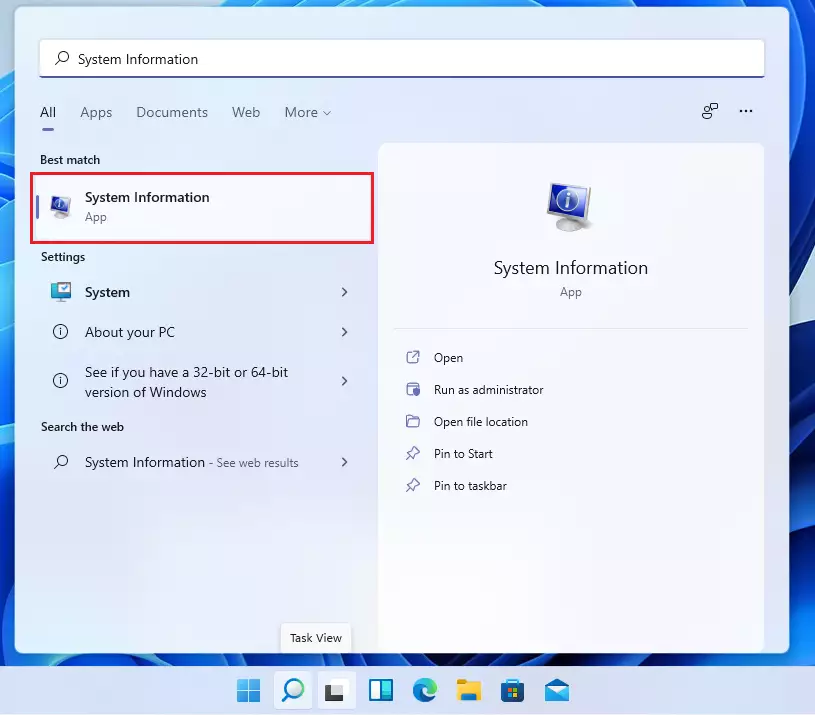
This window shows a detailed summary about your computer, including hardware and software info.
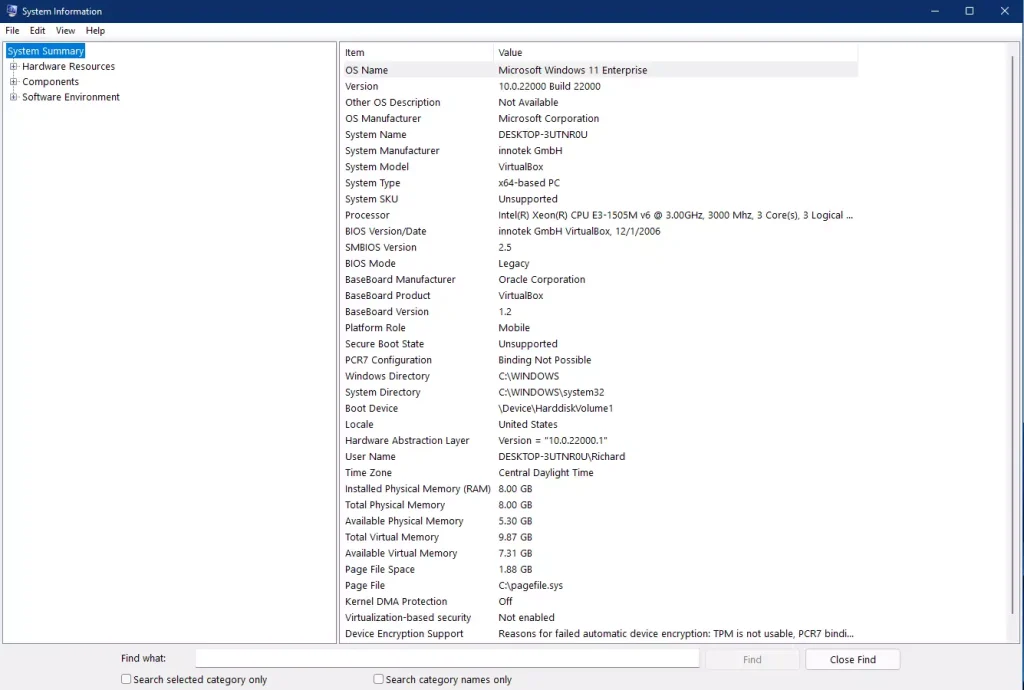
Summary
- Checking your Windows 11 version helps you find the right software and drivers.
- Press
Windows + Rand typewinverfor a quick version check. - Use Settings > System > About for more details about your PC and Windows version.
- For a full system report, open System Information via the search box.
- Having this info makes managing your PC easier and keeps it running smoothly.
If you want to learn more about Windows version checking from Microsoft, visit their official support page.

Leave a Reply Cancel reply